8.11.1 Overview
The user frame is used as a reference frame when defining the work object frame, and it cannot be used separately.
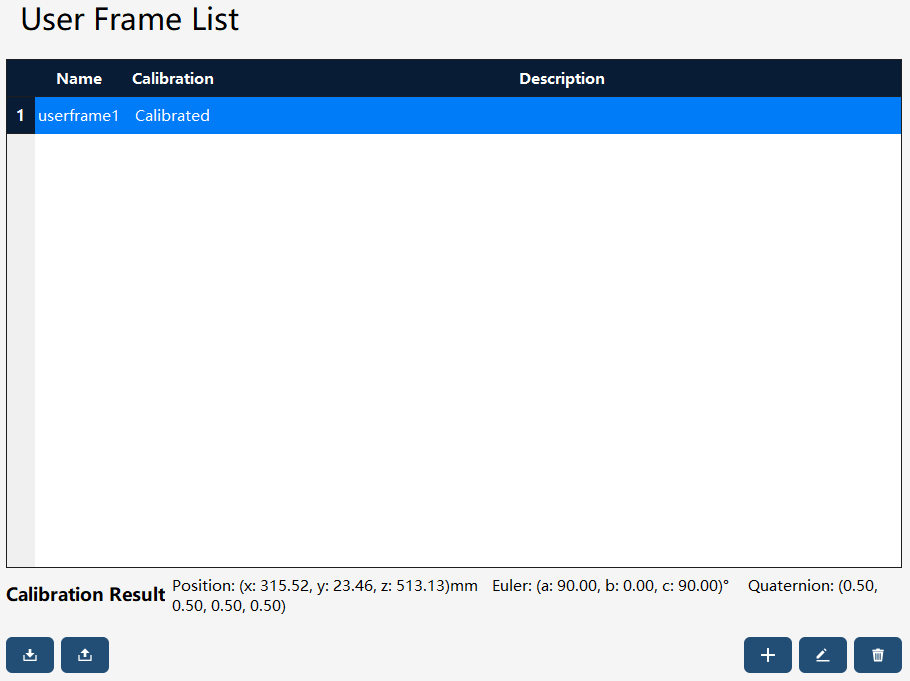
When establishing a user frame, you can choose "Calibration now", "Manual input" or "Do not calibrate".
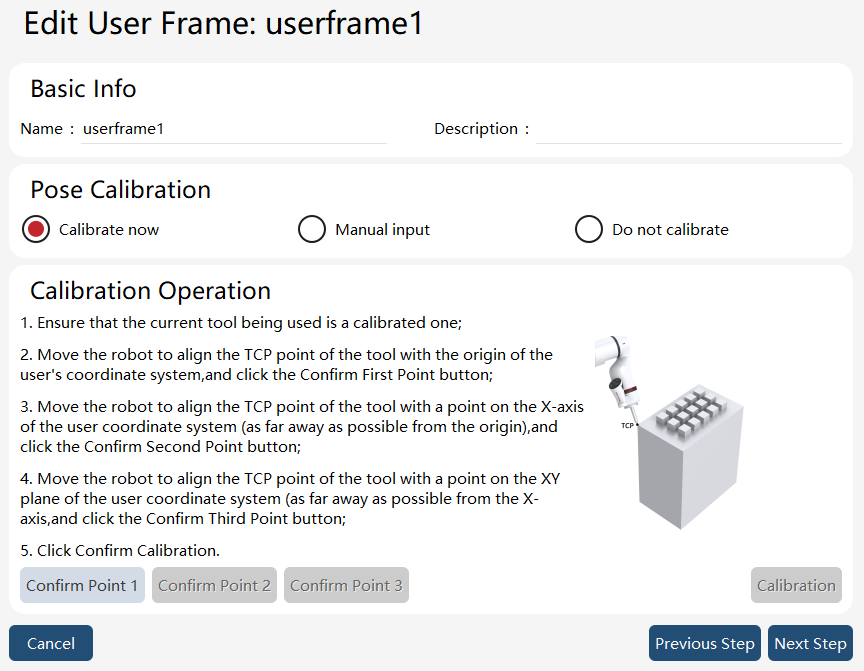
When "Calibration now" is selected, the 3-point method is used to calibrate. Before calibrating the user frame, the user needs to first calibrate a tool and then use the TCP of the tool to calibrate the user frame. For this, it is recommended to use a tool with tips.
"Manual input" is allowed if the user frame is known in advance. Another option is "Do not calibrate", in which case the user frame is considered as the world frame by default.
8.11.2 Operation examples
Operation |
Graphical Representation |
Explanation |
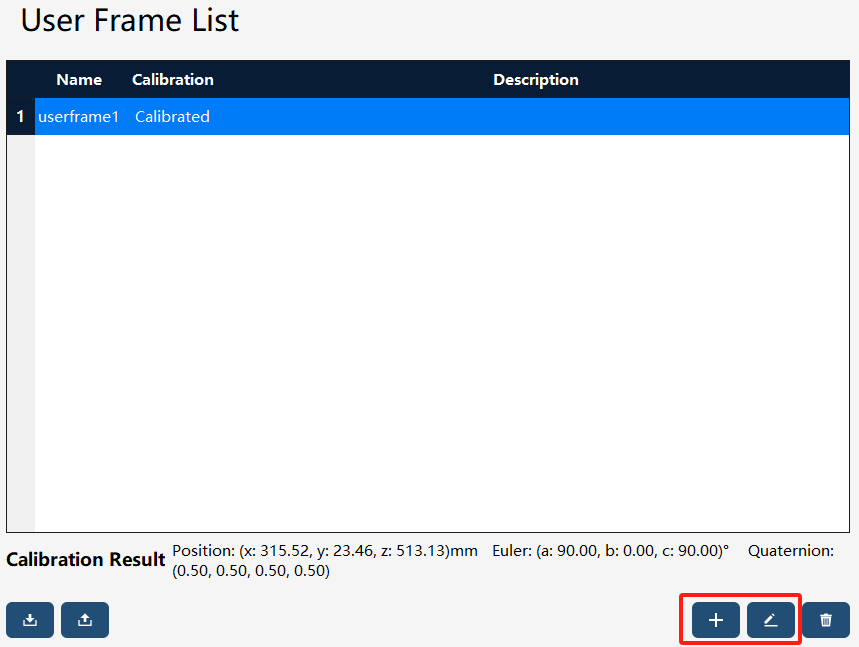
1. Click the "+" button in the lower right corner to create a new user frame. |
|
Users with the permission level of "Programmer" or above can perform creation and edit operations. |
2. Follow the steps shown in the figure to perform the calibration. |
|
Jog the robot to guide the calibrated tool TCP to sequentially point to the desired frame’s origin, a point on the x-axis, and a point on the xy-plane or on the y-axis. Click the "Confirm Point 1", "Confirm Point 2", and "Confirm Point 3" buttons accordingly. After successfully confirming all three points, click the "Calibration" button. |
8.11.3 User frame export/import
8.11.3.1 User frame export
On the user frame list page, click the button at the bottom left to enter the user frame export interface.
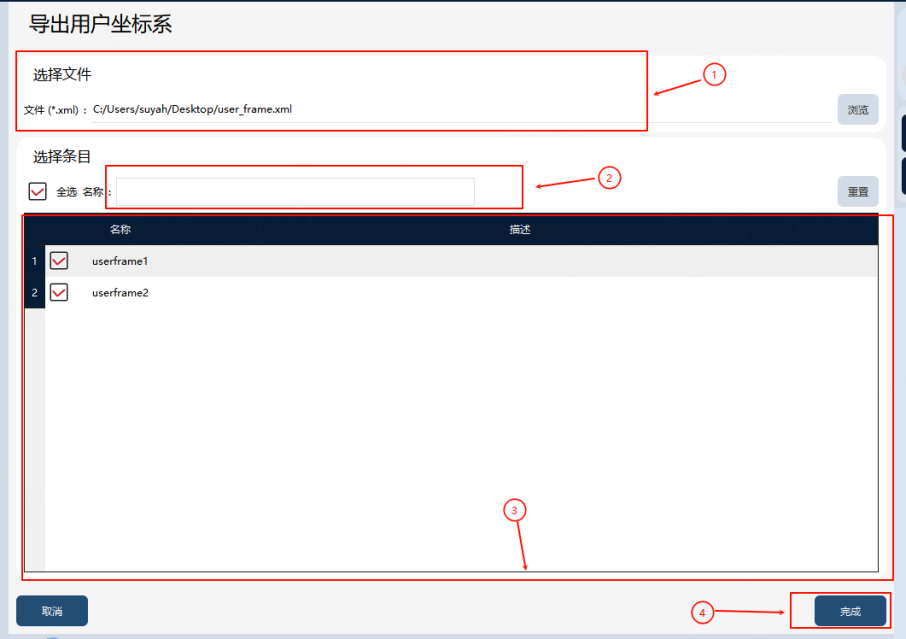
① |
User frame export target file (including path) |
② |
Filter box |
③ |
User frame list |
④ |
User frame export button |
Export steps: First, input or select the path for the user frame export target file in ①, and filter by name in ②, if necessary. Then, check the user frames to be exported in ③. Finally, click the button in ④ to execute the export, and the exported user frame file will be generated in the path specified in ①.
8.11.3.2 User frame import
On the user frame list page, click the button at the bottom left to enter the user frame import interface.
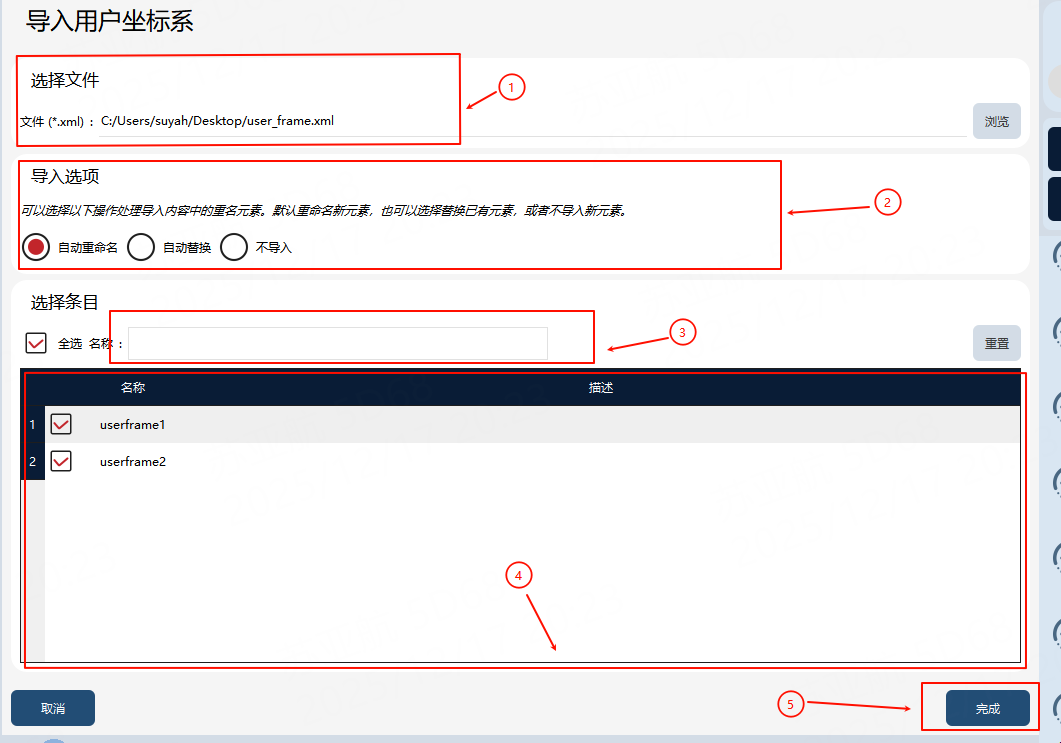
① |
User frame import file |
② |
User frame import option, which is the strategy for handling entry conflict |
③ |
Filter box |
④ |
User frame import entry |
⑤ |
User frame import button |
Import steps: First, select the user frame file to be imported in ①, and filter by name in ③, if necessary. Then, select the conflict handling strategy in ② and the user frames to be imported in ④. Finally, click the "Finish" button in ⑤ to execute the import, and the selected user frames will be imported locally.