8.14.1 Overview
The variable monitoring selection interface is used to add variables that need to be monitored.
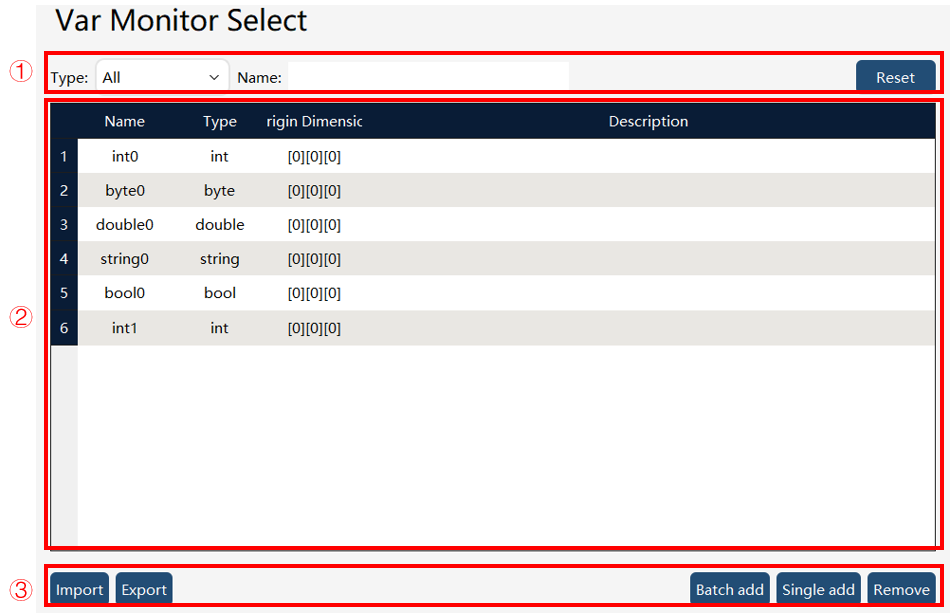
① |
Monitored variable filter: Filter to display only the monitored variables needed to be displayed in the list below. |
② |
Variable monitoring display: Show attributes of each variable, including name, type, original dimension, and description. |
③ |
Function button area: |


8.14.2 Operation examples
8.14.2.1 Batch add monitored variables
Operation |
Graphical Representation |
Explanation |
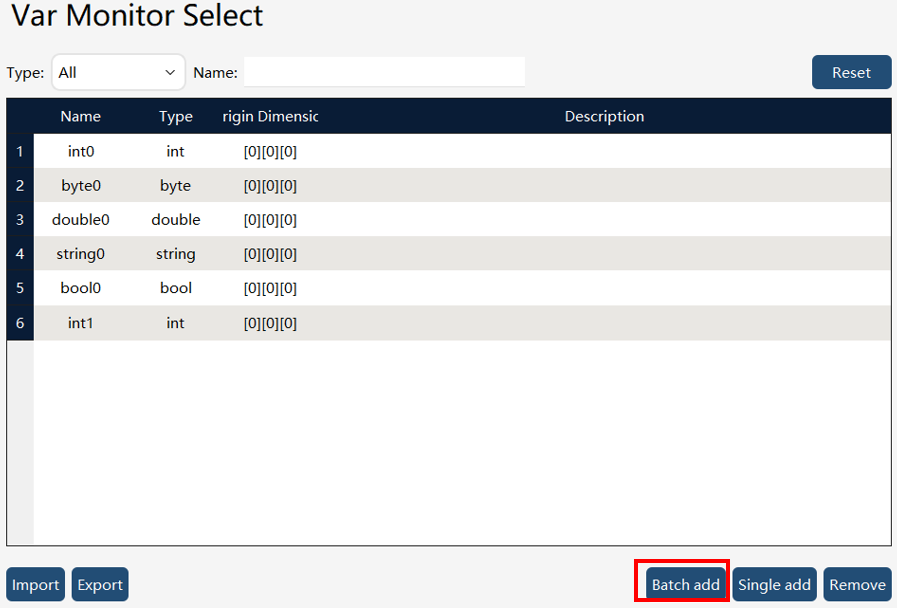
1. Click the "Batch Add" button |
|
|
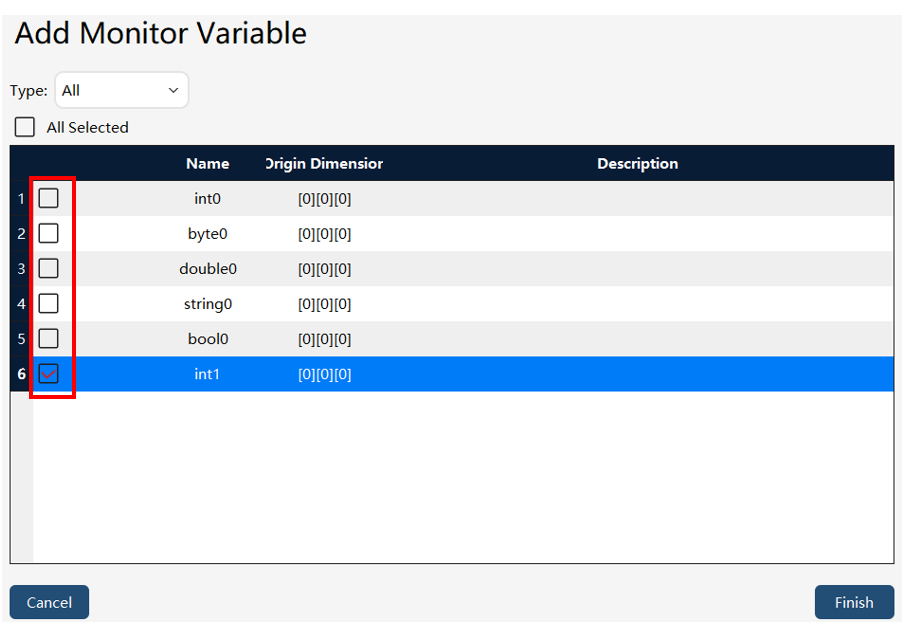
2. Select the variables you need to monitor, check the boxes within the red frame, and then click the "Complete" button. |
|
Note: When the monitored variable is an array, all elements within the array will be monitored after batch addition. |
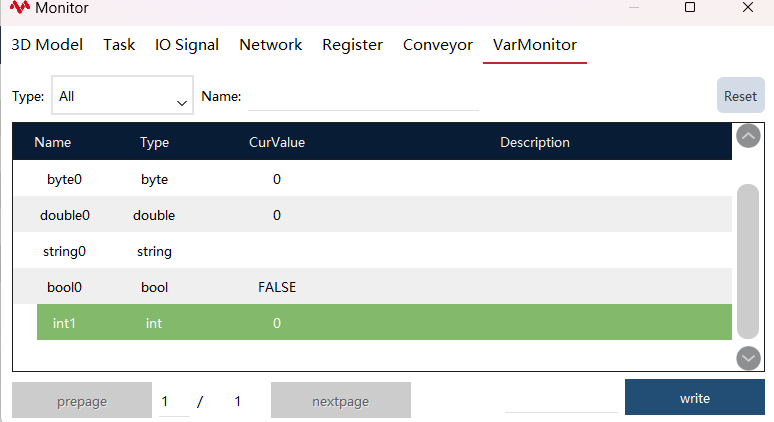
3. Open the Variable Monitoring in Status Monitoring to view the monitoring status. |
|
8.14.2.2 Single add monitored variable
Operation |
Graphical Representation |
Explanation |
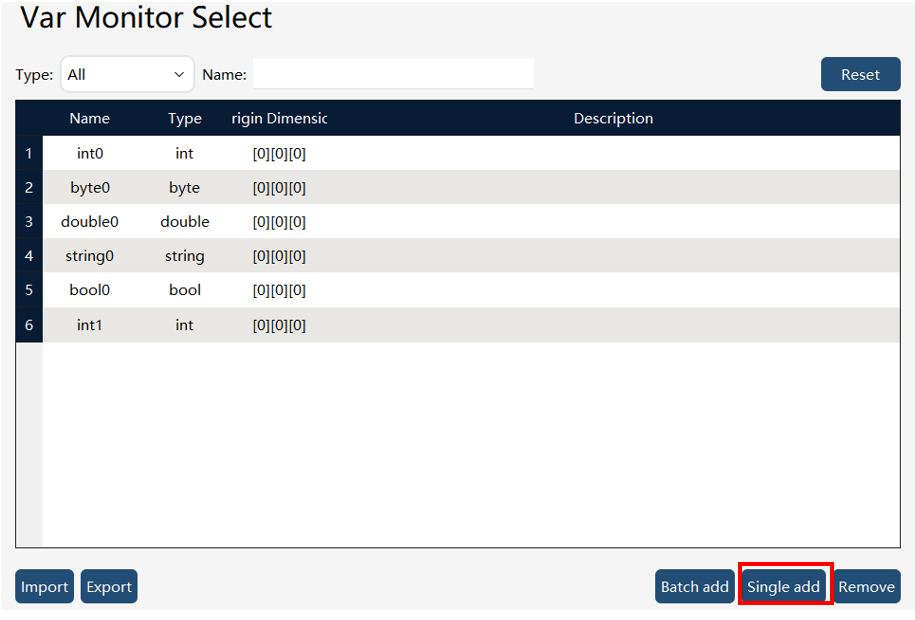
1. Click the "Single Add" button |
|
|
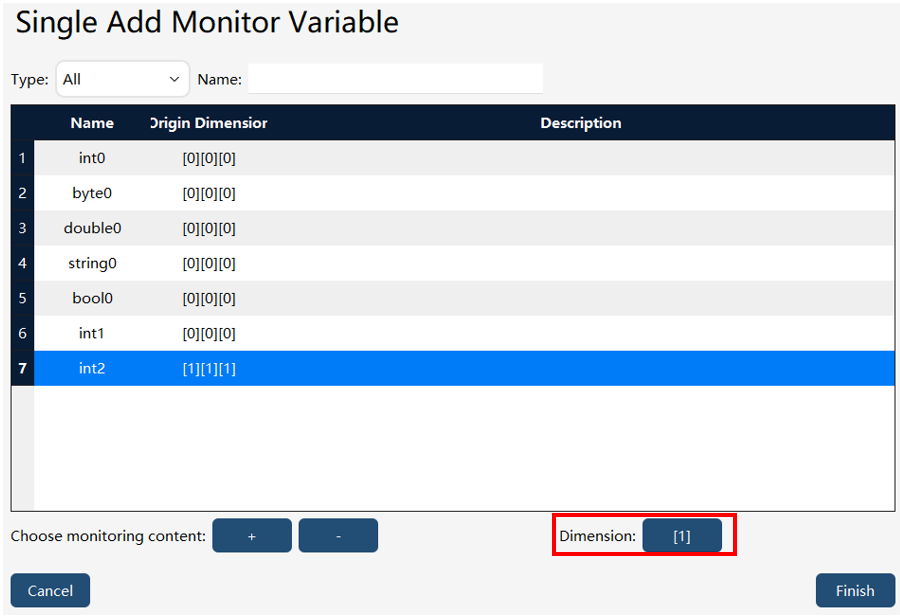
2. Select the variables you need to monitor, click "Complete, " and if the selected variable is an array, you can choose dimensions to monitor specific elements within the array. |
|
Note that dimension selection is only available when the variable is an array. |
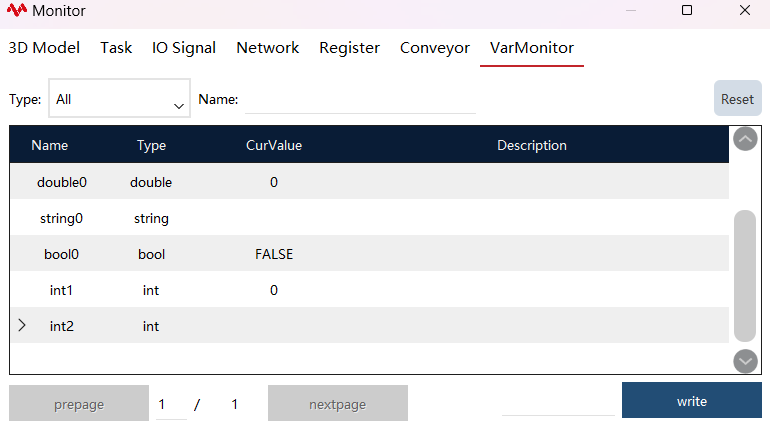
3. Open the Variable Monitoring in Status Monitoring to view the monitoring status. |
|
8.14.3 Monitored variables export/import
8.14.3.1 Monitored variables export
On the monitored variable list page, click theimage::en/image269.png[width=700,align=center] button at the bottom left to enter the monitored variable export interface.
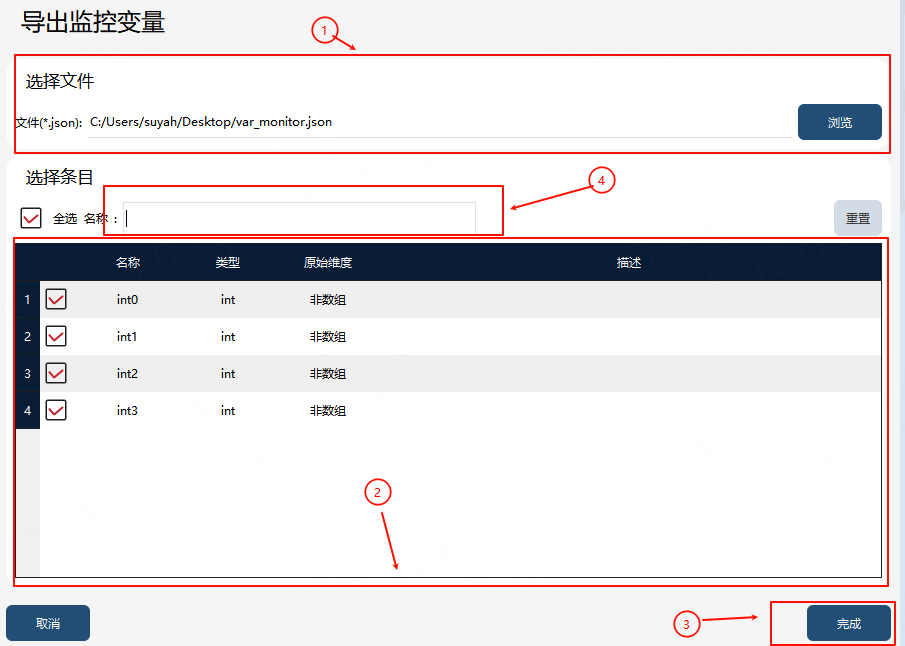
① |
Monitored variable export target file (including path) |
② |
Monitored variable export list |
③ |
Monitored variable export button |
④ |
Variable filter box |
Export steps: First, input or select the path for the monitored variable export target file in ①, and filter the variable by name in ④, if necessary. Then, check the variables to be exported in ②. Finally, click the button in ③ to execute the export, and the exported monitored variable file will be generated in the path specified in ①.
8.14.3.2 Monitored variable import
On the monitored variable list page, click theimage::en/image271.png[width=700,align=center] button at the bottom left to enter the monitored variable import interface.
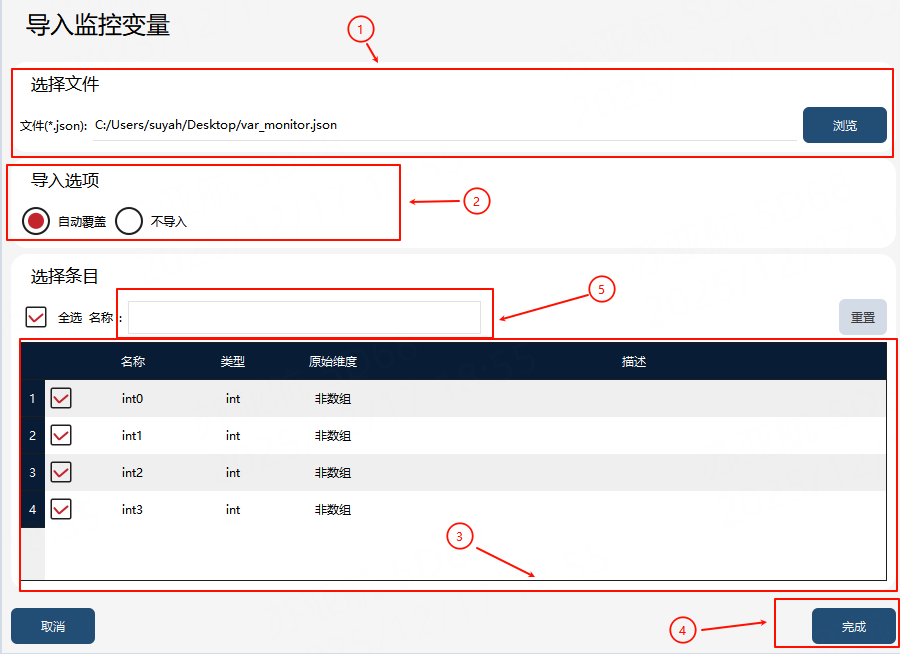
① |
Monitored variable import file |
② |
Monitored variable import option, which is the strategy for handling entry conflict |
③ |
Monitored variable import entry |
④ |
Monitored variable import button |
⑤ |
Variable filter box |
Import steps: First, select the monitored variable file to be imported in ①. Then, select the conflict handling strategy in ② and the variables to be imported in ③. Finally, click the button in ④ to execute the import, and the selected variables will be imported locally.