9.11.1 Force control parameters
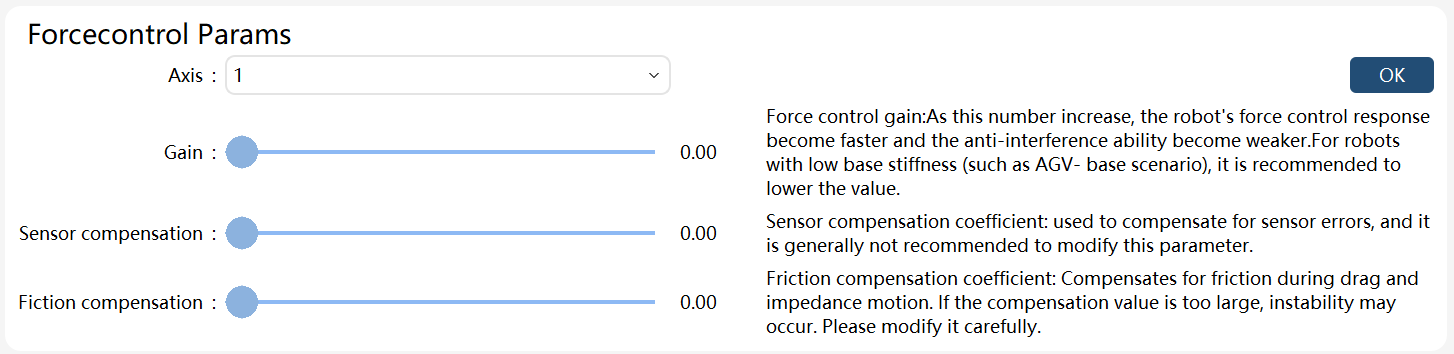
Force control gain: It is used to adjust the response speed of robot force control. Note that the larger the value, the faster the robot force control response, but the weaker the anti-interference ability. The default value is 1.0. If the rigidity of the robot base is low, such as when placing the robot on a mobile chassis, the force control gain value should be appropriately reduced. When the end-effector load is close to the upper limit in the load pattern, the use of dragging and impedance may cause shaking, at this time the force control gain should be appropriately reduced, and the base stiffness should be adjusted to low if the control system version is below V2.0.
Sensor compensation coefficient: It is used to compensate for sensor error, generally which does not need to be modified. If there is a force moving in the positive direction of the joint during the robot’s dragging process, this parameter value can be appropriately reduced. On the contrary, if there is a force moving in the negative direction of the joint, this parameter value can be appropriately increased. The default value is 0.5.
Friction compensation coefficient: It is used to compensate for friction during dragging and impedance motion. Too large compensation coefficient may cause instability, so please modify it with caution. The default value is 0.5.
Note:
Force control parameters are for advanced developers, please modify them carefully.
9.11.2 Force control model
There are three options for the force control model, and this function is a developer’s option, please modify it carefully. The default nominal model is used after the initialization and when no modification is made.

9.11.3 Drag optimization
Improve the drag experience by handling the stop at the end of the drag. This function is enabled by default after the initialization and when no modification is made.

9.11.4 Drag without end-effector button operations
The collaborative robot supports dragging without the need to press the button on the end-effector. By enabling the automatic drag switch, the robot can be directly dragged after activating the drag switch, without pressing any button on the end-effector.

Note:
1. Once the automatic drag mode switch is enabled, ensure safety precautions are followed when activating the drag mode. If the robot exhibits any abnormal behavior, immediately press the emergency stop (E-Stop) button;
2. The end-effector drag button becomes inactive once the automatic drag mode switch is enabled.
9.11.5 Force control model deviation threshold setting
When the drag mode is enabled, the collaborative robot will self-check the deviation between the sensor torque and the theoretical dynamics model torque. If the deviation is significant, enabling the drag mode will fail. If the drag mode still fails to initiate after verifying that the load settings are correct, you can appropriately increase the force control model deviation threshold.

Note:
-
When the force control model deviation threshold setting is not enabled, the controller uses default values
9.11.6 Dual-channel sensor deviation threshold setting
When the drag mode is enabled, the collaborative robot will self-check the deviation between the voltage values of the two sensor channels. If the deviation is significant, the drag mode initiation will fail, and a warning indicating a large voltage deviation will be displayed. In this case, you can appropriately increase the dual-channel sensor deviation threshold.

Note:
1. When the dual-channel sensor deviation threshold setting is not enabled, the controller uses default values