9.15 Custom buttons
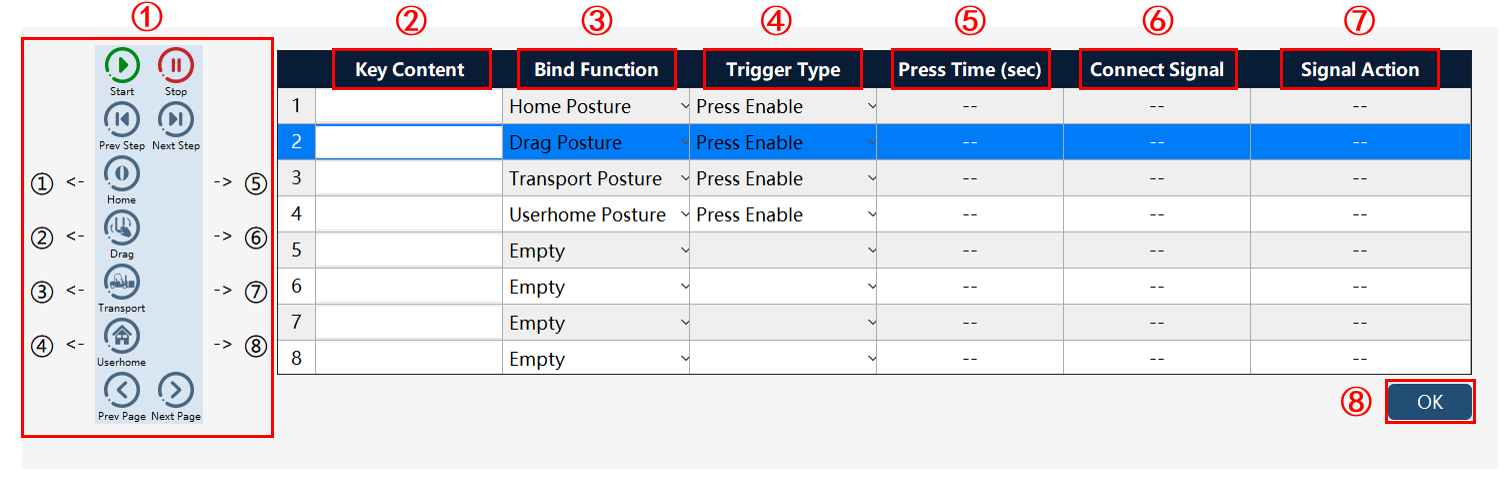
By custom buttons, some convenient functions can be bound to several physical buttons on xPad2.
① |
The positions of these 8 buttons can be customized; |
② |
Key content: Users may set the button name, which is displayed below the corresponding button icon. Names should not be too long to avoid incomplete display. |
③ |
Bind function: There are several functions for selecting, including "Empty, Forced DO, Forced DI, Screenshot, Soft Keyboard, Initial Pose, Drag and Drop Pose, Delivery Pose, User Pose, and Screen Lock (only supporting for xPad2 Teach Pendant)". |
④ |
Trigger type: It includes press for enabling, short press for triggering, and long press for triggering. Press for enabling means that pressing the button enables the corresponding function. Short press for triggering means that pressing the button immediately triggers the bound function. Long press for triggering means that pressing and holding the button for a long time triggers the bound function, with the long press time settable. Different bound functions have various triggering modes. |
⑤ |
Press time: After selecting "long press for triggering, " the long press time is set in seconds, with a range of . |
⑥ |
Connect signal: When the bound function is "forced DO" and "forced DI", the signal can be selected here. |
⑦ |
Signal action: When the bound function is "Forced DO" and "Forced DI", the signal change is detected by the signal behavior, supporting "0", "1", and "Alternate." "0" refers to after triggering, the corresponding signal is set to 0, while "1" means after triggering, it is set to 1. "Alternate" represents that after triggering, if the current signal is 0, it is set to 1, and vice versa. |
⑧ |
OK: The modification of the custom button will take effect after clicking "OK". |
9.15.1 Custom button disable function
This function is primarily used to prevent accidental triggering of physical buttons on the custom page. Users can customize the enable/disable status of physical buttons on the custom page.
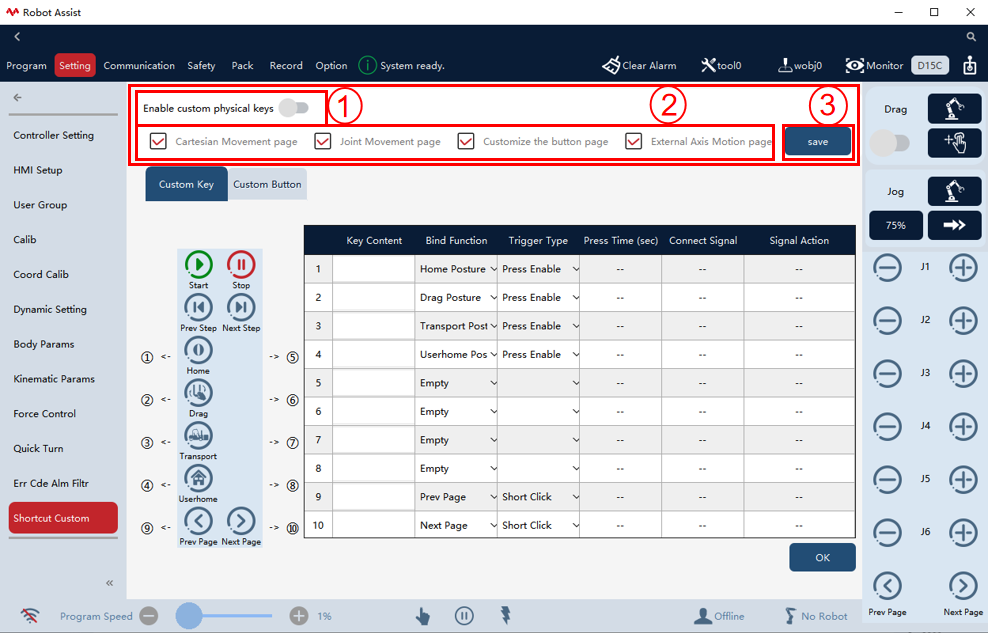
This function includes the following parts:
① Custom physical button enable button: Control the enable/disable relationship of physical button switches across pages.
When the enable button is turned off, all Physical button switches below the enable button are deactivated, and the physical buttons on all pages remain active.
When the enable button is turned on, only physical buttons on the selected pages of Physical button switch module become active.
② Physical button switch module: These switches become active only when the enable button is turned on; checking the box before a specific page indicates that the physical button functions on that page are effective.
③ Save button: Modified states are applied only after clicking the Save button.
9.15.2 Custom button - Insert Next Row
This function is designed for industrial robots and provides four configurable custom button functions. The custom button configuration feature is not displayed on the interface of collaborative robots.
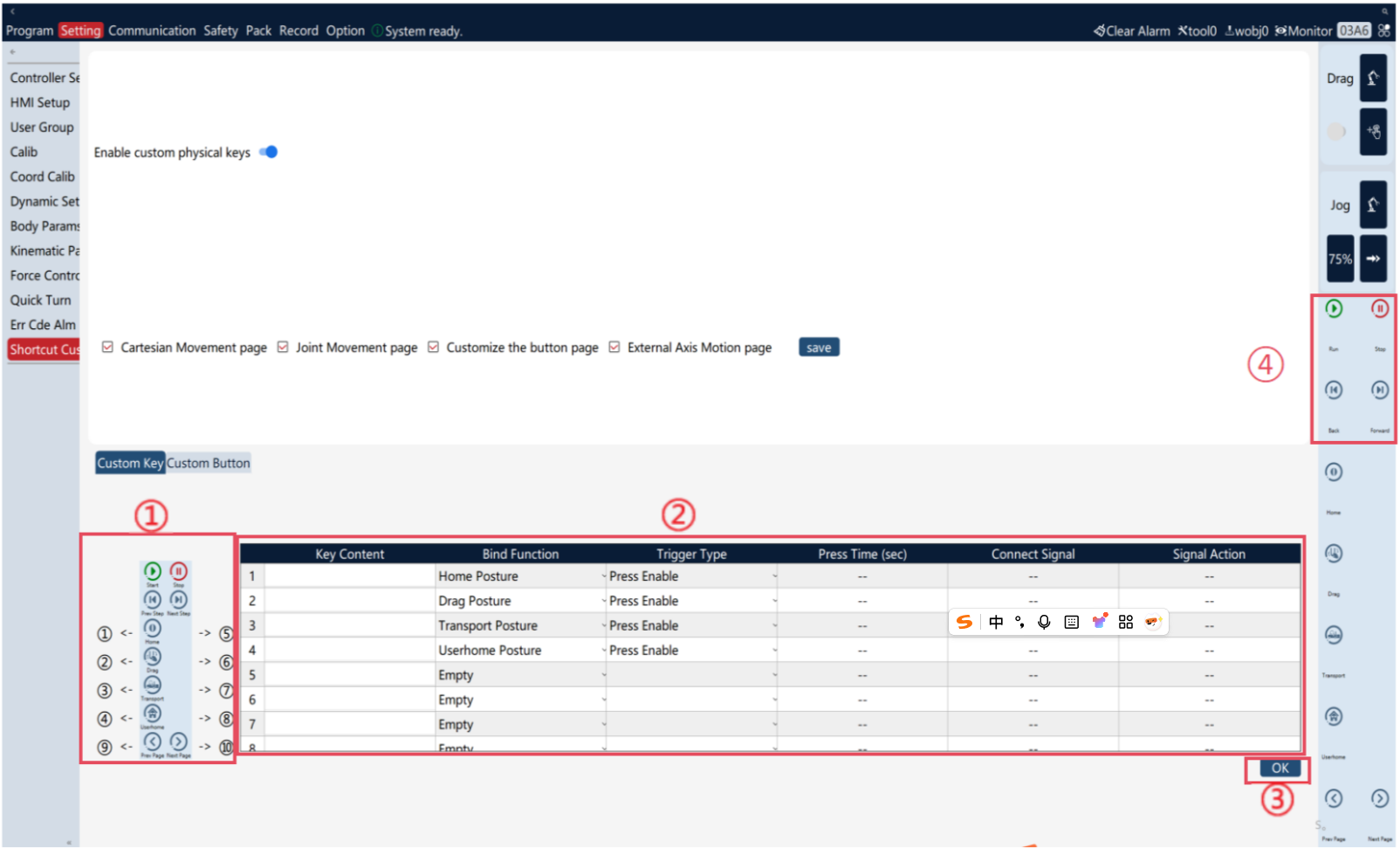
This function includes the following parts:
① Custom button style display module: Used to display the names and icons of configured function buttons, with numeric identifiers that correlate to corresponding functions in the right-side table.
② Custom function design table: Allow switching the style and function of custom buttons by modifying the "Bound function" column.
③ Save button: Modified table configurations will only be saved and applied after clicking the Save button.
④ Custom button function module: The part of the software where the configured custom button functions can take effect.