Install MSVC
Install MSVC 2019 (toolset v142) or later.
About MSVC
MSVC (Microsoft C++) is Microsoft’s C++ build toolchain.
Rokae+ client plugins on Windows are built with Qt + MSVC.
Installation options
Either of the following options provides the same MSVC toolchain. Select one according to development needs.
| Option | Description |
|---|---|
| Build Tools (recommended) | Installs only the components required to compile. Does not include the full IDE and has a smaller footprint. Suitable when Qt Creator is the primary IDE. |
| Full Visual Studio | Installs the Visual Studio IDE together with the MSVC toolchain. Larger footprint. Suitable when Visual Studio is required, or when it is already installed. |
The following steps use Build Tools for Visual Studio 2022 (MSVC 2022, toolset v143) as an example. To install full Visual Studio, or if Visual Studio is already present, see Full Visual Studio. A separate Build Tools installation is not required in those cases.
Some Windows editions do not include winget or other package managers, or cannot run them. This guide therefore downloads the installer from the Microsoft website.
Download location
This guide obtains Build Tools for Visual Studio 2022 via Older downloads (the UI may differ slightly by version).
| Name | URL |
|---|---|
| Download page | https://visualstudio.microsoft.com/downloads/ |
Download steps
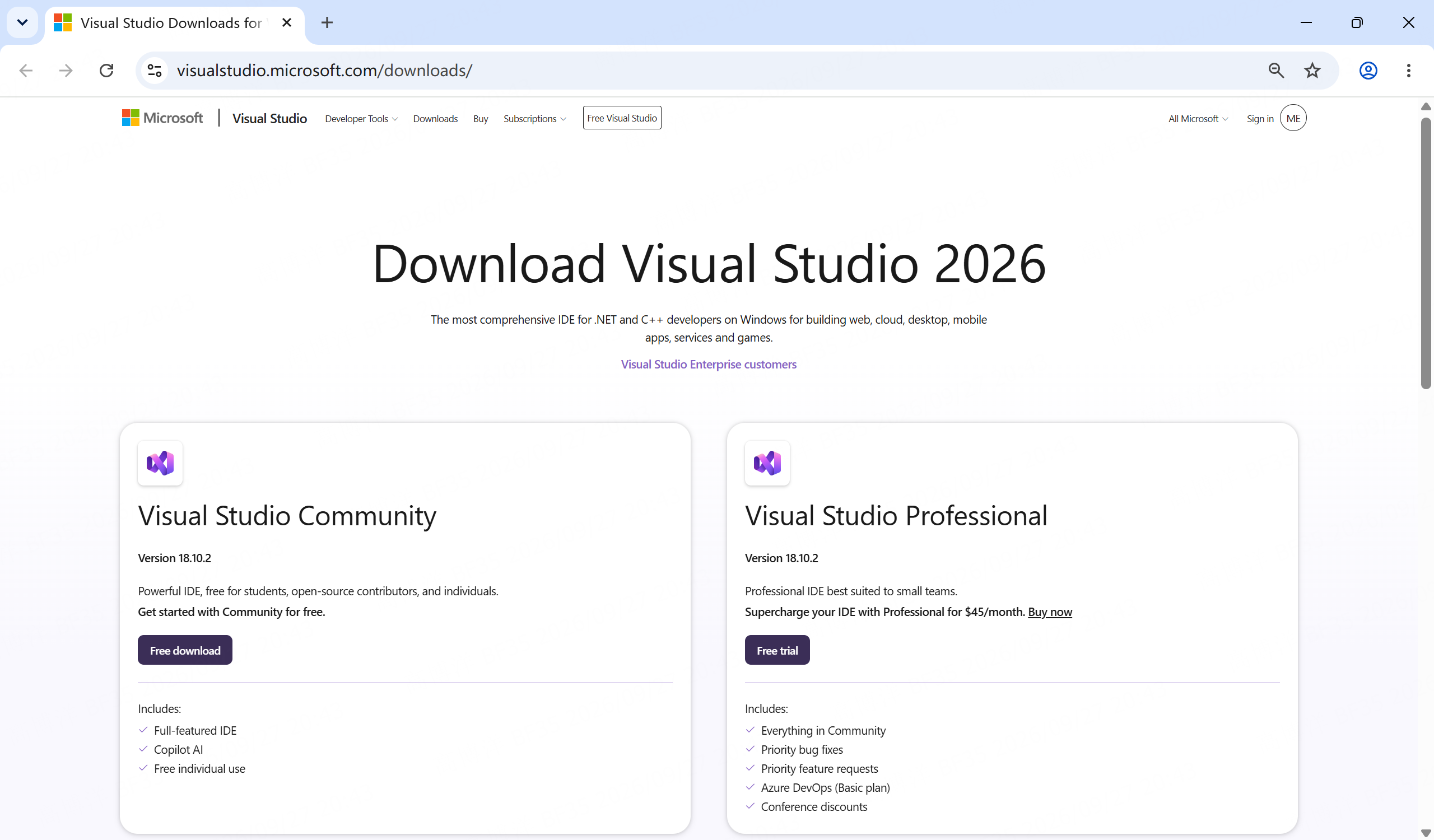
1. Open the Visual Studio downloads page
Open the Visual Studio downloads page in a browser.
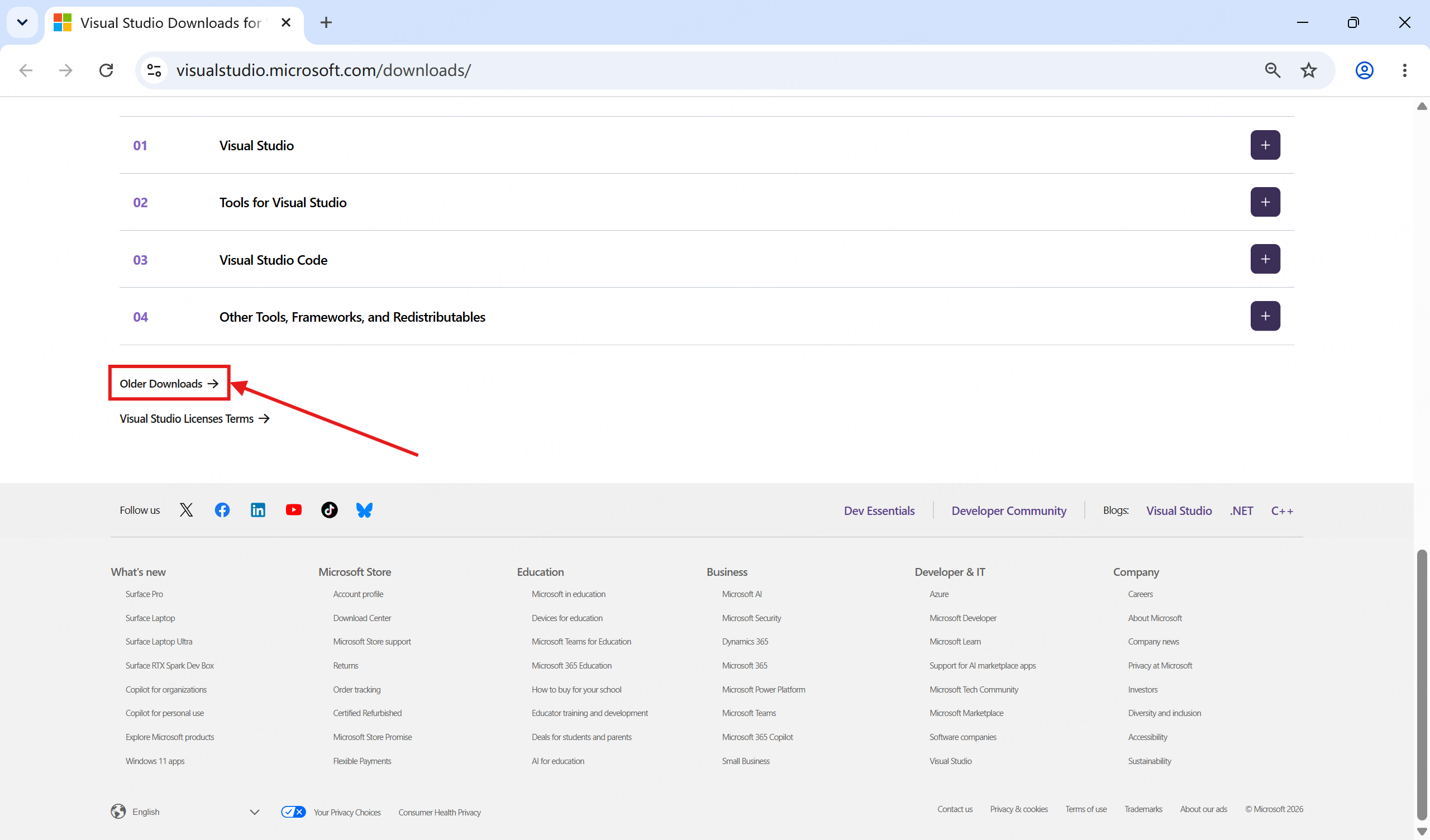
2. Open Older downloads
Scroll to the bottom of the page and select Older downloads.
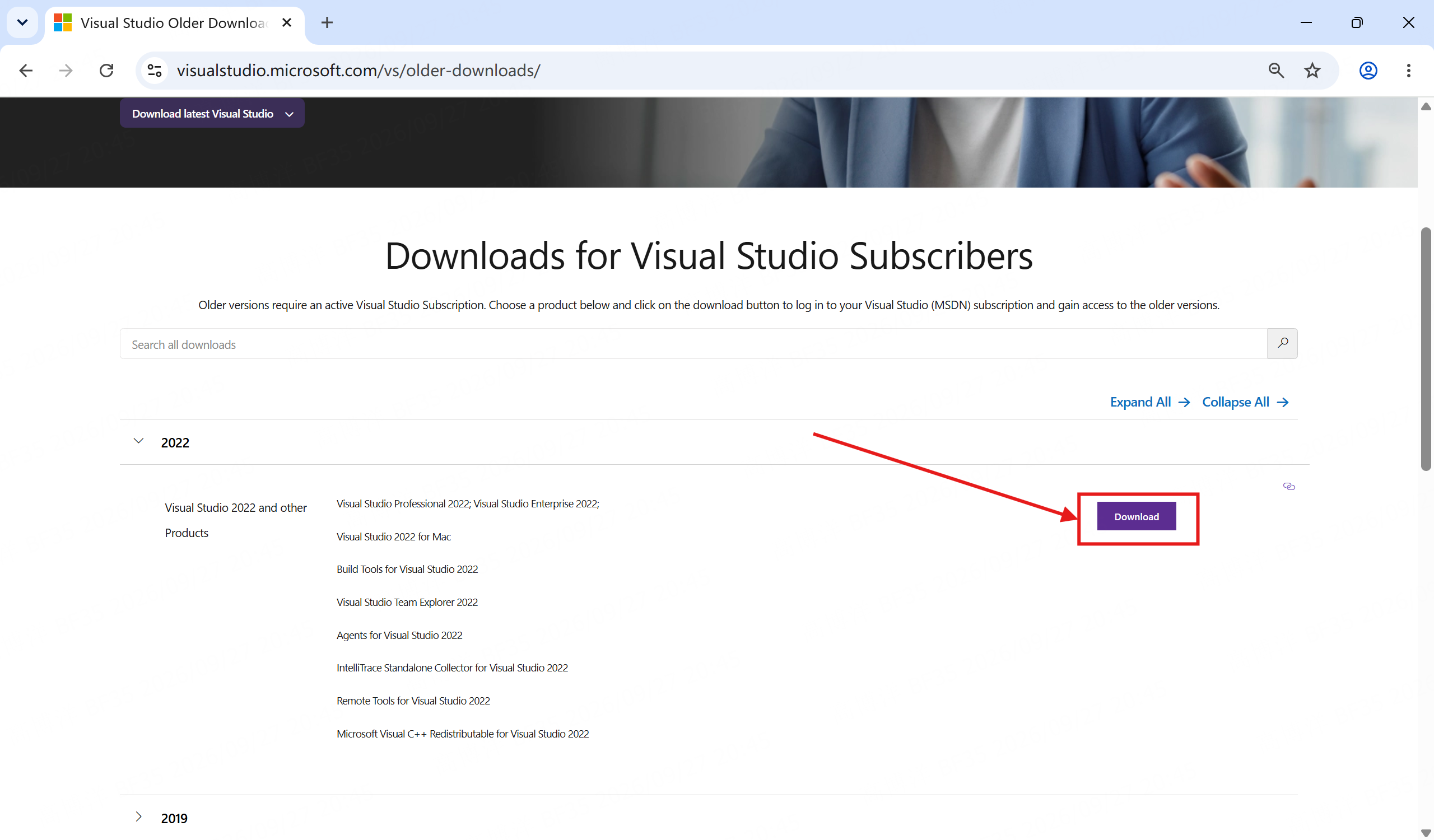
3. Download Visual Studio 2022 and other products
On the Older downloads page, expand 2022, then select Download on the Visual Studio 2022 and other products row.
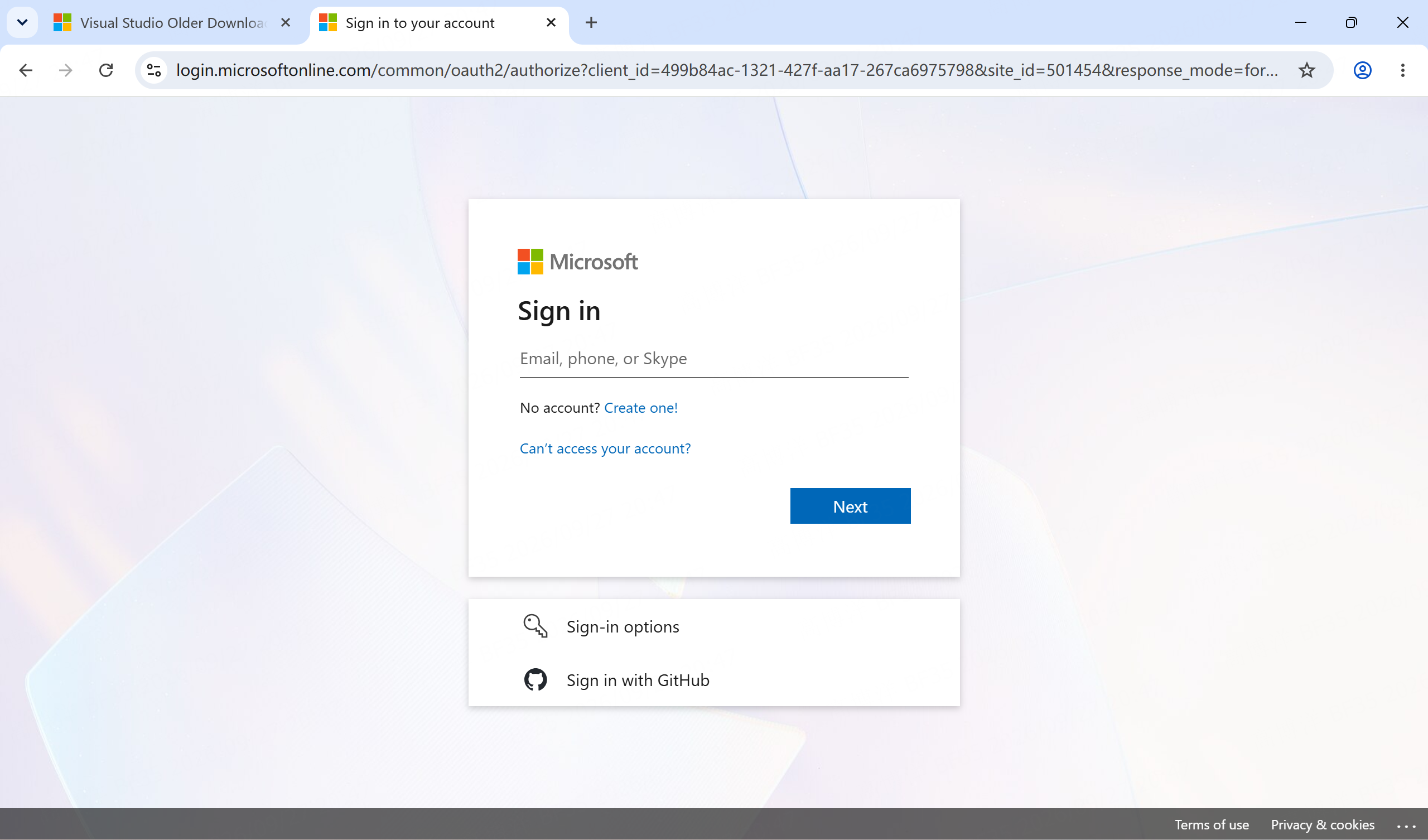
4. Sign in with a Microsoft account
Sign in with a Microsoft account when prompted. If an account is not available, create one and return to this page to sign in.
5. Locate Build Tools for Visual Studio 2022
After sign-in, open the downloads list. The search box is typically prefilled with visual studio 2022; locate Build Tools for Visual Studio 2022 in the list.
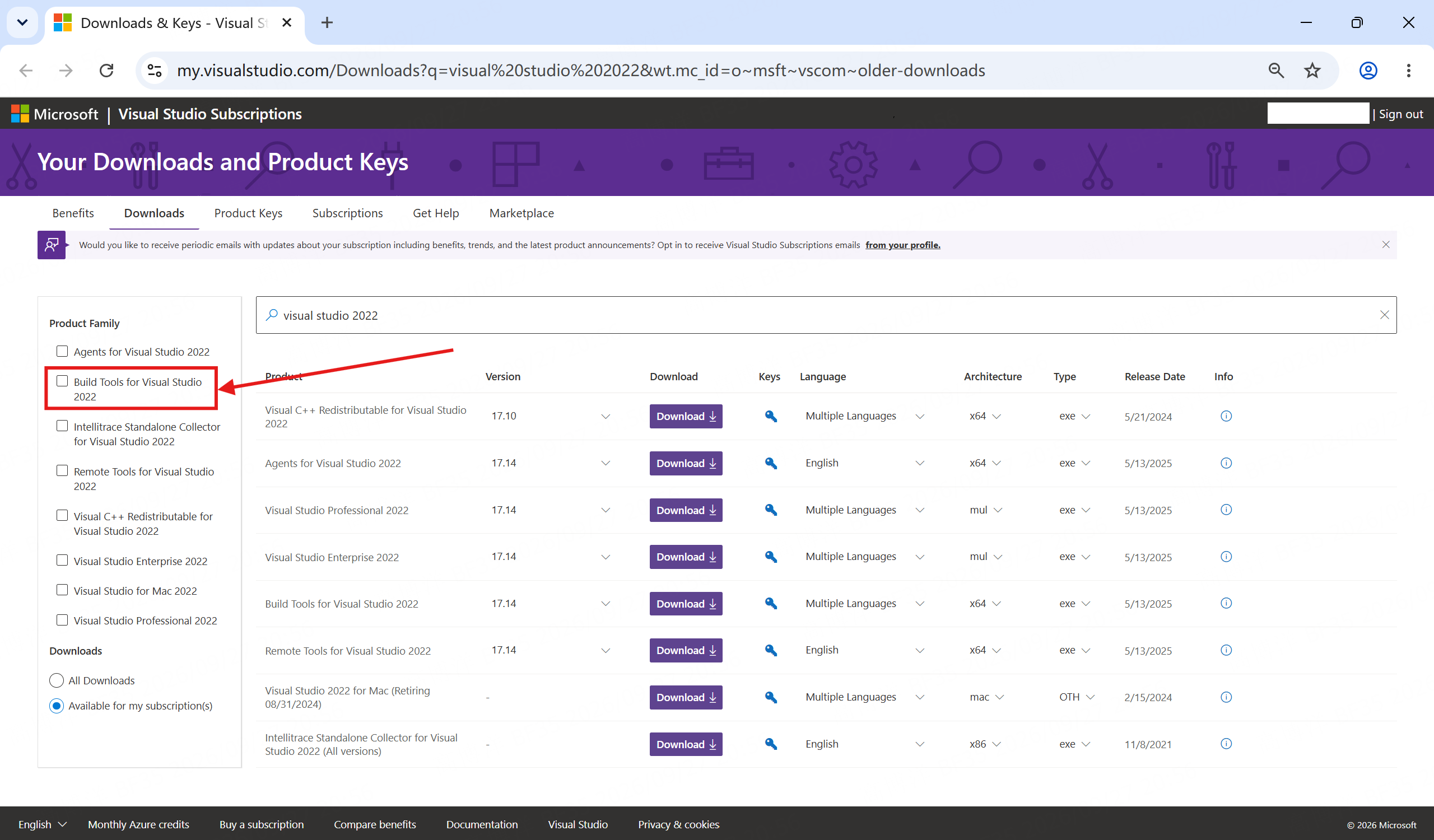
6. Download Build Tools
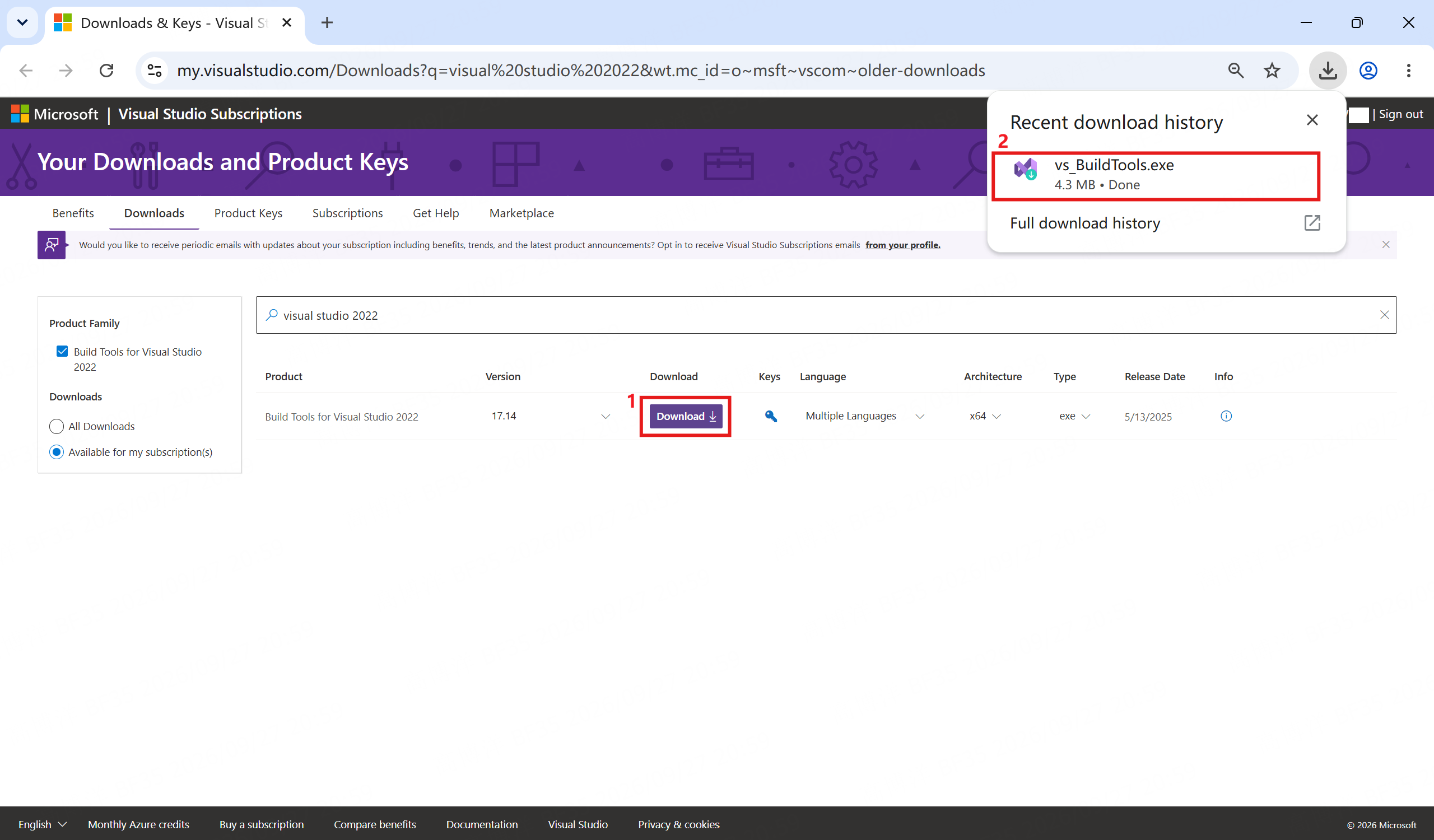
Select Download on the Build Tools for Visual Studio 2022 row and wait until the browser finishes downloading. The installer is typically named vs_BuildTools.exe.
Installation steps
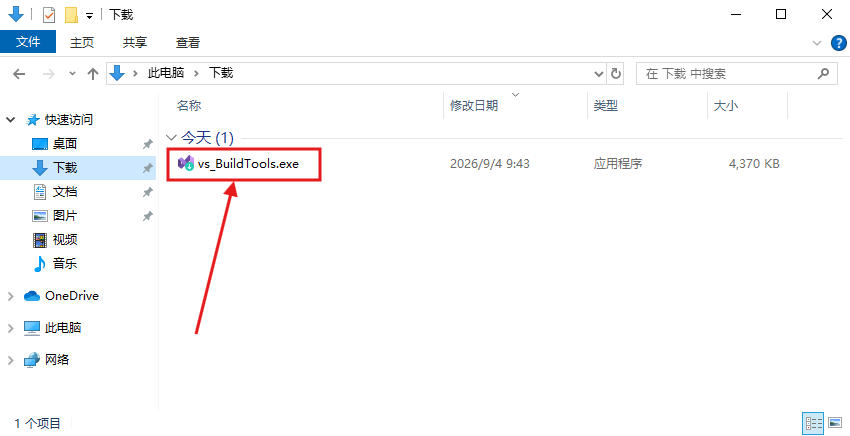
1. Start the installer
Double-click vs_BuildTools.exe.
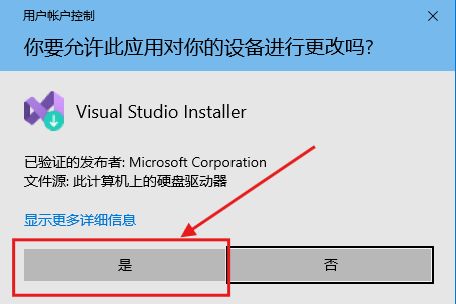
2. Allow User Account Control
If User Account Control appears, confirm that the publisher is Microsoft Corporation, then choose Yes.
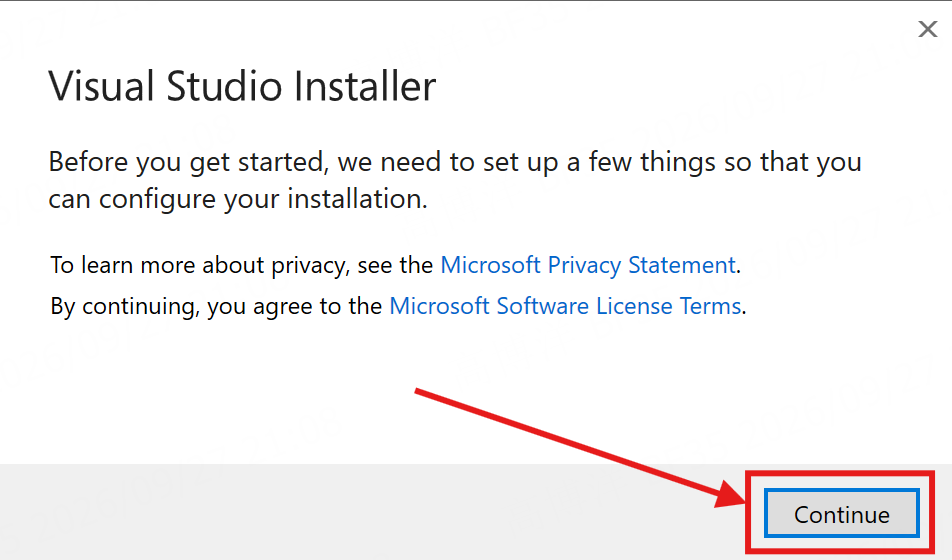
3. Select Continue
On the Visual Studio Installer welcome page, review the license and privacy information, then select Continue.
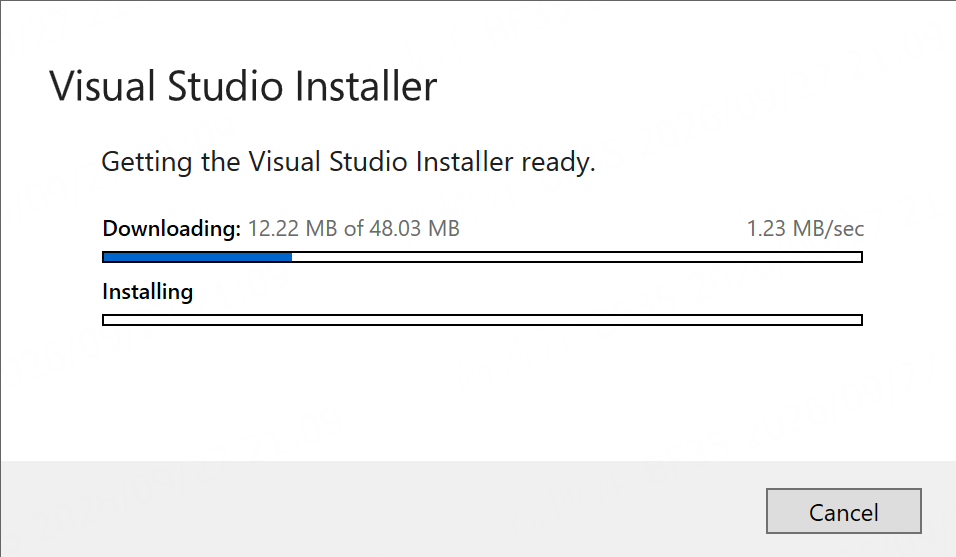
4. Wait while the installer downloads and prepares
Wait until Visual Studio Installer finishes downloading and preparing itself.
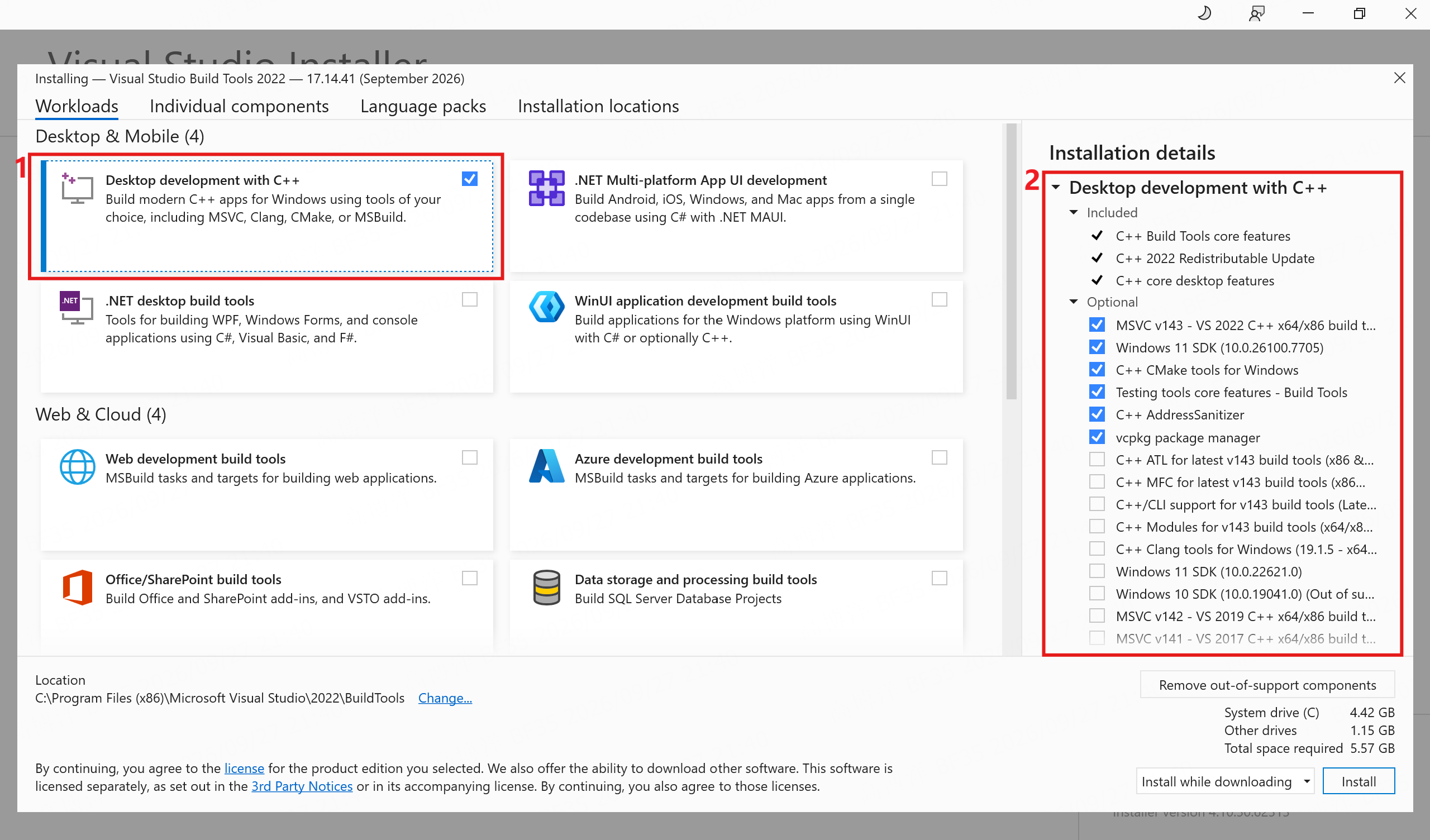
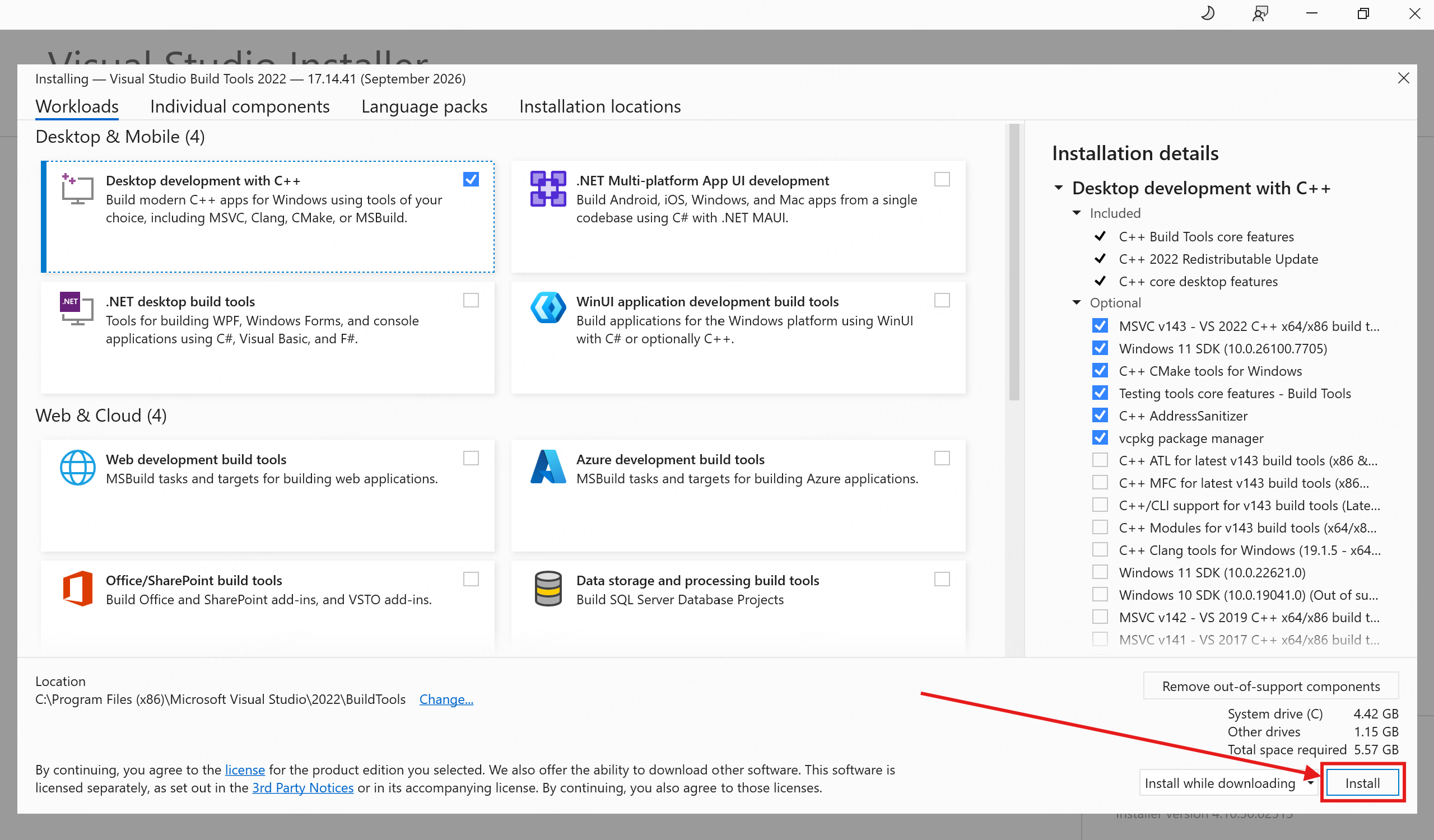
5. Select Desktop development with C++
- On the Workloads page, select Desktop development with C++.
- Confirm that several items are selected under Installation details on the right.
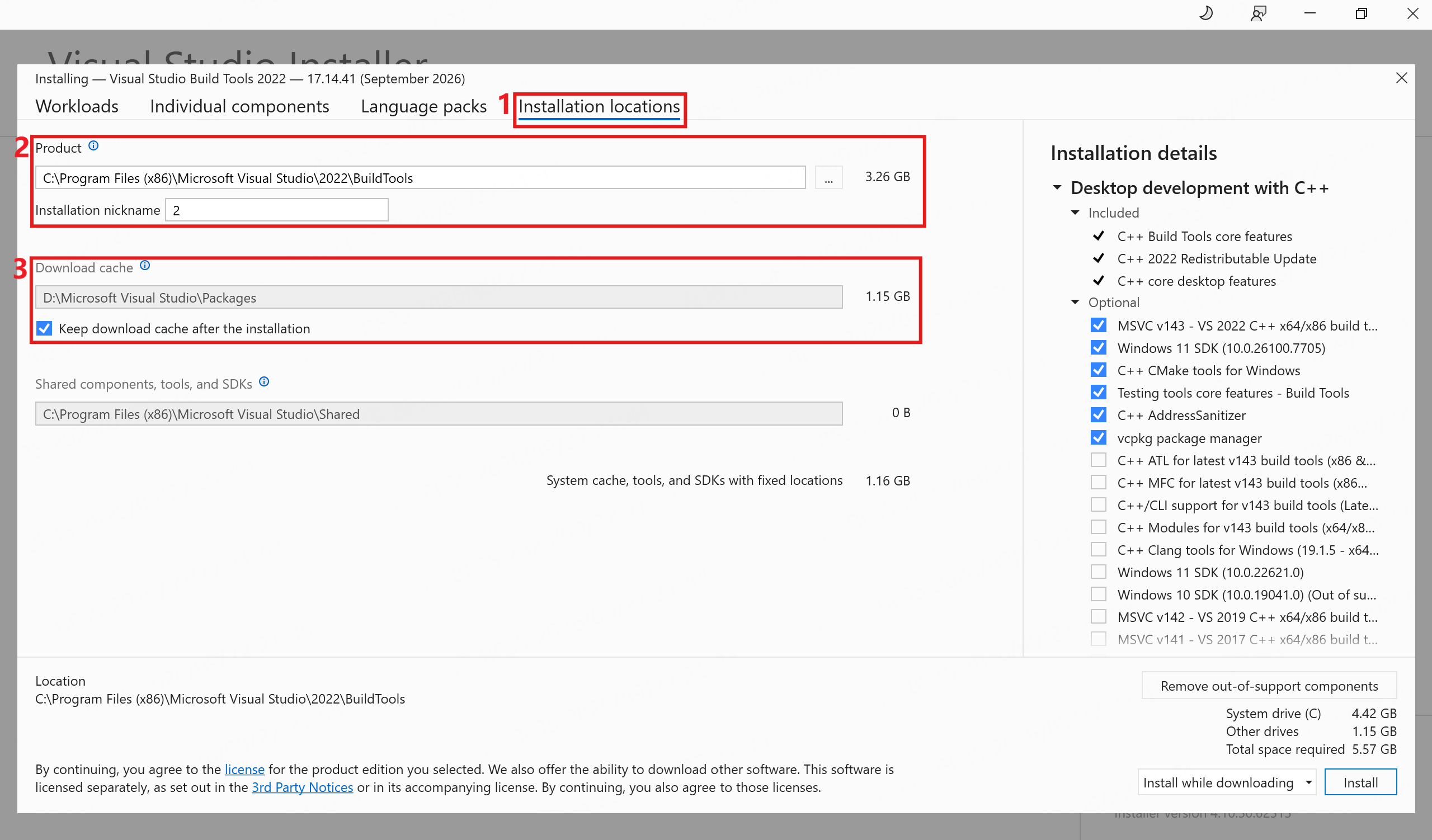
6. Change the install location (optional)
Open the Installation locations page and review the Product and Download cache paths.
If drive C: has sufficient free space, keep the default install location. When the system drive is solid-state, the default location helps run faster.
7. Select Install
8. Wait until setup finishes
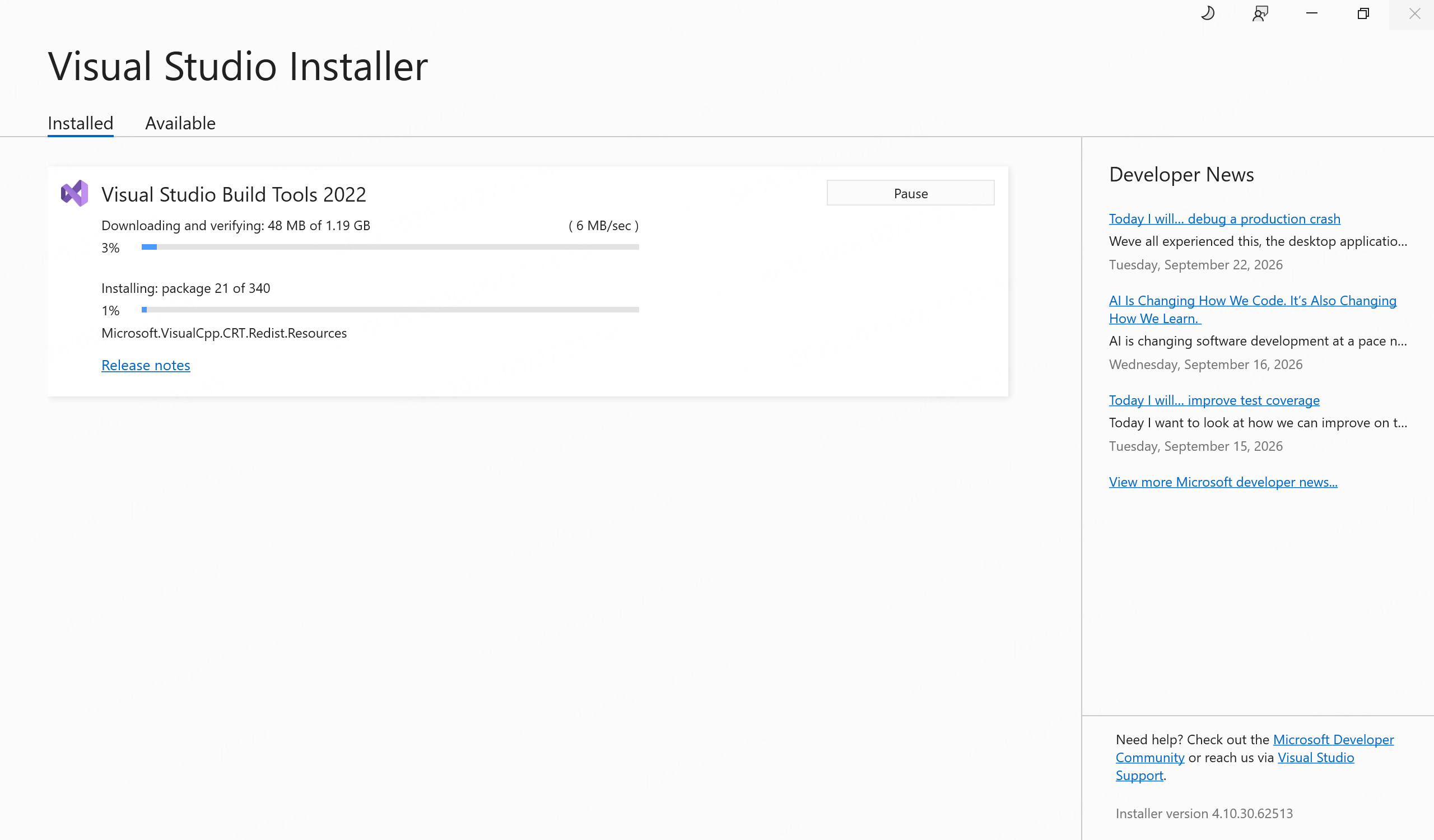
Wait until download and installation complete. Visual Studio Installer may then be closed.
Full Visual Studio
In the following cases, do not install Build Tools separately. Ensure that the machine already provides the same MSVC toolchain. Required workload is described in Installation step 5.
Installing full Visual Studio
- Open the Visual Studio downloads page and download Community or another edition for which a license is held. Do not use winget or other package managers.
- Run the installer, select the Desktop development with C++ workload, confirm that several items are selected under Installation details on the right, then select Install.
Visual Studio is already installed
- Open Visual Studio Installer (search for it from the Start menu).
- Select Modify on the installed Visual Studio instance.
- Select Desktop development with C++, and confirm that several items are selected under Installation details on the right.
- Select Modify and wait until the operation completes.