Install Qt
Use Qt 5.12 or later in the 5.x series.
About Qt
Qt is a cross-platform C++ application and UI framework. It provides windows, widgets, an event loop, threading, networking, and related capabilities.
Rokae+ client plugins on Windows are built with Qt + MSVC.
Editions
| Edition | Description |
|---|---|
| Community (open source) | Used under open-source licenses such as GPL / LGPL. A commercial license fee to The Qt Company is typically not required, but the applicable license terms must be observed (for example source disclosure, dynamic linking, and copyright notices—follow the license text in force at the time). |
| Commercial | A paid license from The Qt Company. Intended for closed-source commercial products that cannot or will not be released under the open-source terms. |
This guide uses the Community edition. Whether Community or commercial is selected, and whether that choice and the intended use meet product compliance requirements, is the user’s decision and responsibility. This page does not constitute legal advice.
Download location
Obtain the Qt Online Installer from the page below. Select the version during installation. This guide uses Qt 5.15.2.
Do not install Qt 6. Some APIs in the client plugin secondary development package may be incompatible with Qt 6.
| Name | URL |
|---|---|
| Download page | https://www.qt.io/development/download-open-source |
Download steps
1. Download the Qt Online Installer
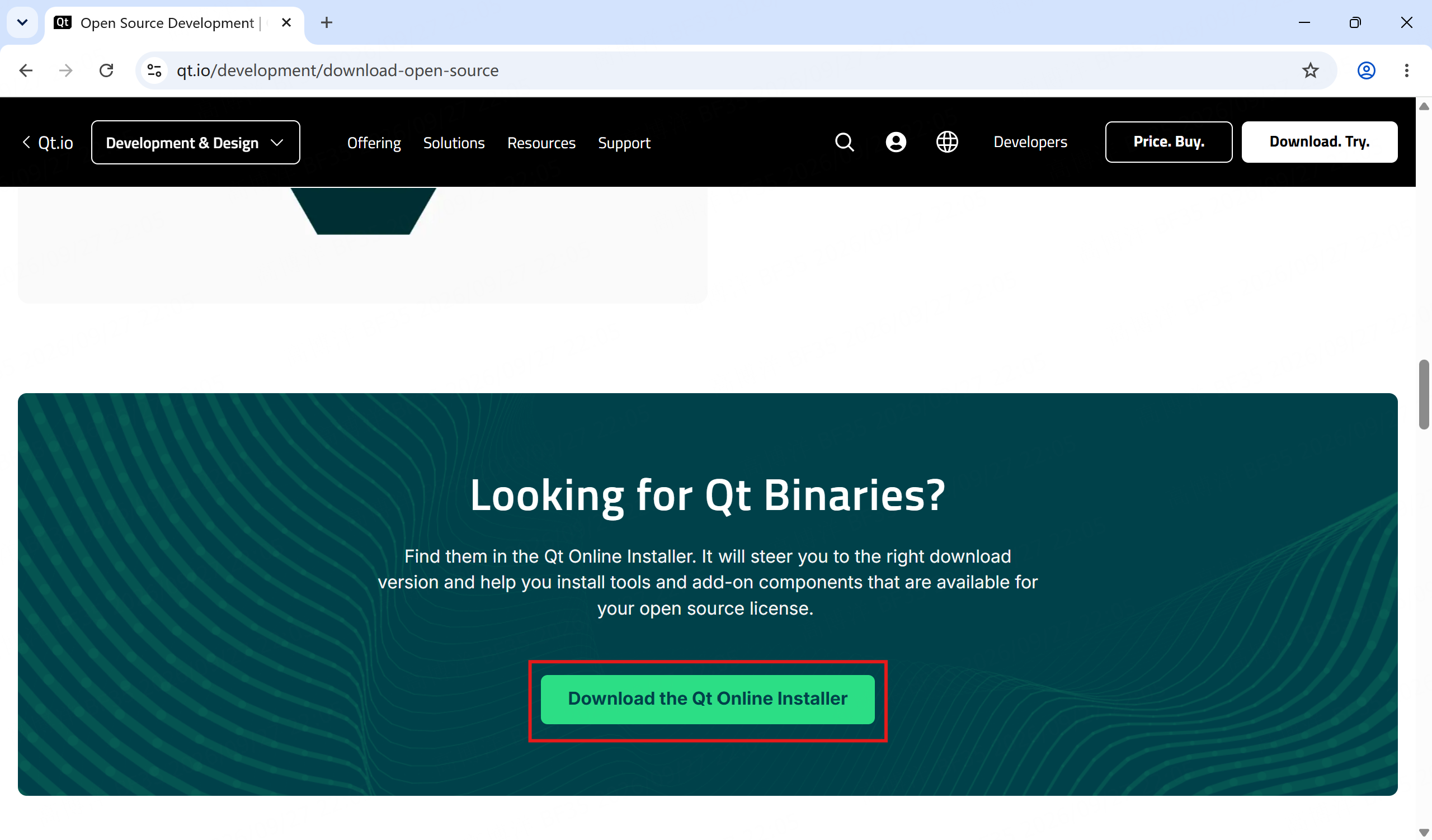
Open the download page, scroll to Download the Qt Online Installer, and select it.
2. Select the operating system and download
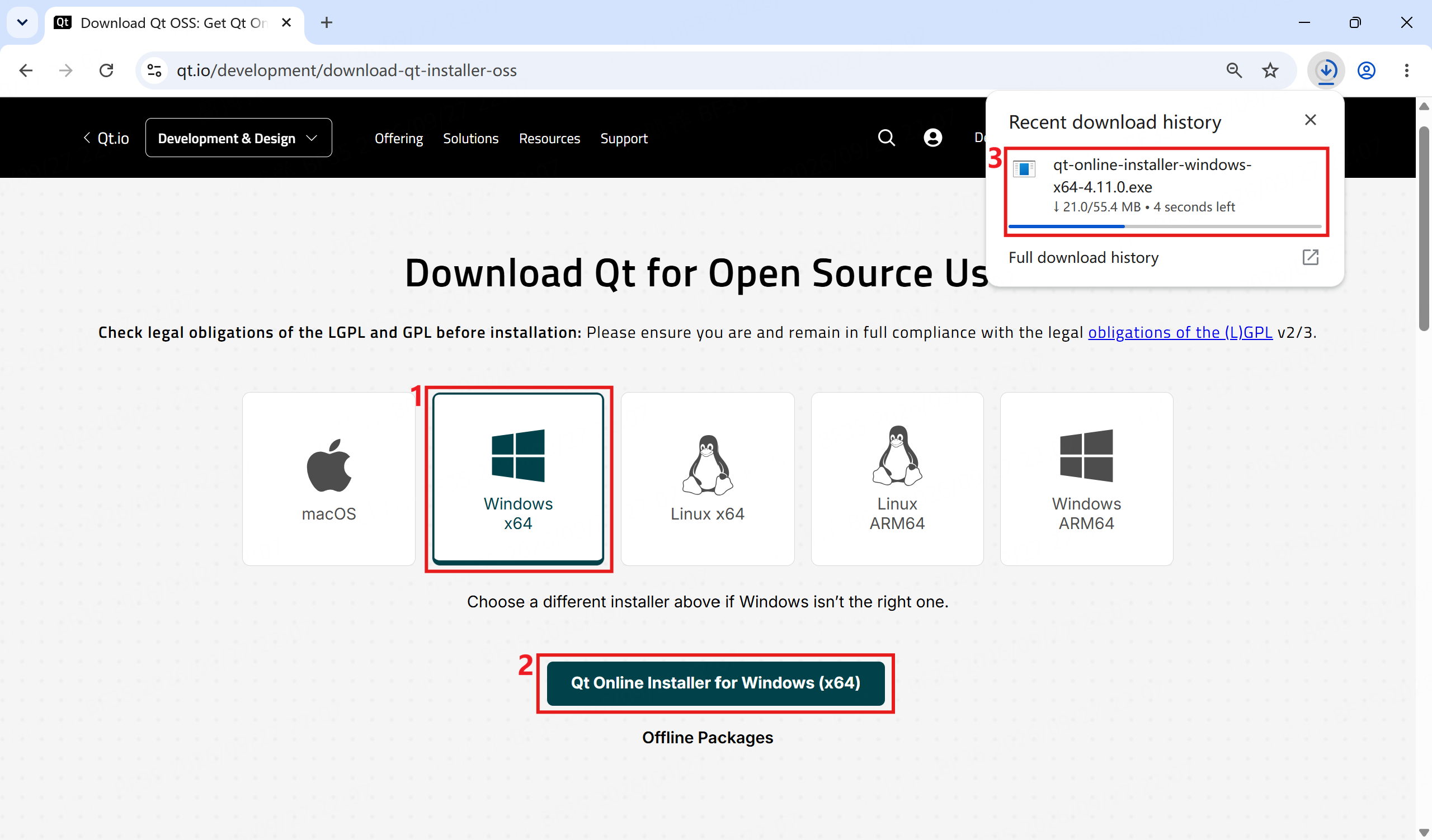
Select the host operating system (this guide uses Windows x64), select Qt Online Installer for Windows (x64), and wait until the browser finishes downloading.
Installation steps
1. Start the installer
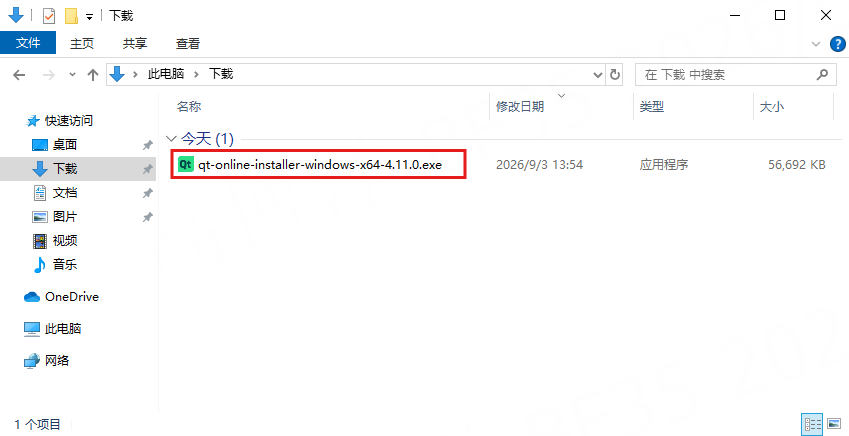
Double-click the downloaded Qt Online Installer.
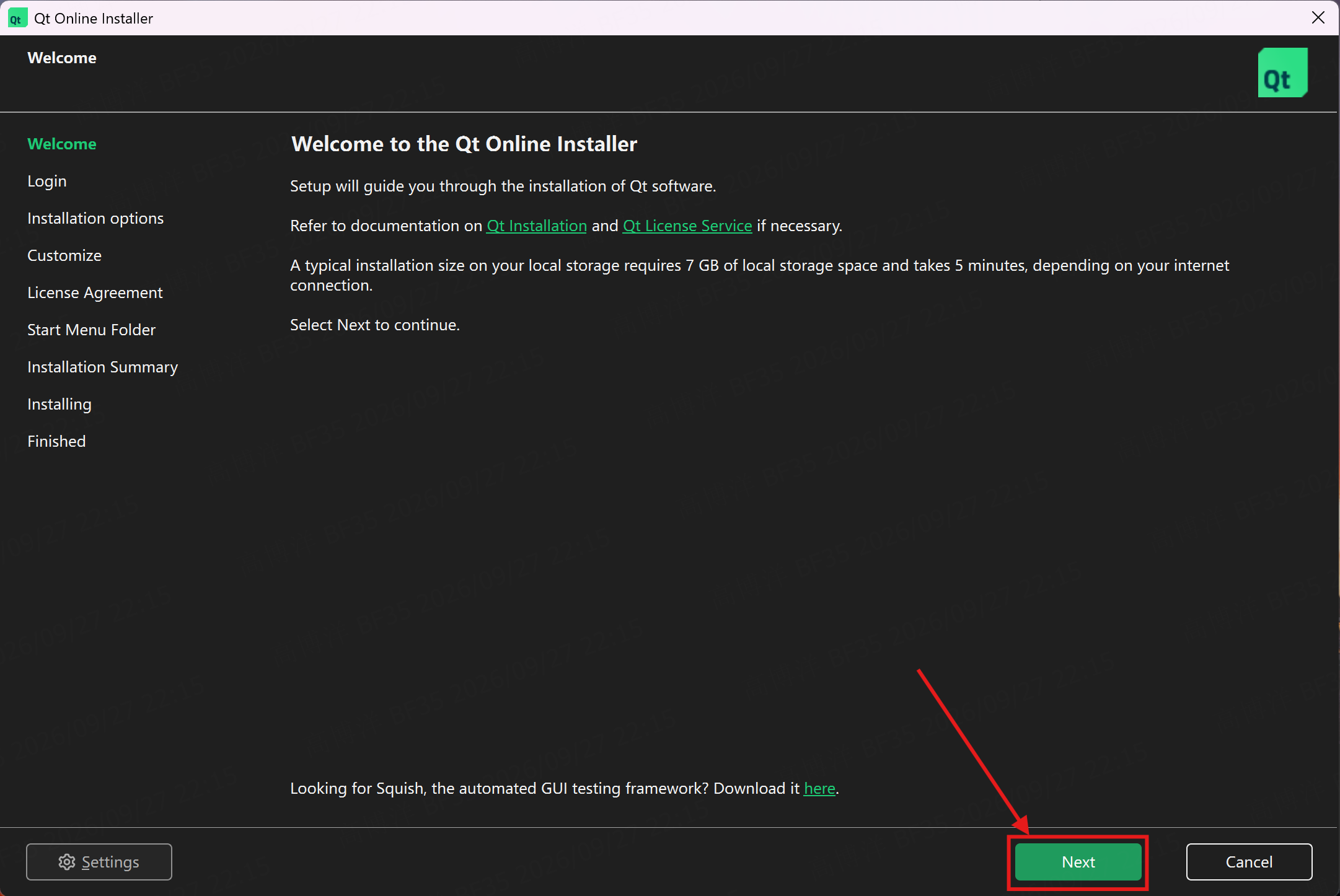
2. Welcome page — select Next
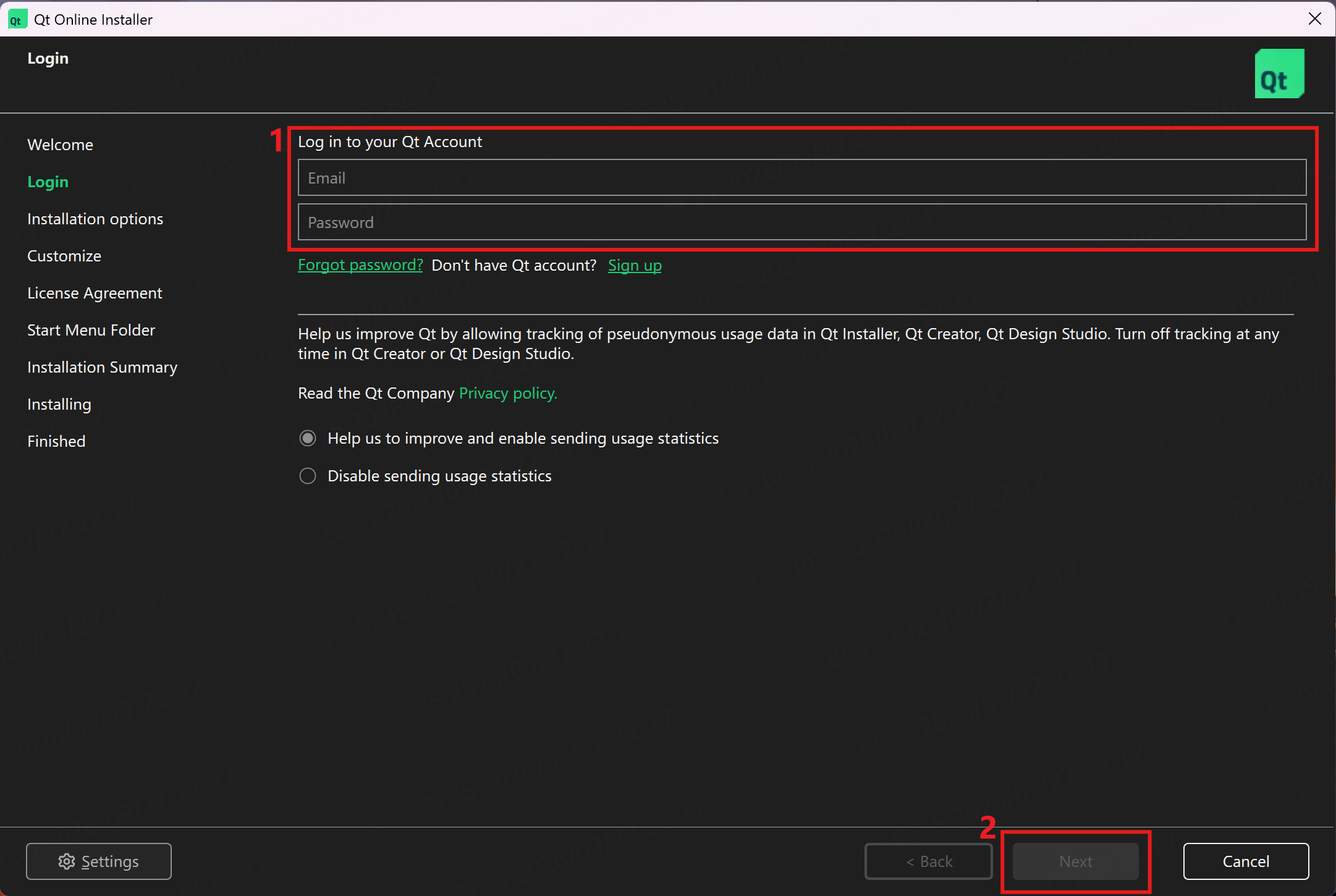
3. Sign in to a Qt Account
On Log in to your Qt Account, enter the account credentials. If an account is not available, select Sign up, complete registration, then return to this page to sign in. Select Next.
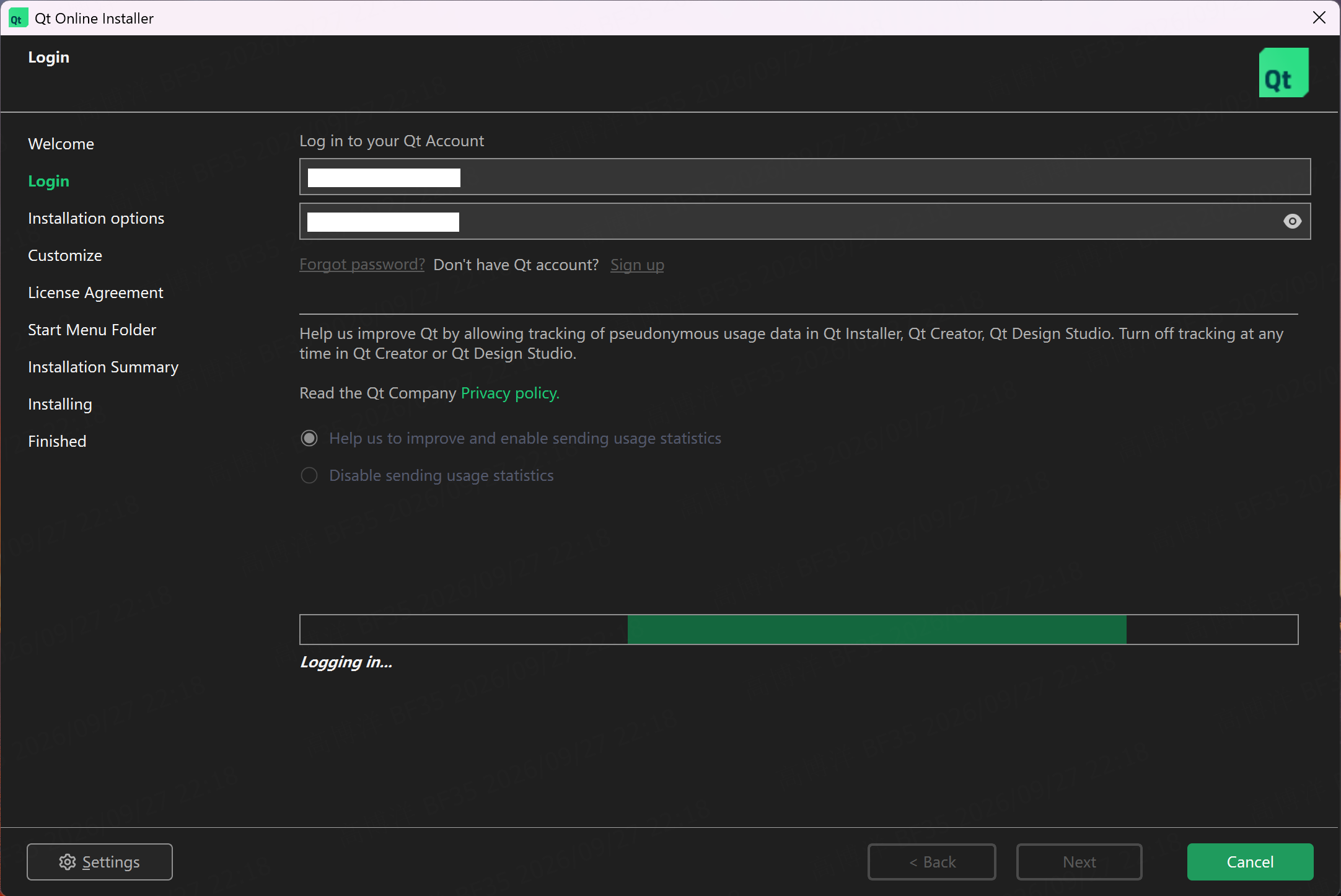
4. Wait for sign-in
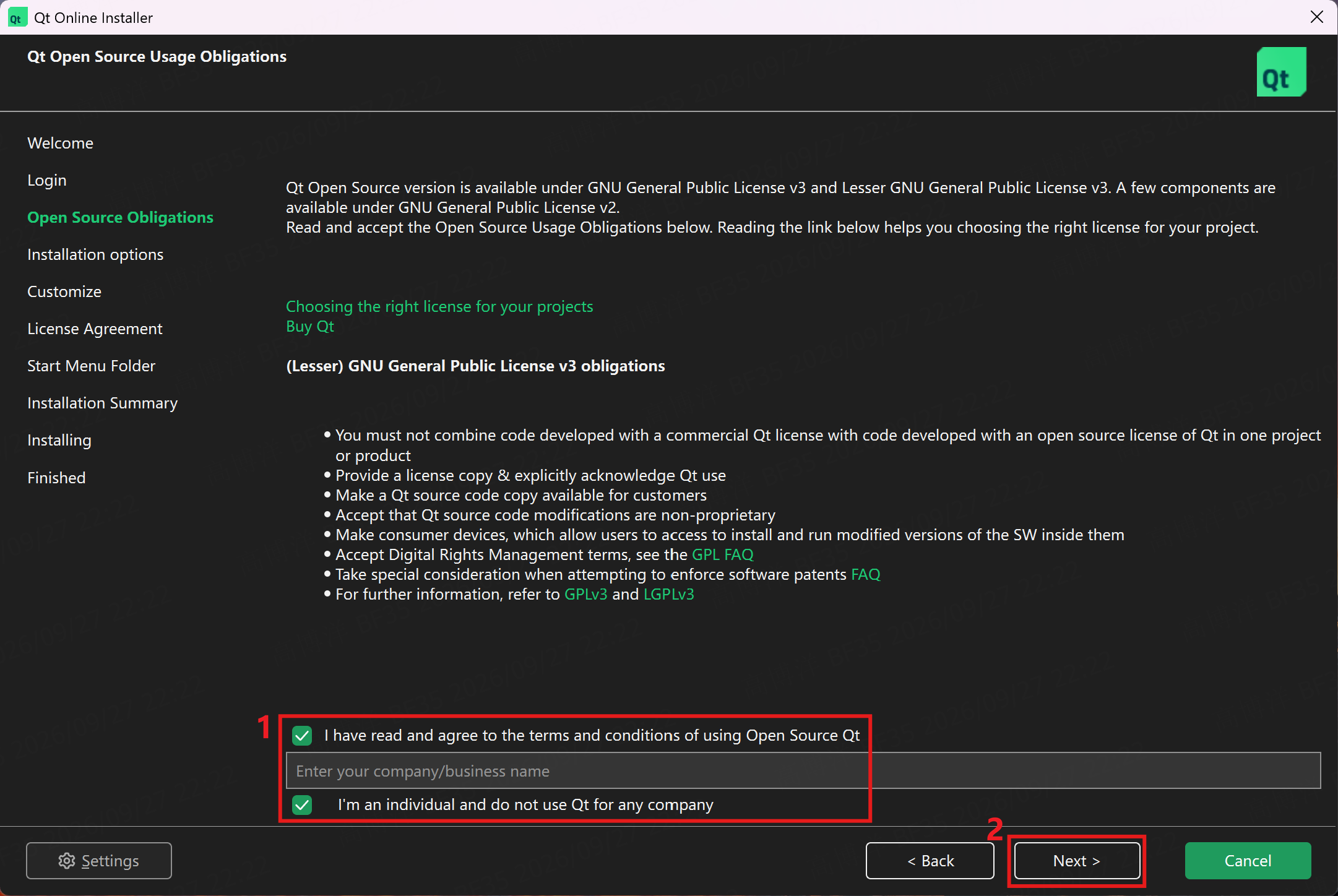
5. Confirm open-source obligations
This guide demonstrates a personal-user path. Accept the open-source terms, select I am an individual person not using Qt for any company, then select Next.
For company use of Qt, enter the accurate company or organization name. Do not select the individual-person option.
6. Wait until loading finishes
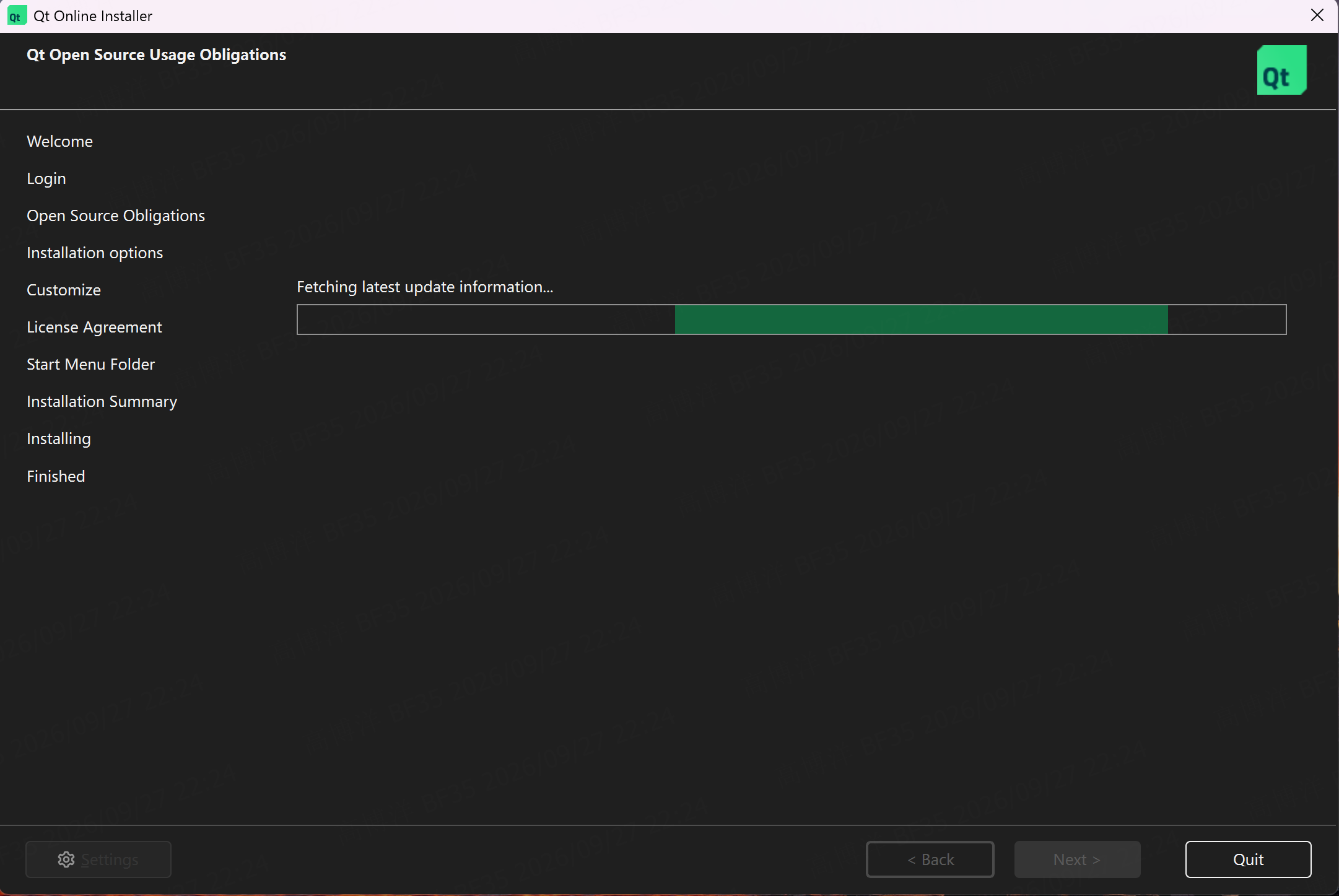
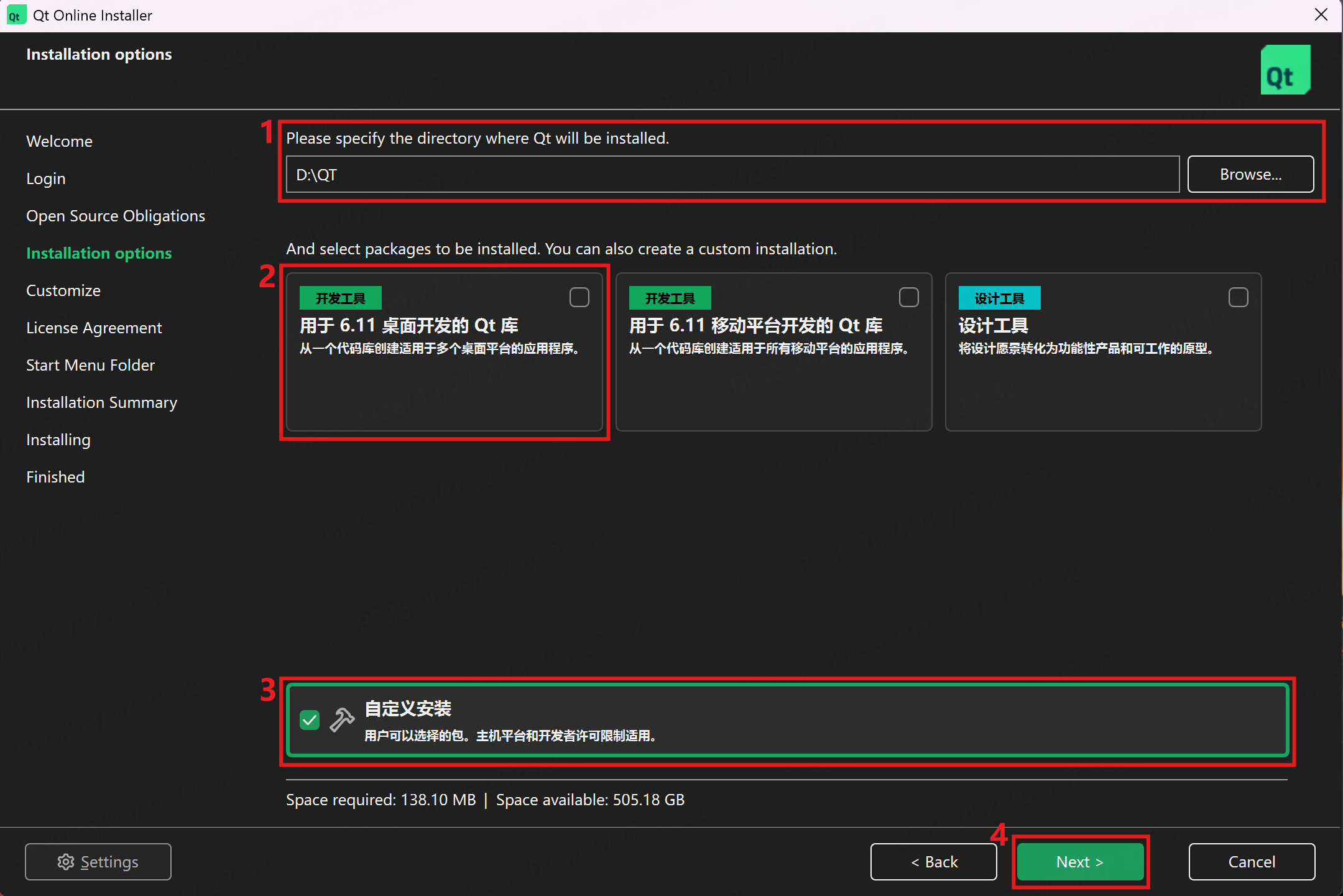
7. Installation options
- Installation folder: specify the Qt install path.
- Development tools: do not select any Qt 6 kit.
- Custom installation: select this option.
- Select Next.
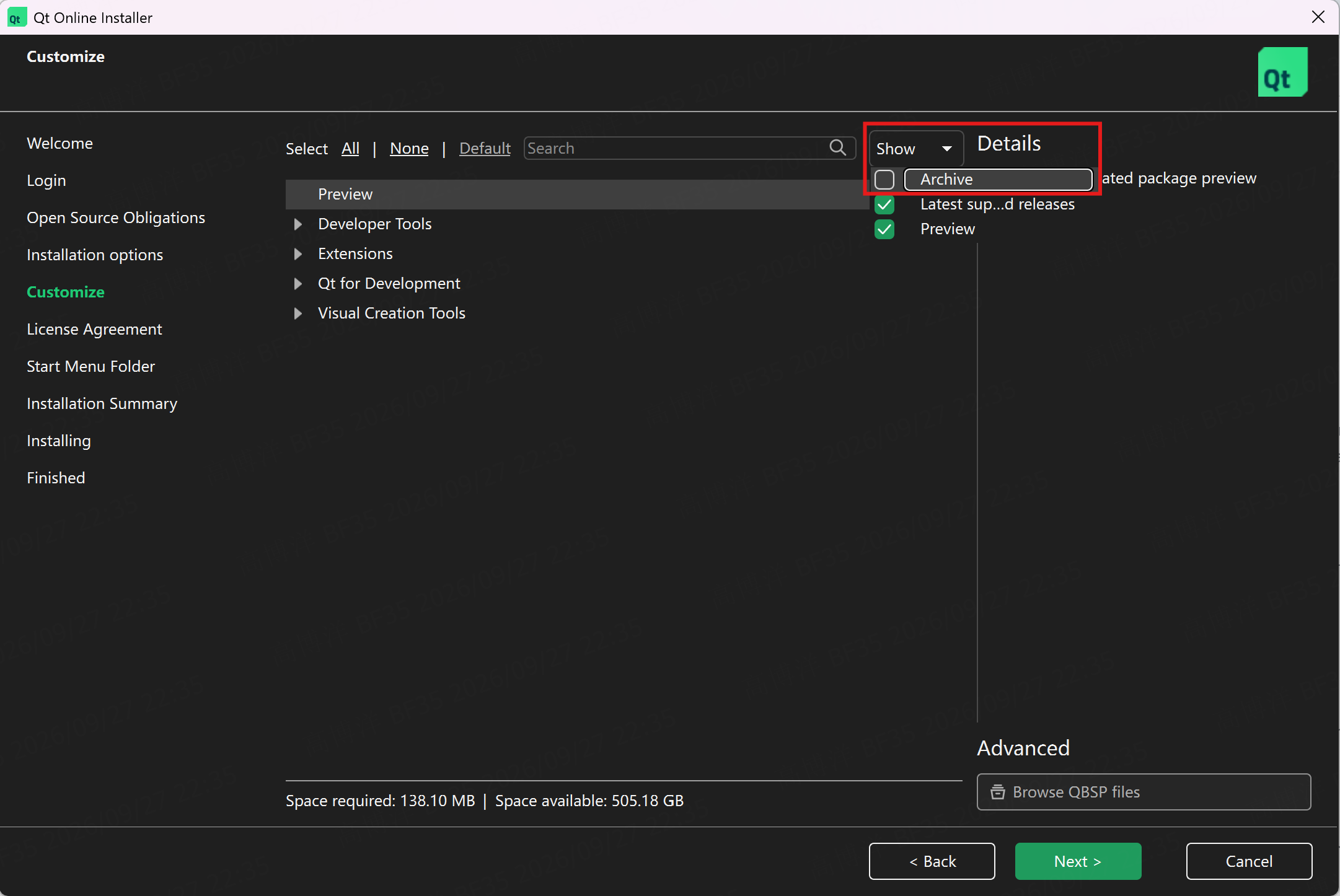
8. Enable Archive
Open Show in the upper right and select Archive so that archived versions (including Qt 5.x) are listed.
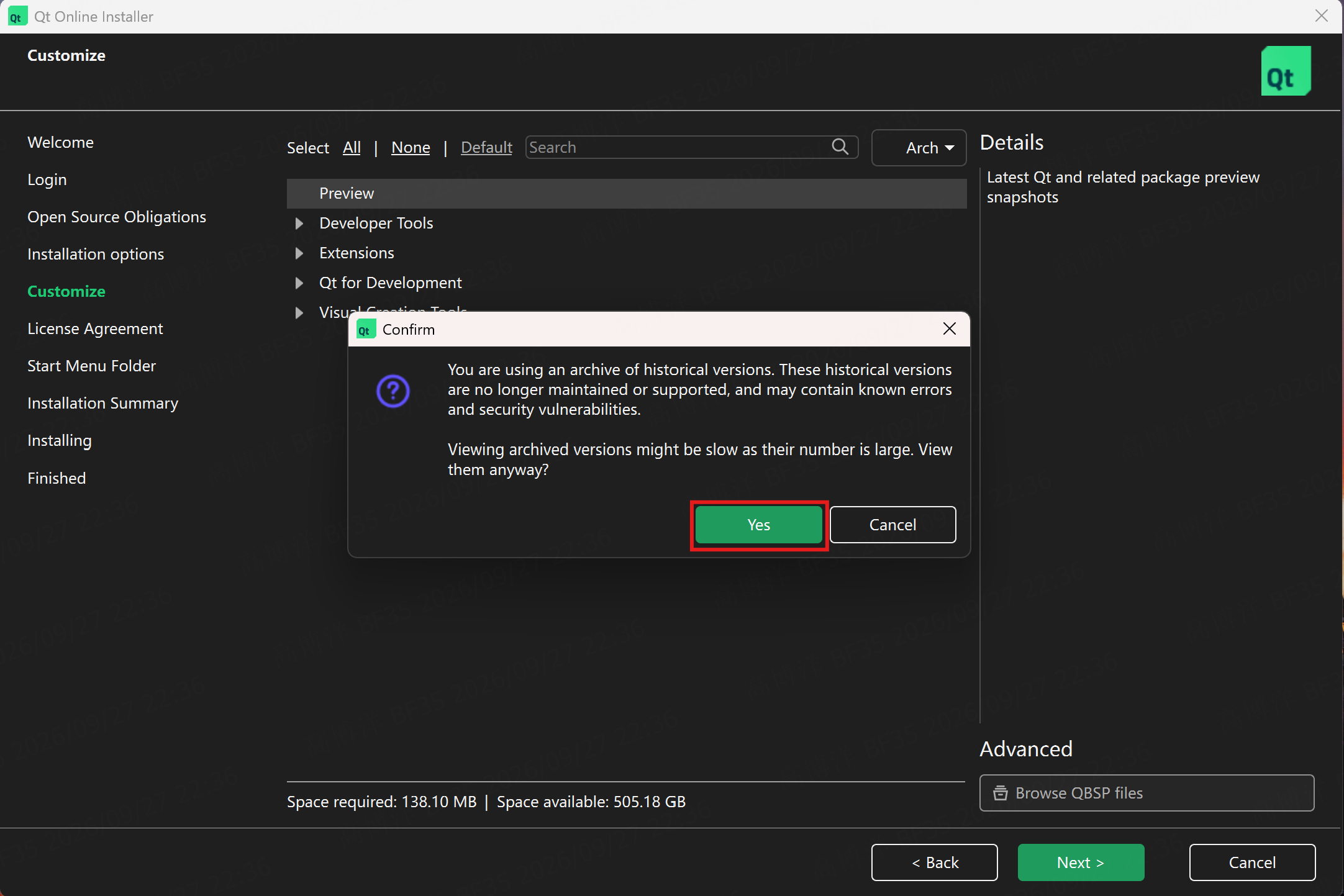
9. Select Yes
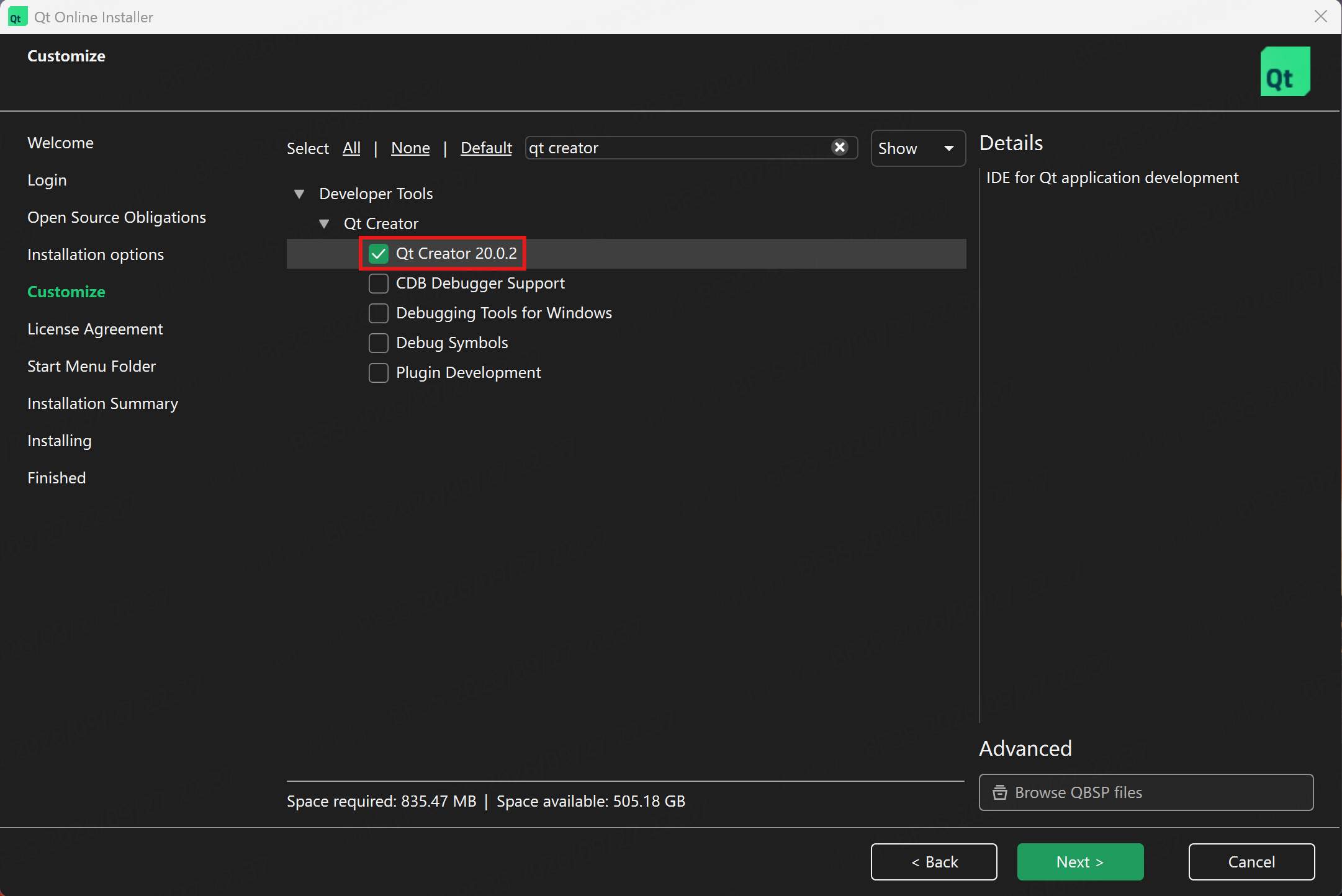
10. Search for and select Qt Creator
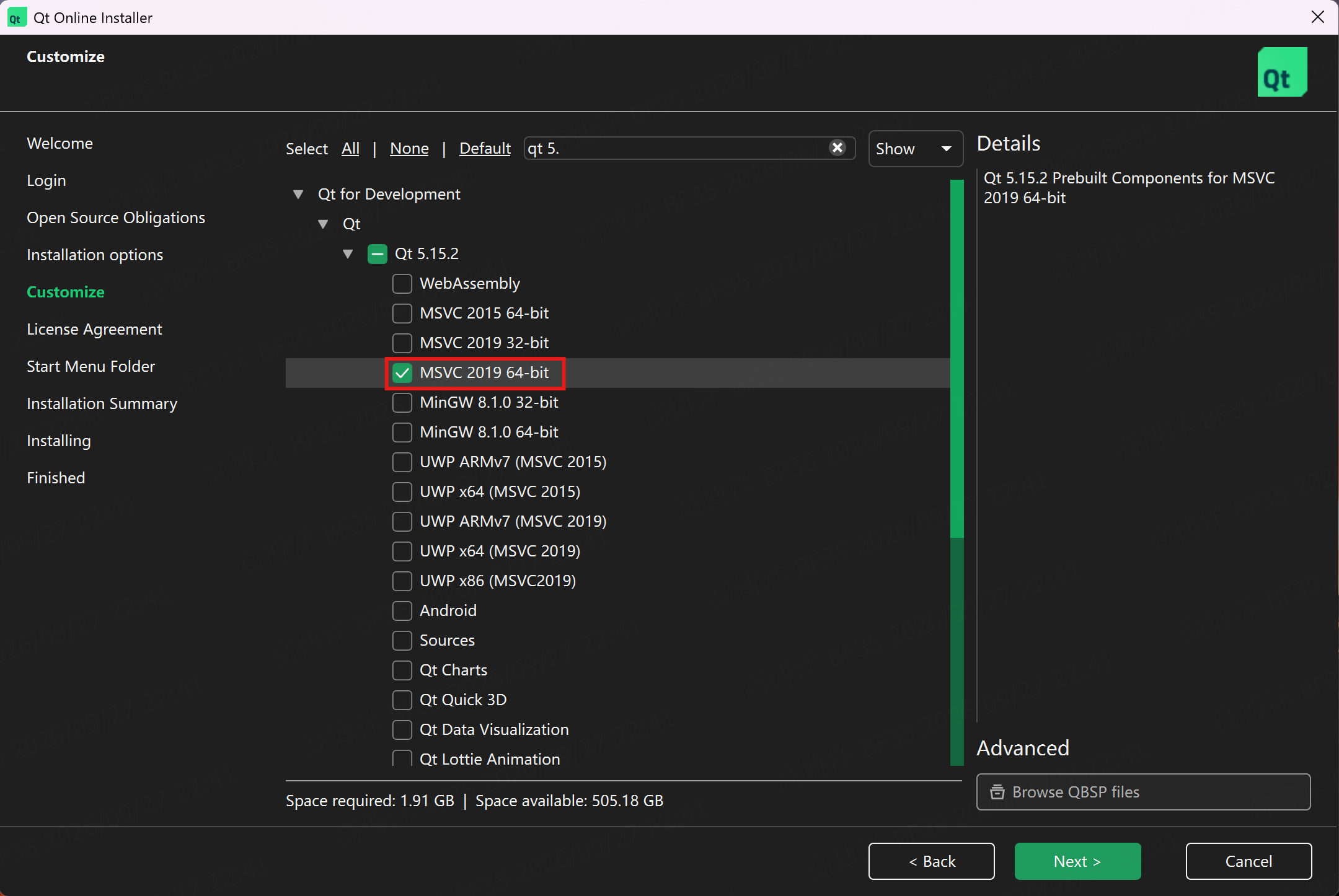
11. Search for Qt 5.15.2 and select MSVC 2019 64-bit
This item installs the Qt libraries built for MSVC; it is not the MSVC compiler. See Install MSVC for the compiler. Select 64-bit or 32-bit according to the target architecture; if unsure, both may be selected.
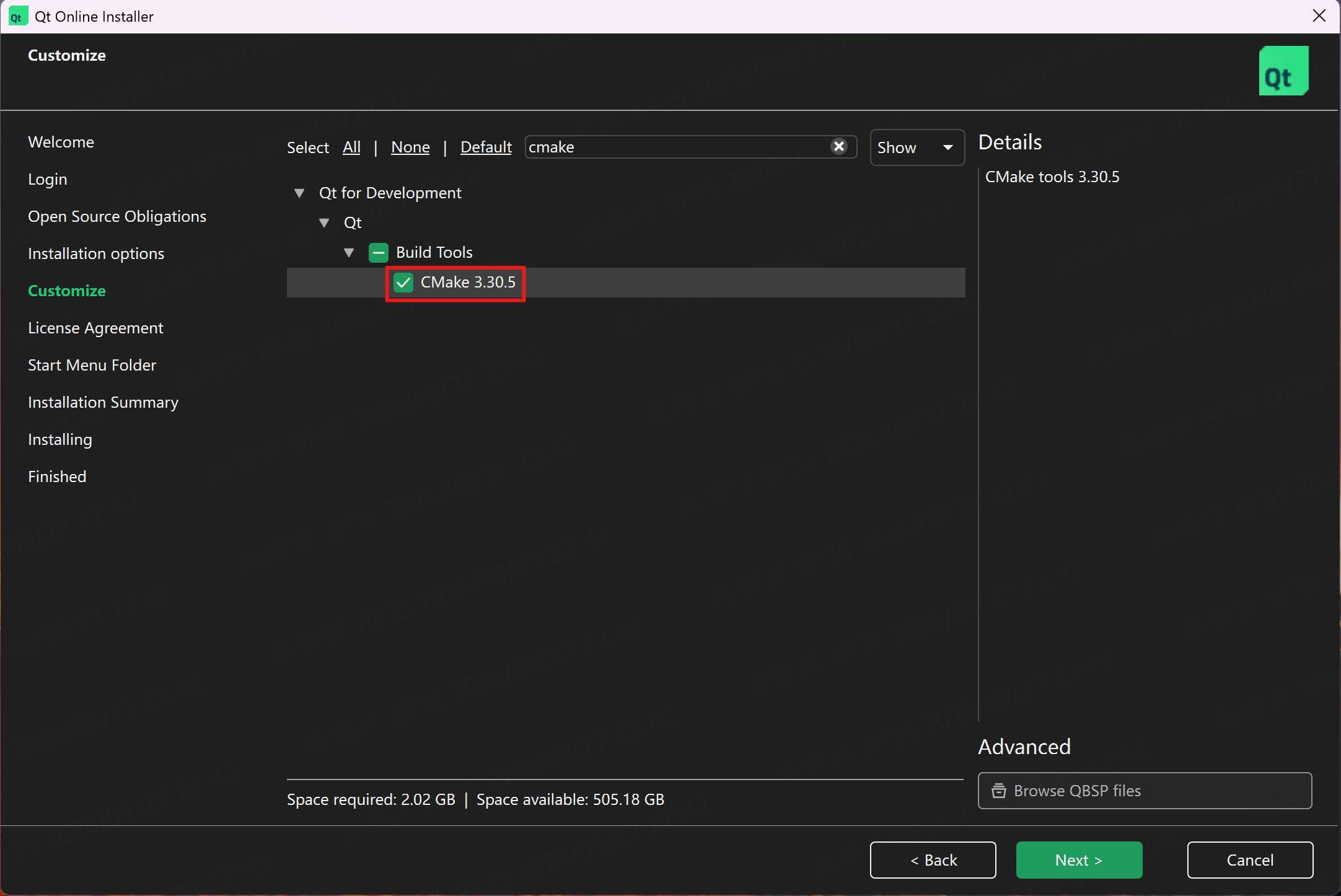
12. Search for and select CMake
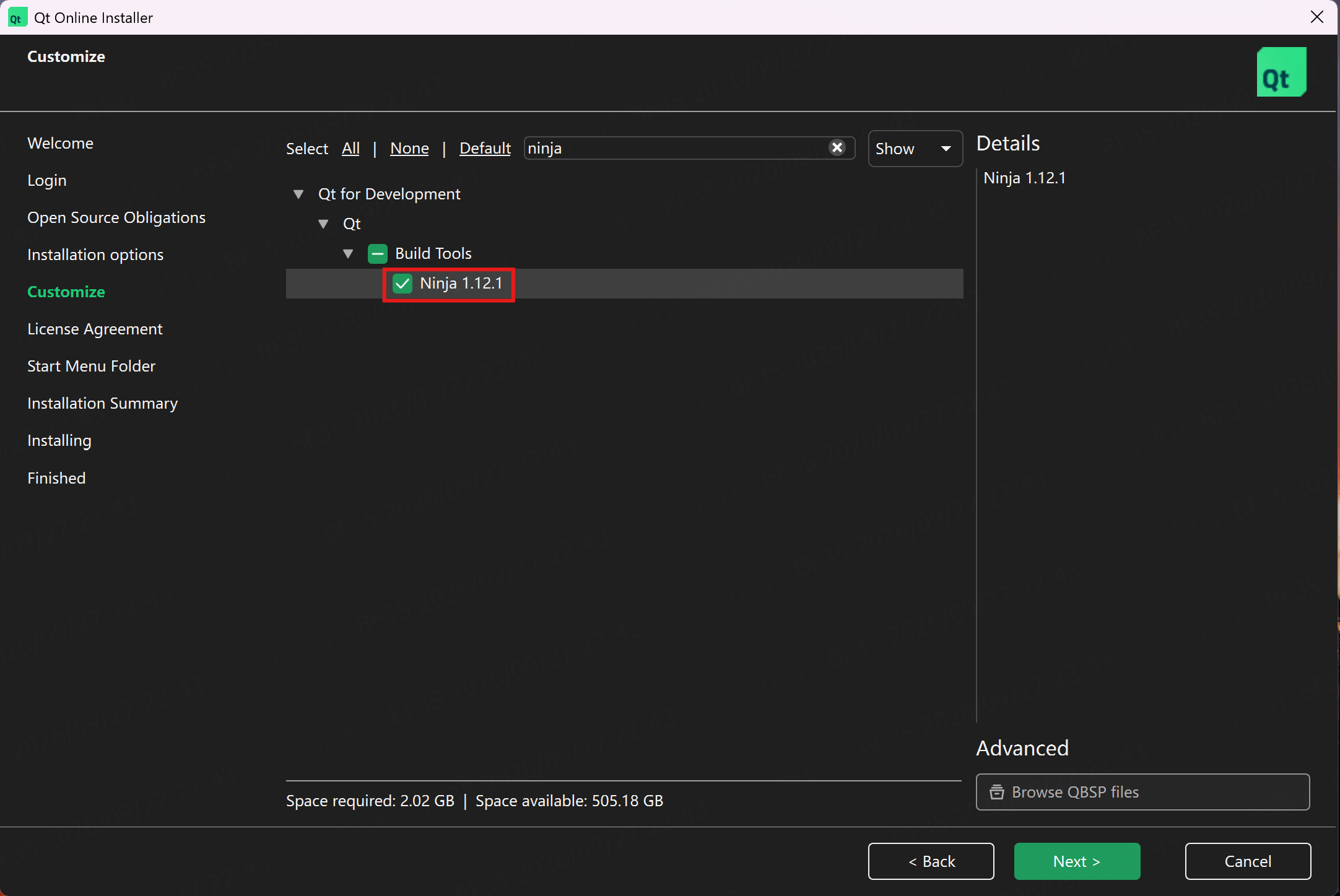
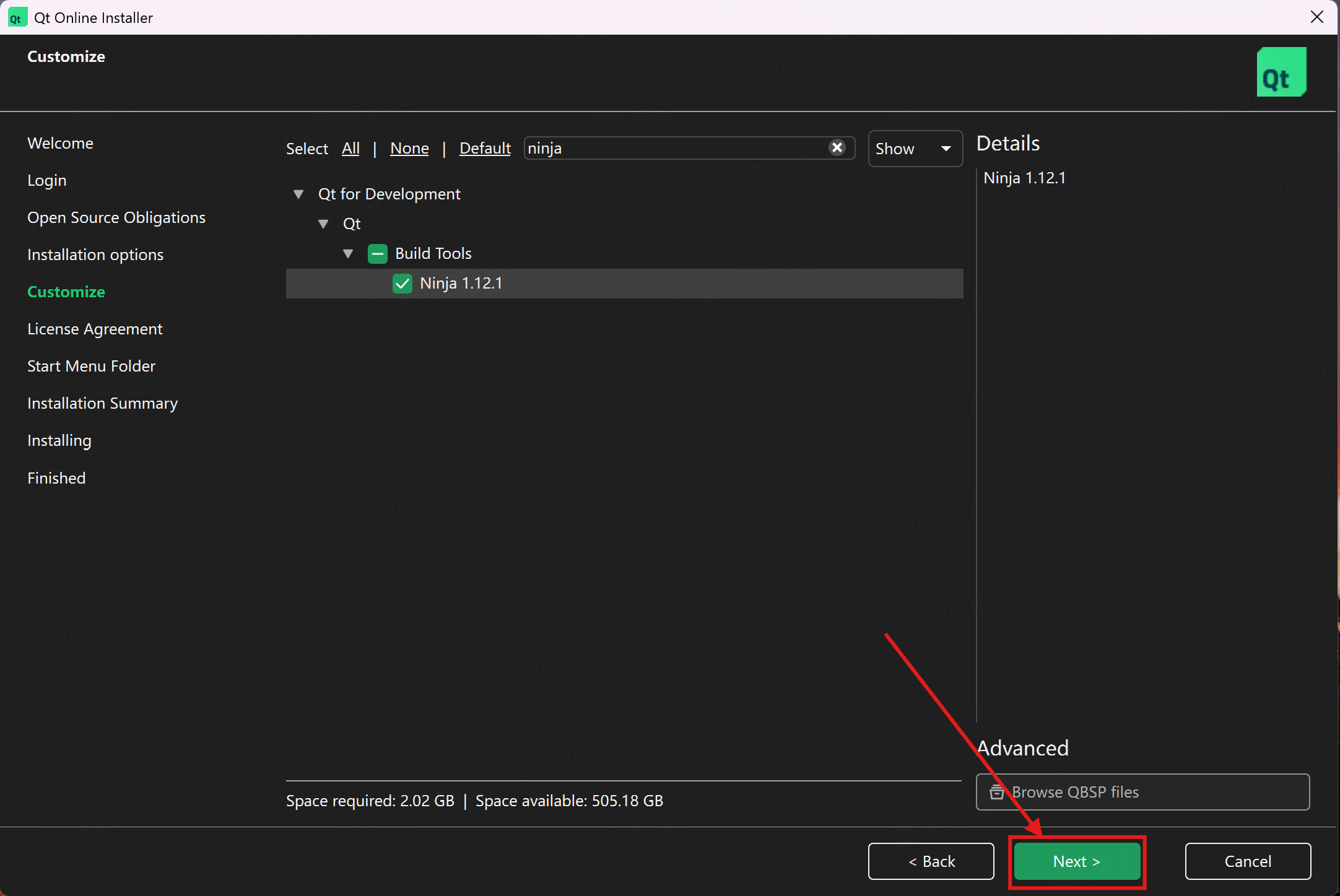
13. Search for and select Ninja
14. Select Next
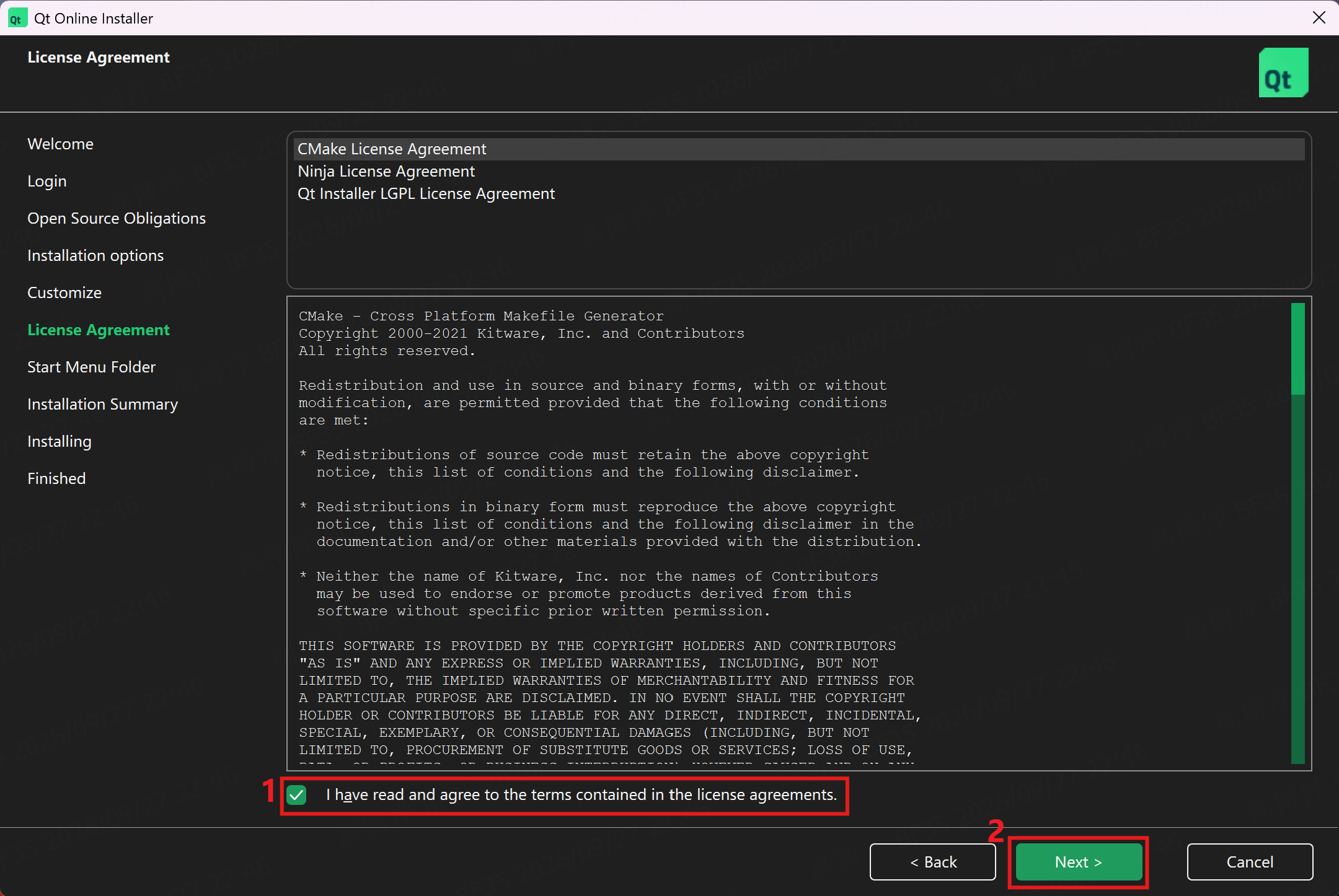
15. Accept the license agreement, then select Next
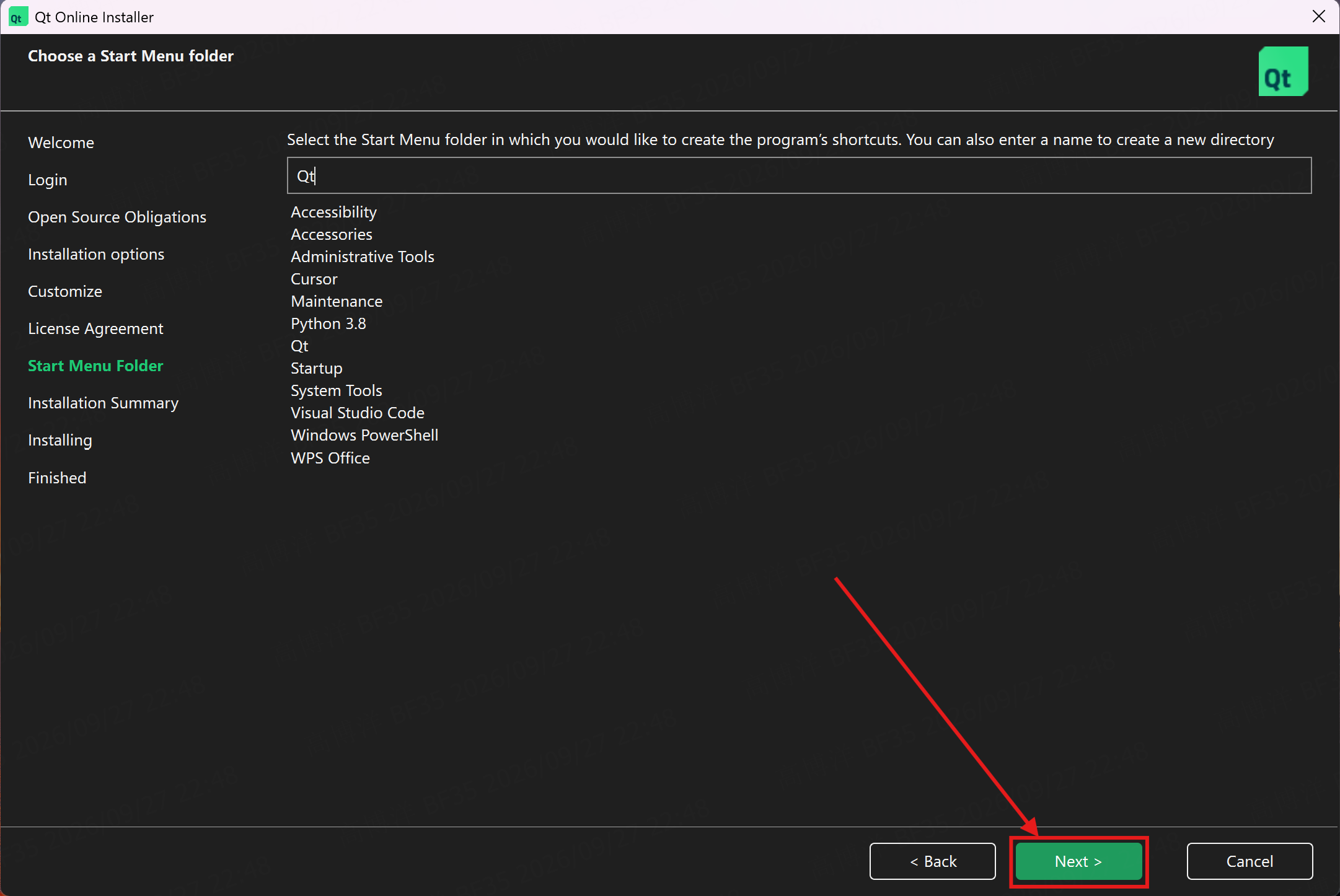
16. Select Next
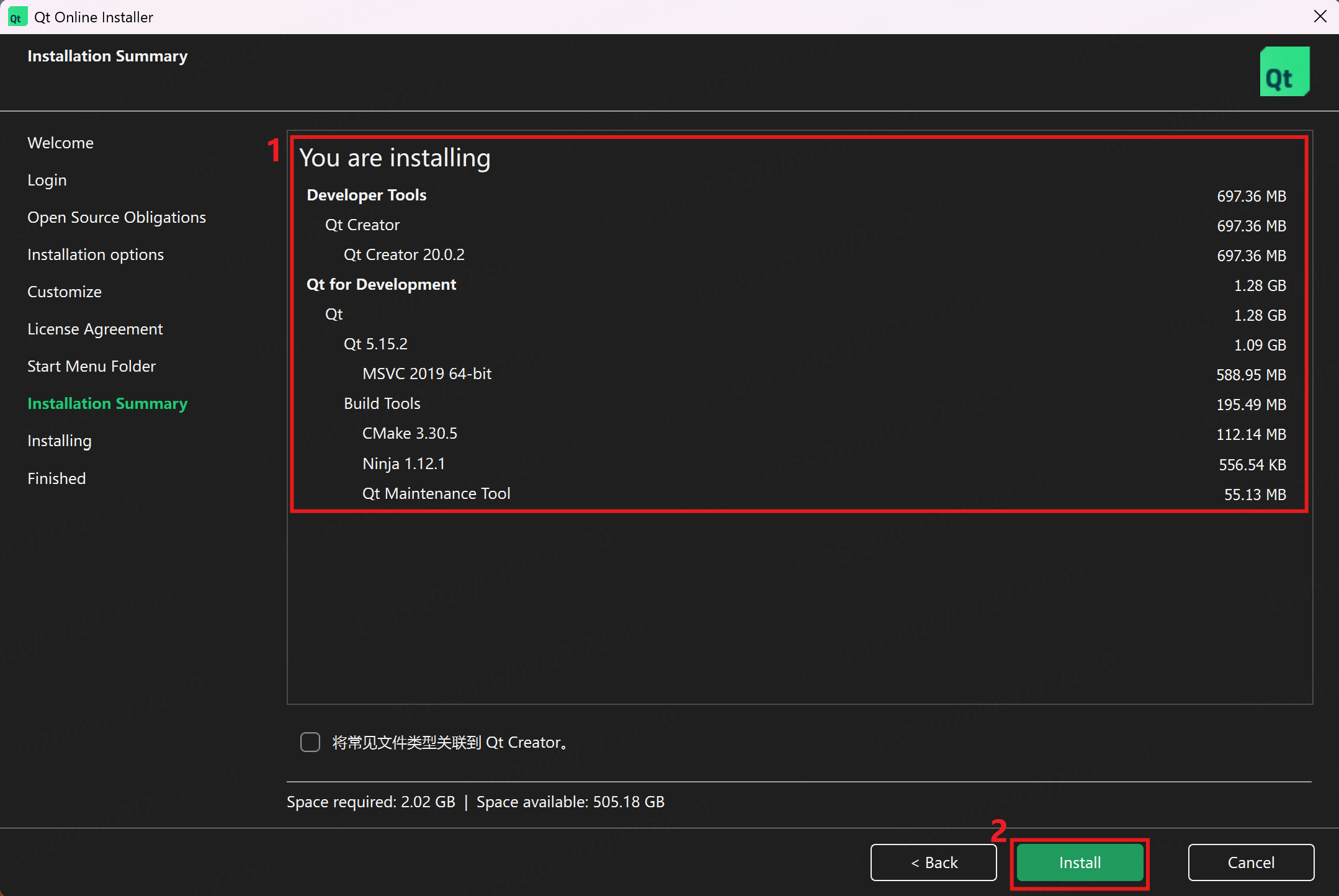
17. Confirm that the components are at least those shown, then select Install
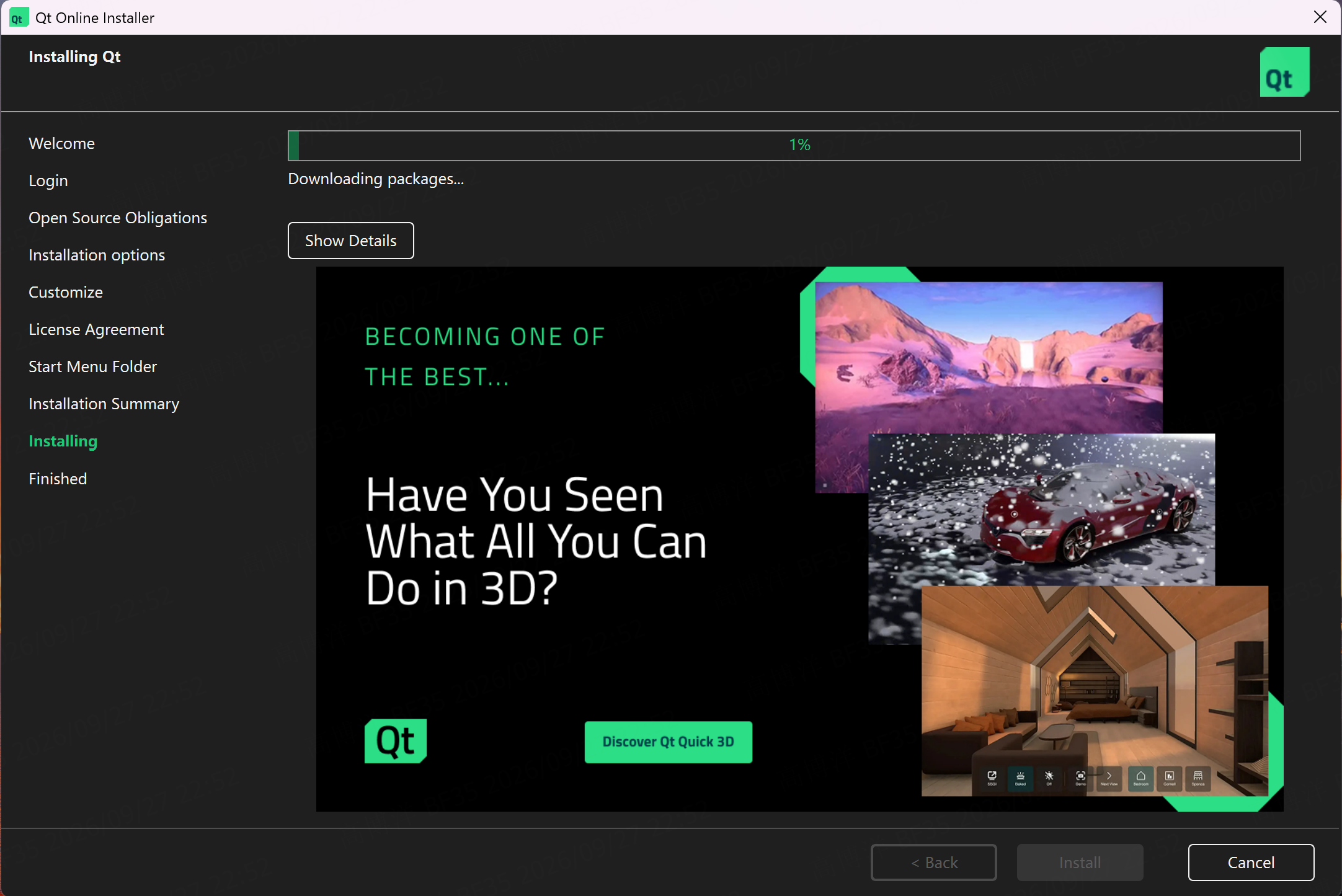
18. Wait for installation
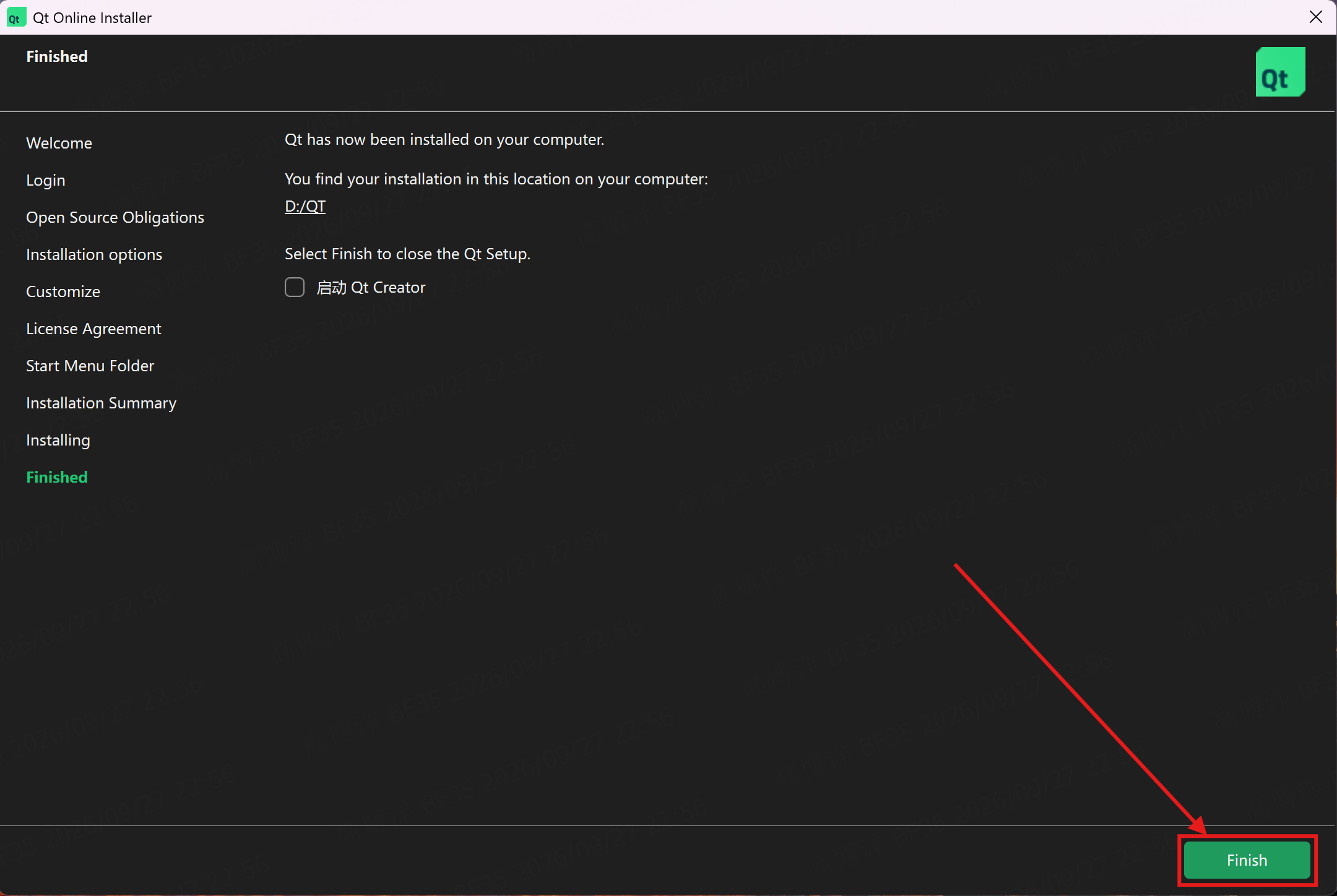
19. Select Finish