Import and Use the Virtual Machine
Overview
This image is a VMware virtual machine image. It provides a Linux environment for multi-platform plugin compilation and plugin packaging tools. You can use it to compile plugin source code, perform cross-platform builds, and generate plugin packages, improving consistency and convenience across development and delivery.
Download
| File | Download |
|---|---|
| RokaePlugin.ova | http://sw.rokae.com:8800/?file=xcore/Rokae%2B/env/RokaePlugin.ova |
Download the virtual machine image file before importing it as described below.
Usage Steps
1. Install VMware Workstation Pro
Complete Install VMware first.
2. Import the Virtual Machine Image
Open VMware Workstation Pro and drag the virtual machine image file into the main window to complete the import.
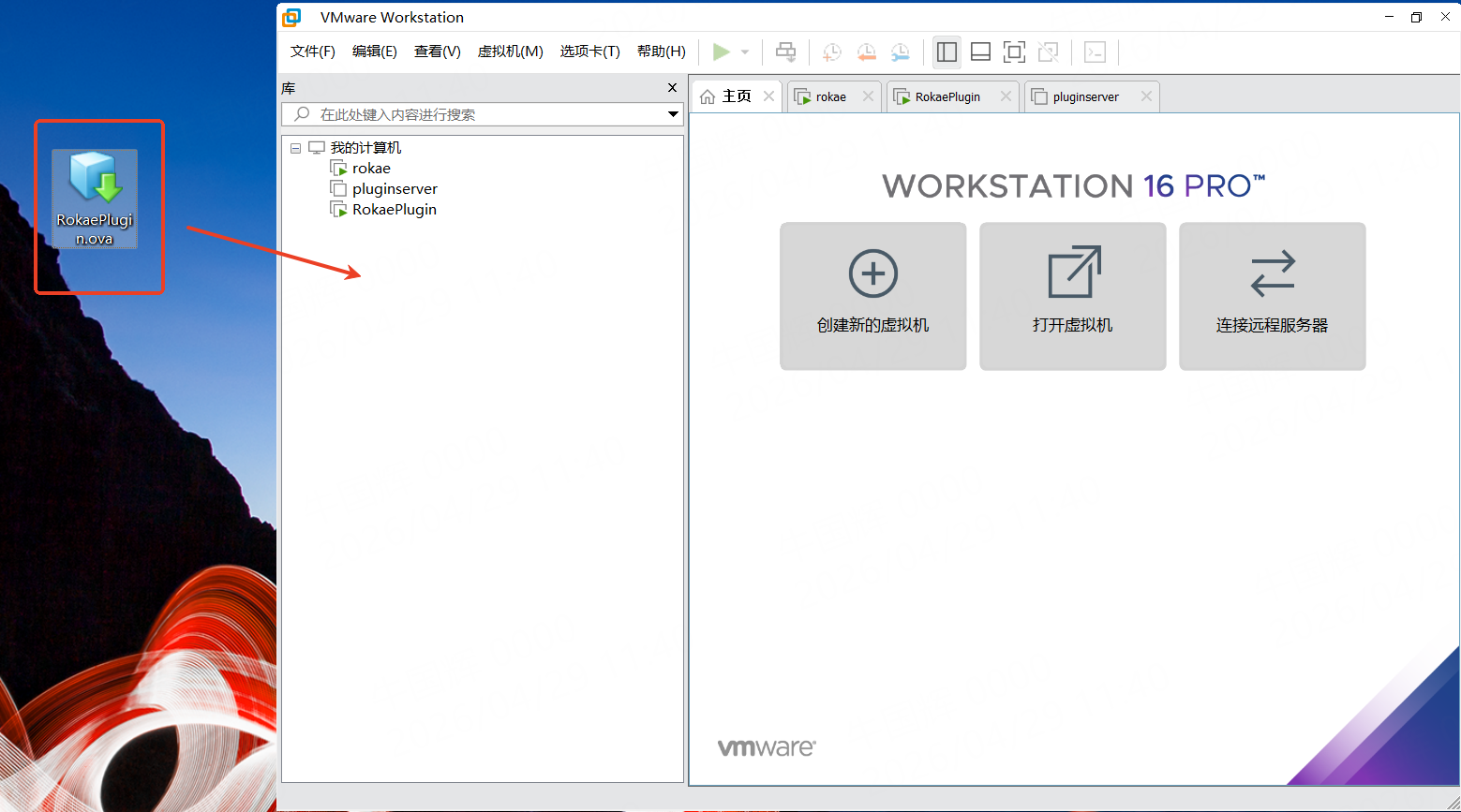
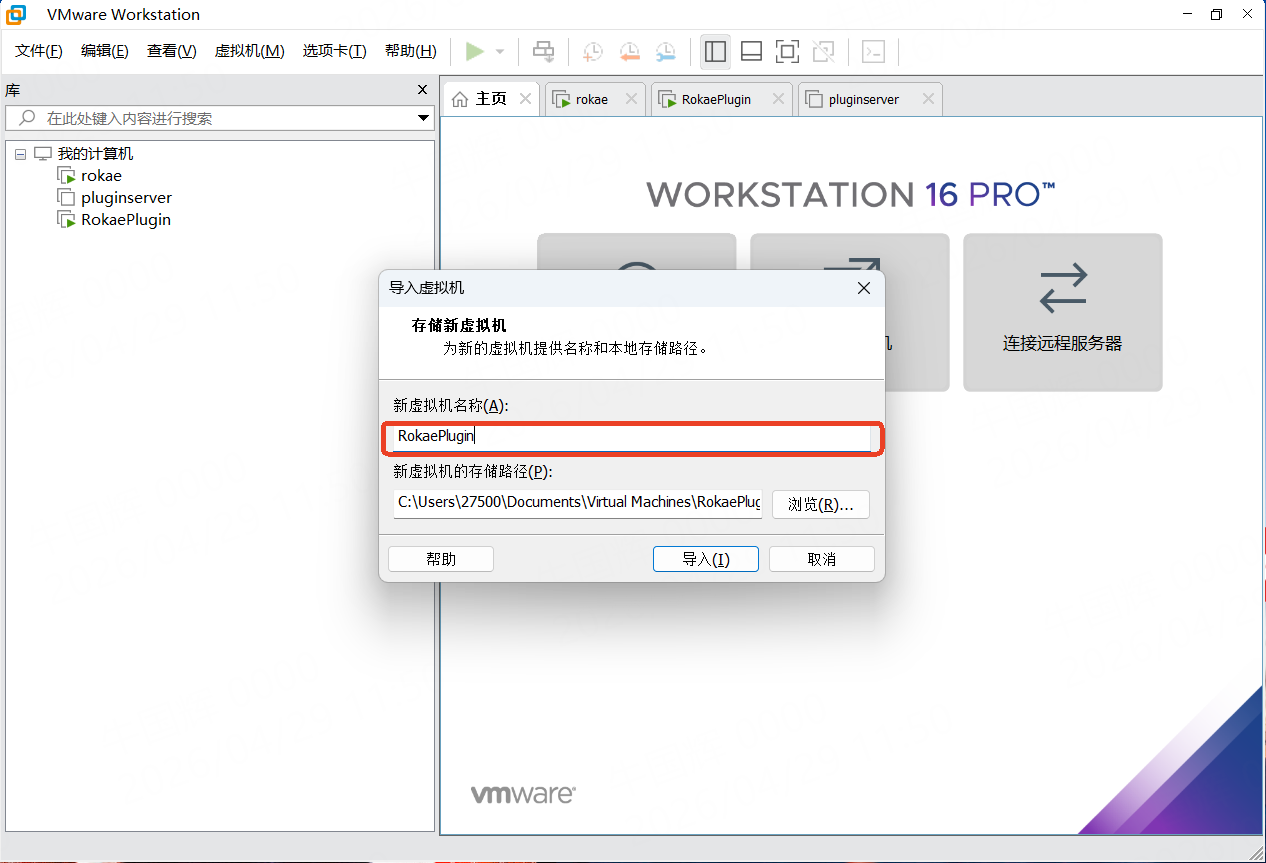
After import, you can change the display name of the virtual machine in the list as needed.
3. Start and Sign In to the Virtual Machine
After the virtual machine starts, sign in with the following account:
| Name | Value |
|---|---|
| Username | rokae |
| Password | 123456 |
4. Plugin Project Directories
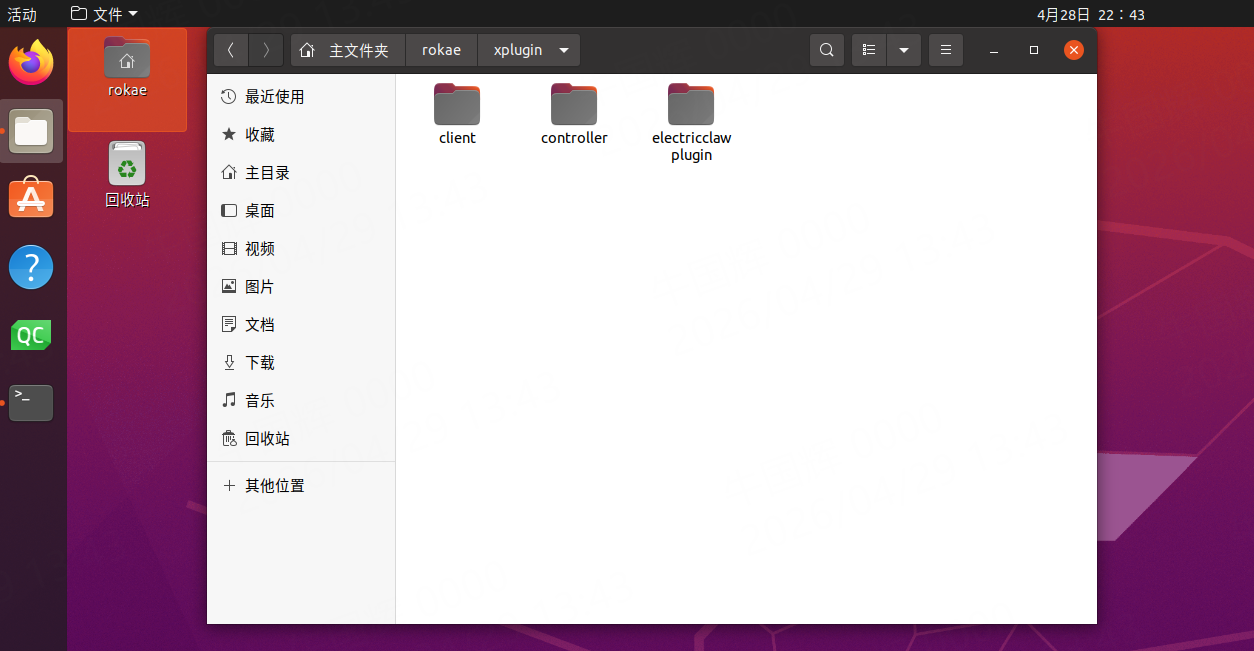
After sign-in, plugin-related projects are located by default at:
/home/rokae/rokae/xplugin
Directory layout:
| Directory name | Description |
|---|---|
| client | HMI (client) plugins |
| controller | Controller plugins |
| electricclawplugin | Electric gripper sample plugin (includes both HMI and controller sidesa full-stack engineering example with complete front-end and back-end interaction) |
5. Plugin Compile and Package
The image includes a plugin compile and packaging service that you can use to compile and package plugins. Open http://<VM-IP>:8008/ in a browser to access the service.