Install VMware
Before running the Rokae cross-compilation virtual machine image, install VMware Workstation Pro on the Windows host.
Download
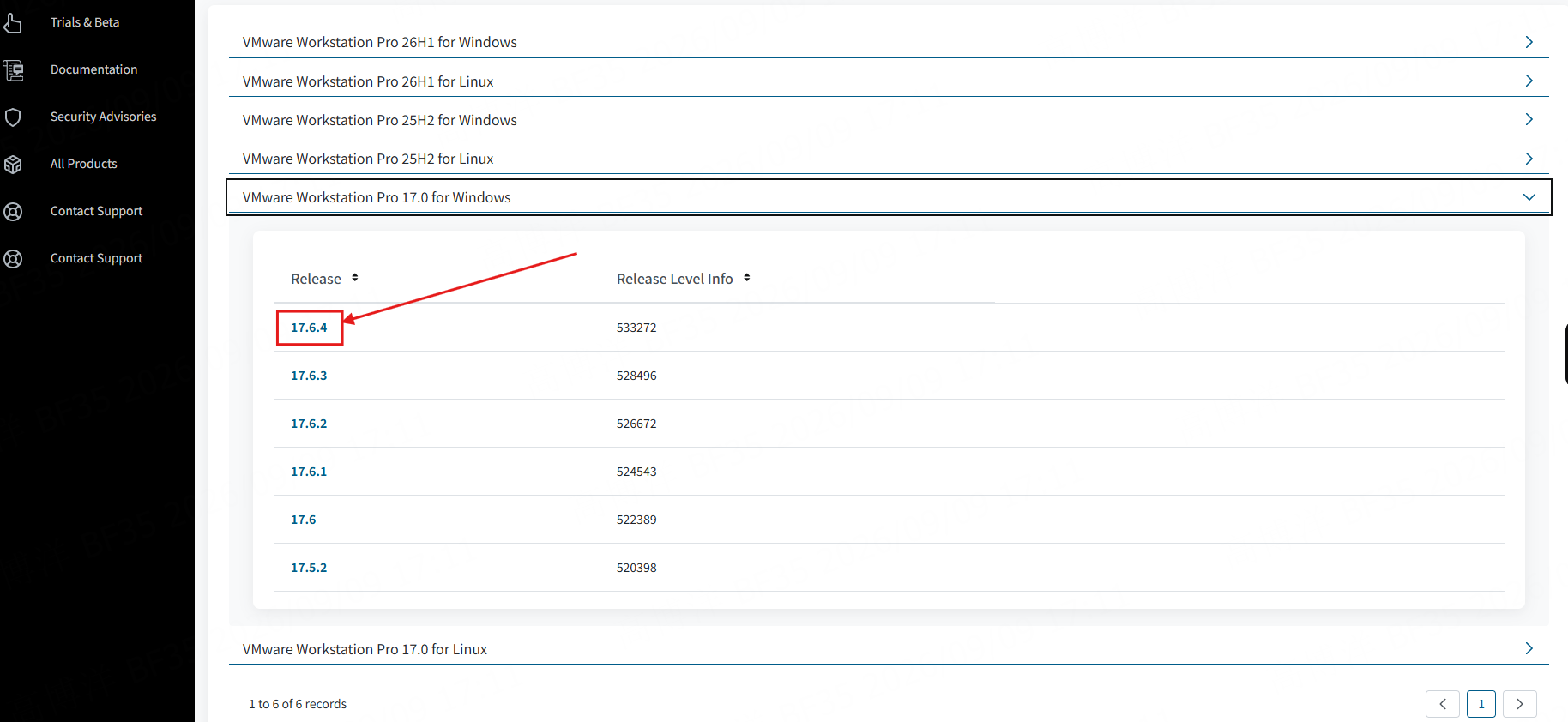
This guide uses VMware Workstation Pro 17.6.4 (Windows).
| Name | URL |
|---|---|
| Download page | https://support.broadcom.com/group/ecx/free-downloads |
Download steps
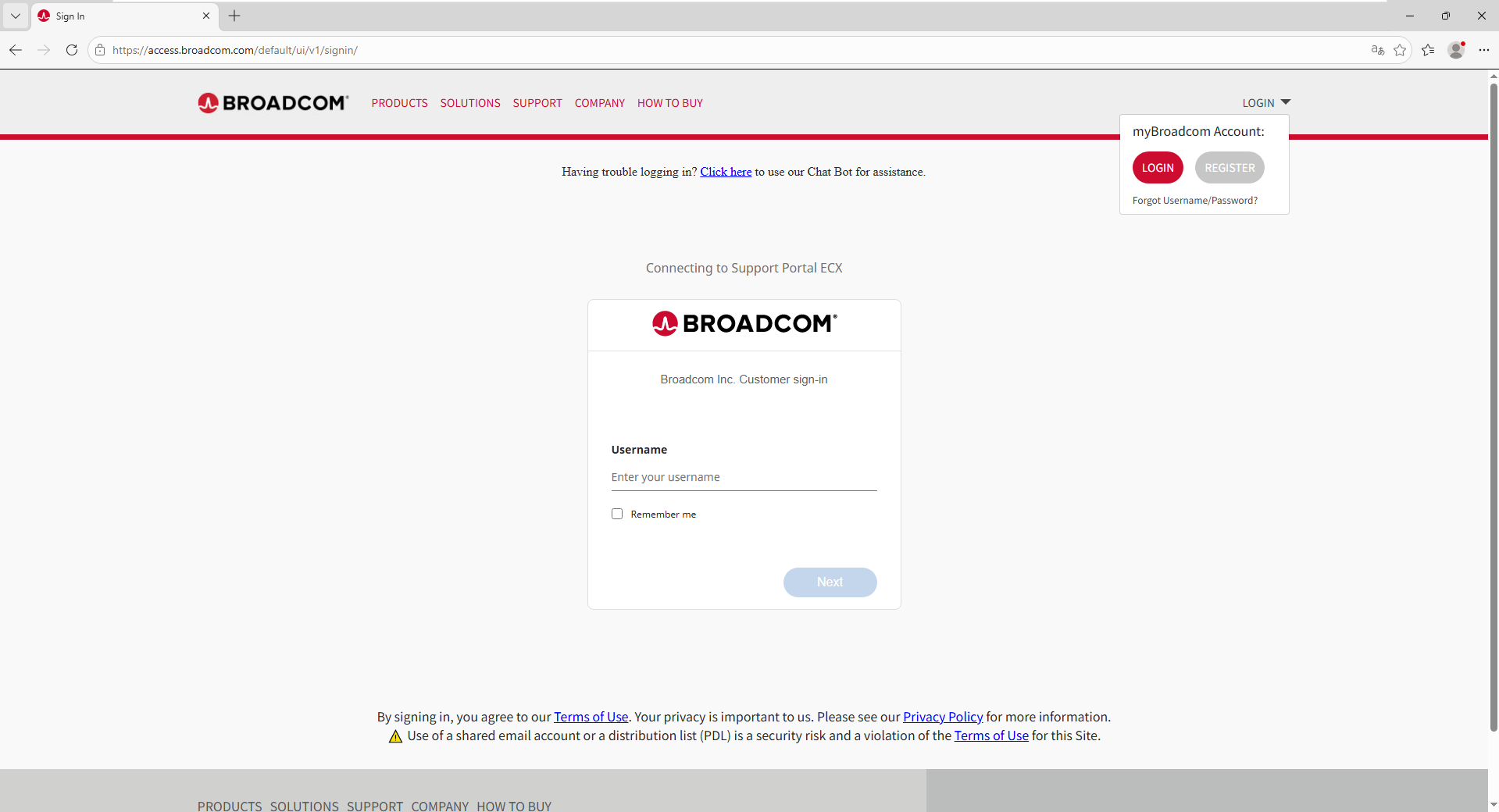
1. Open the download page and sign in
Open the download page listed above and sign in to a Broadcom account when prompted. If an account is not available, create one and return to this page to sign in.
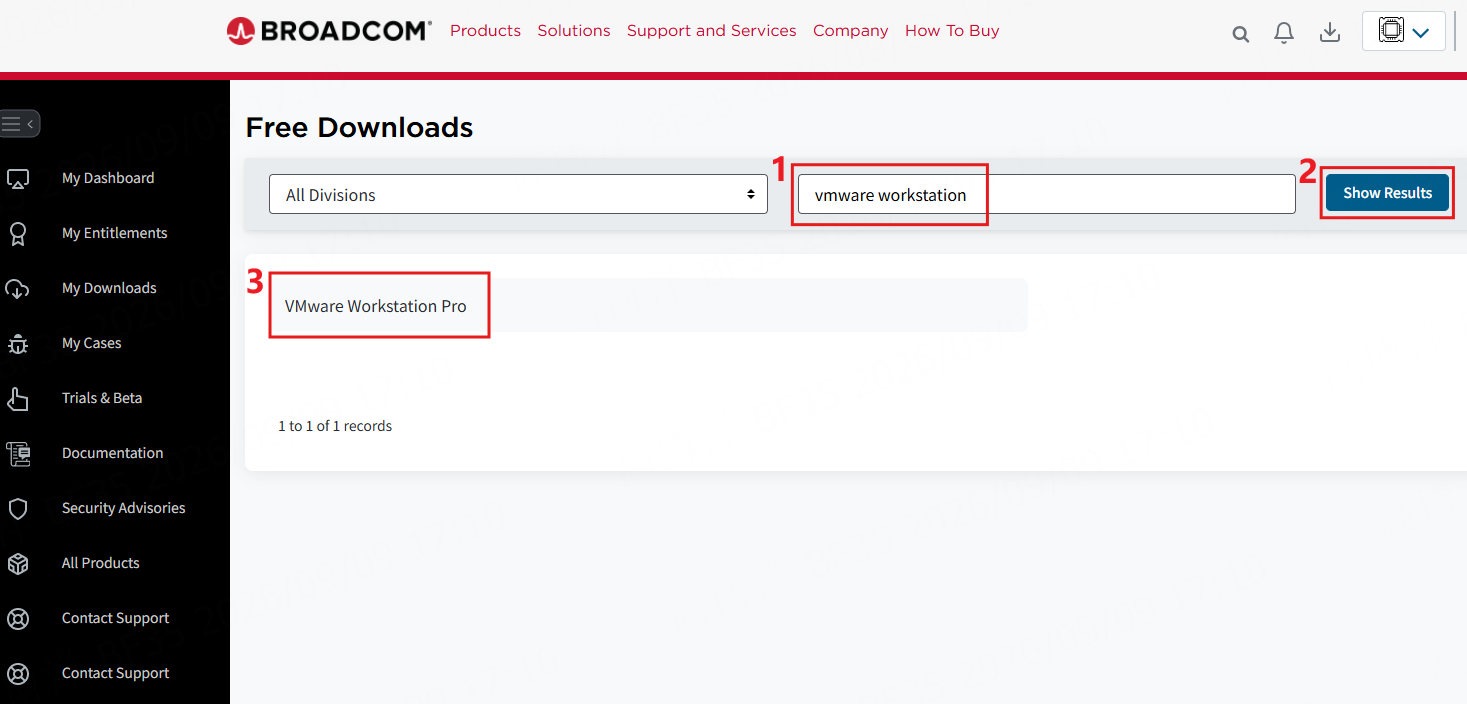
2. Search for VMware Workstation Pro
Enter vmware workstation in the search box, click Show Results, then click VMware Workstation Pro.
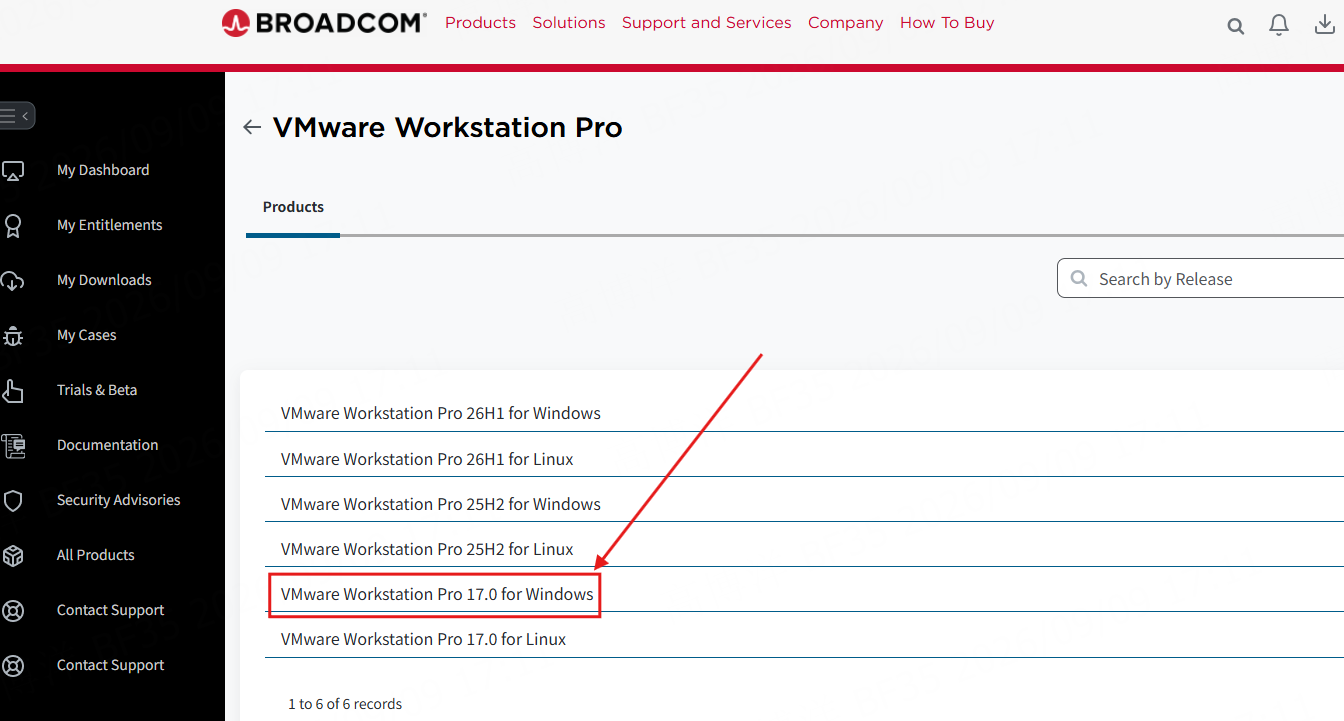
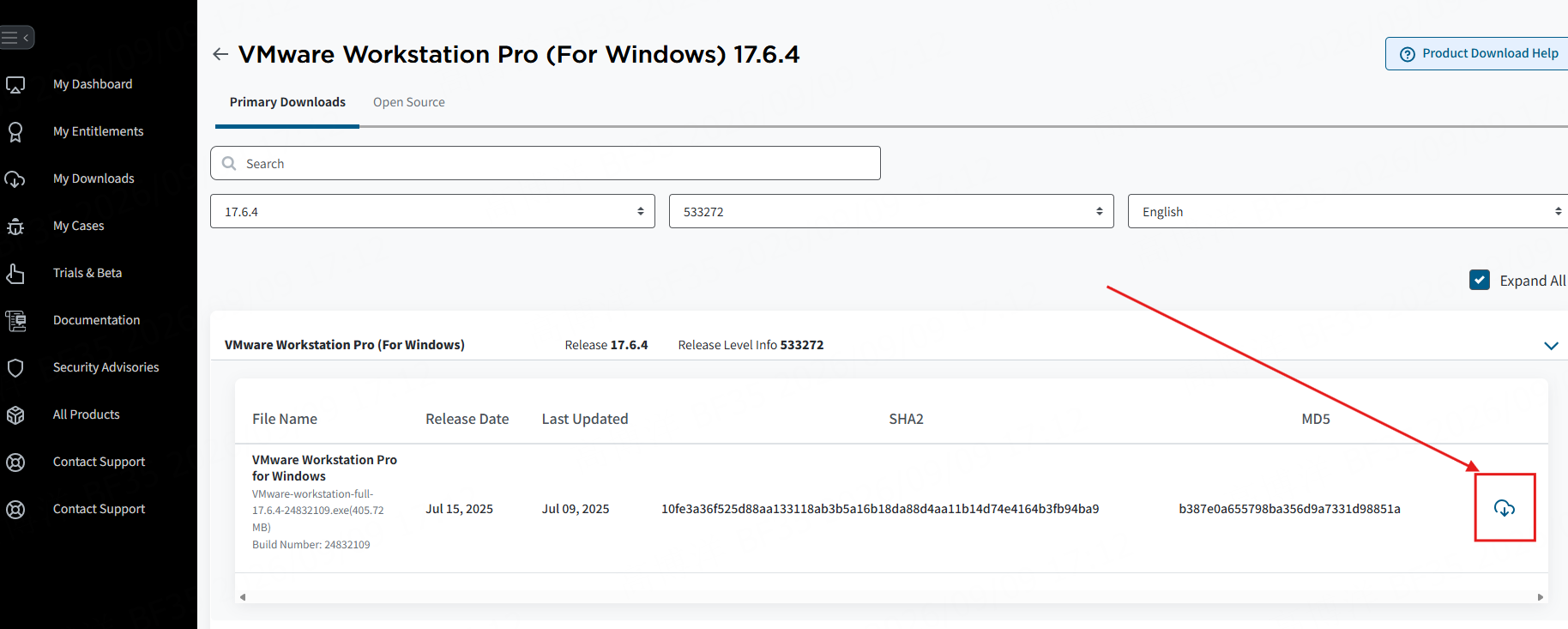
3. Click VMware Workstation Pro 17.0 for Windows
4. Click 17.6.4
5. Click Download
Installation steps
1. Start the installer
Double-click the downloaded installer.
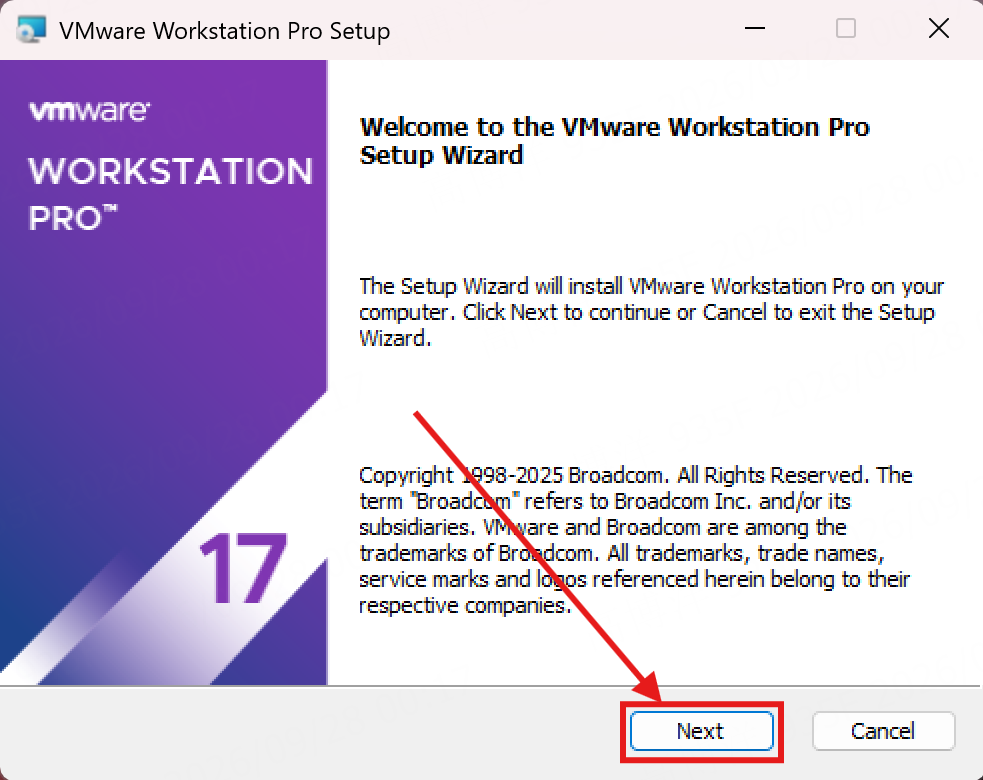
2. Welcome page, click Next
3. Accept the license agreement
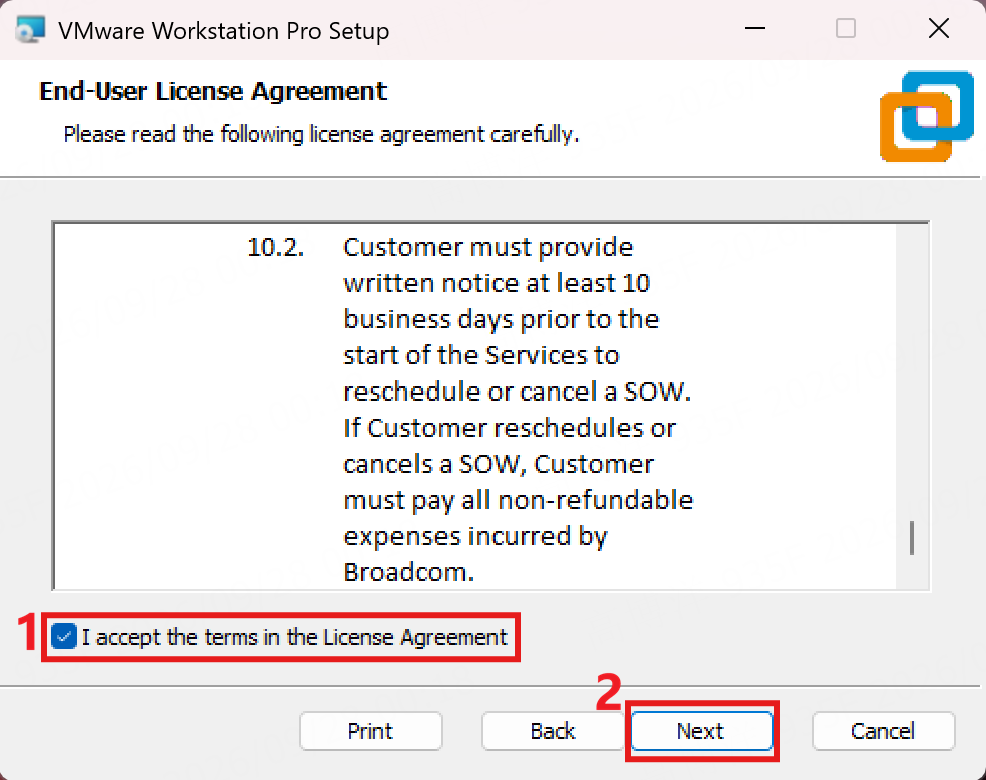
Select the option to accept the license terms, then click Next.
4. Confirm the install location
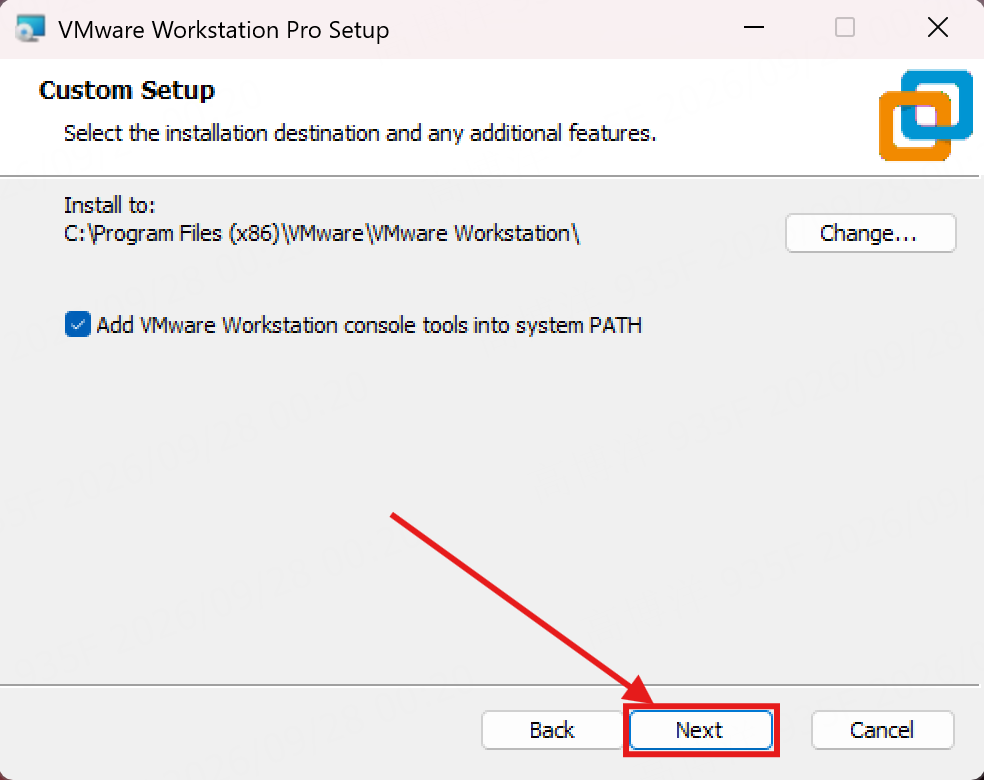
VMware does not recommend changing the install location. Keep the default path, then click Next.
5. User experience settings
Select the options as needed, then click Next.
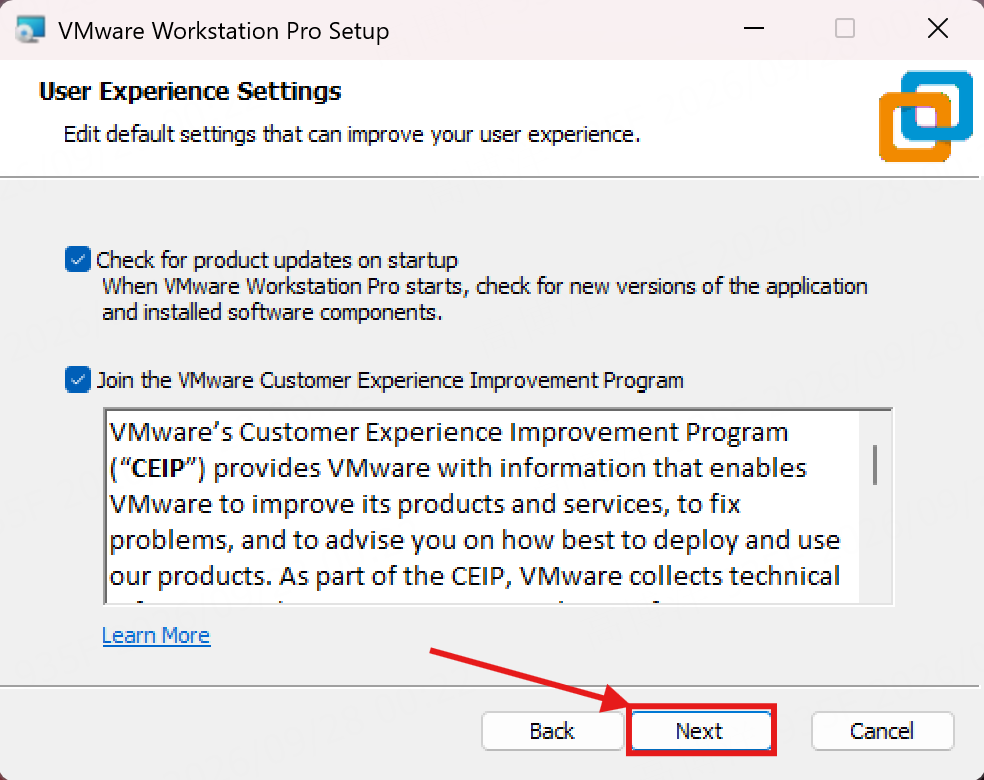
6. Click Next
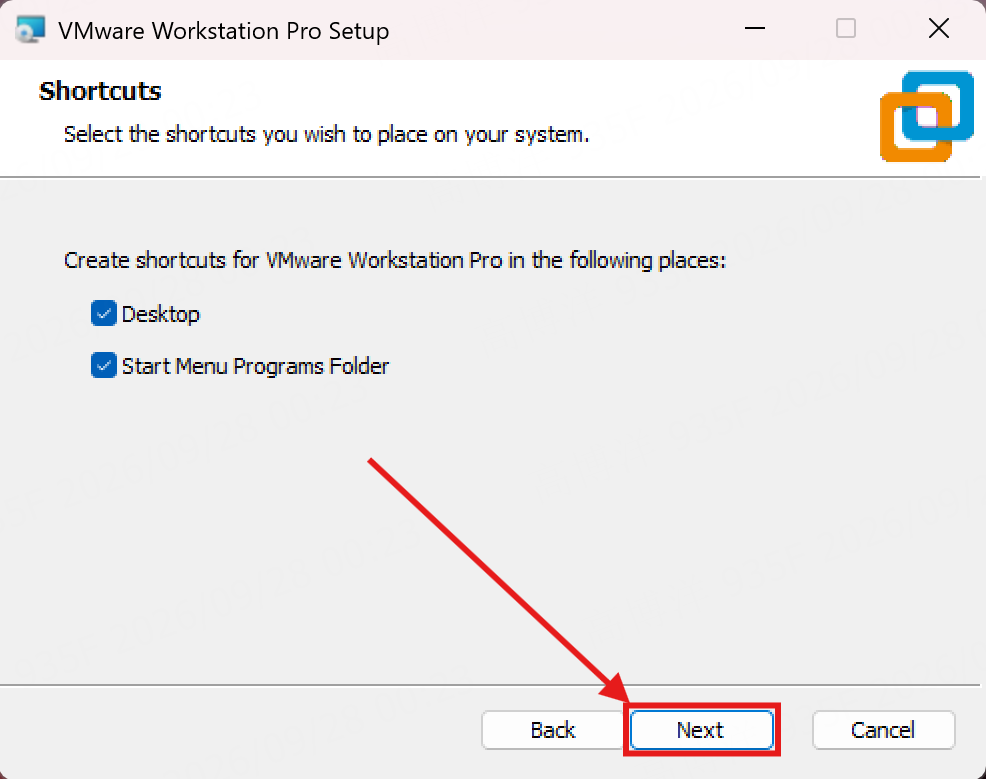
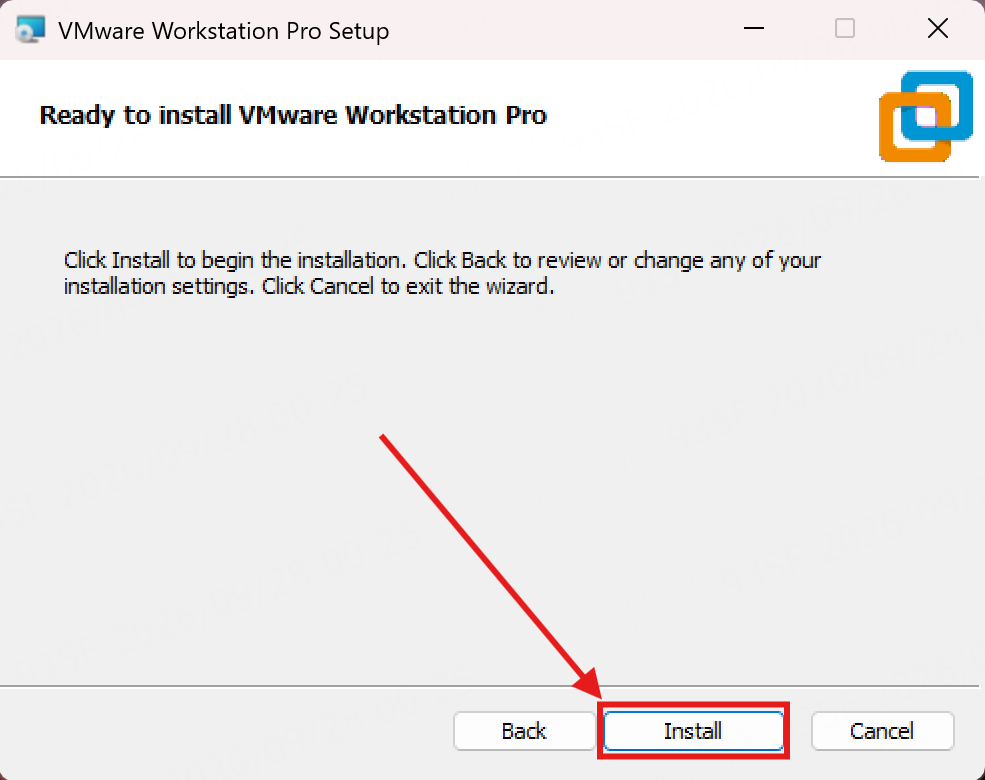
7. Click Install
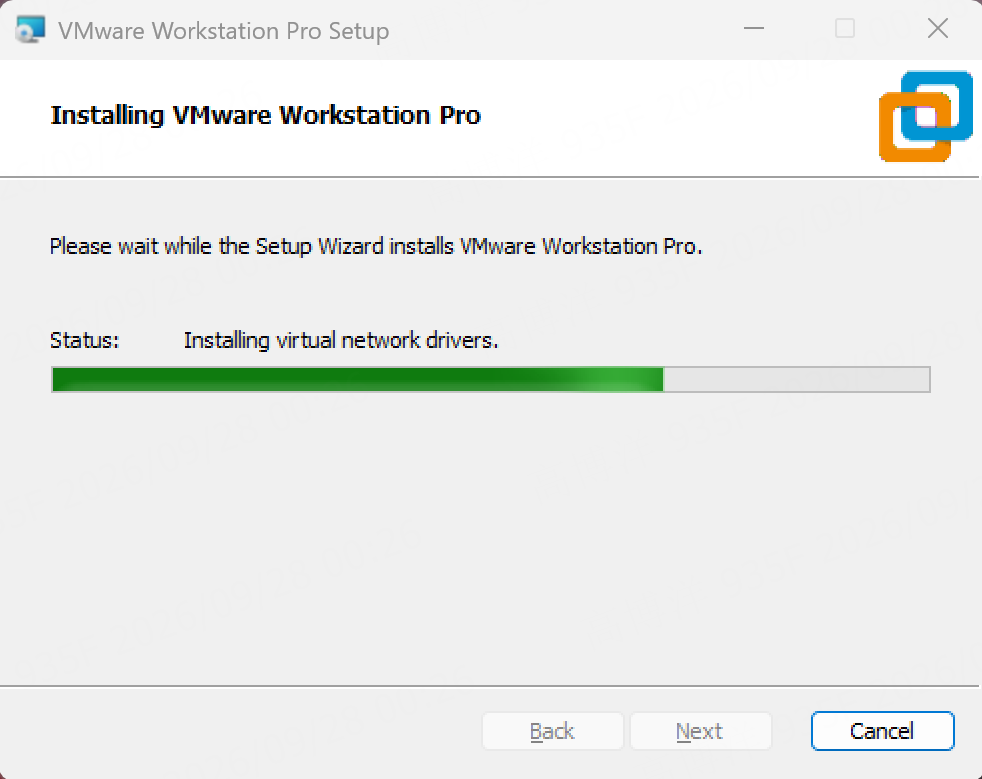
8. Wait for the installation to finish
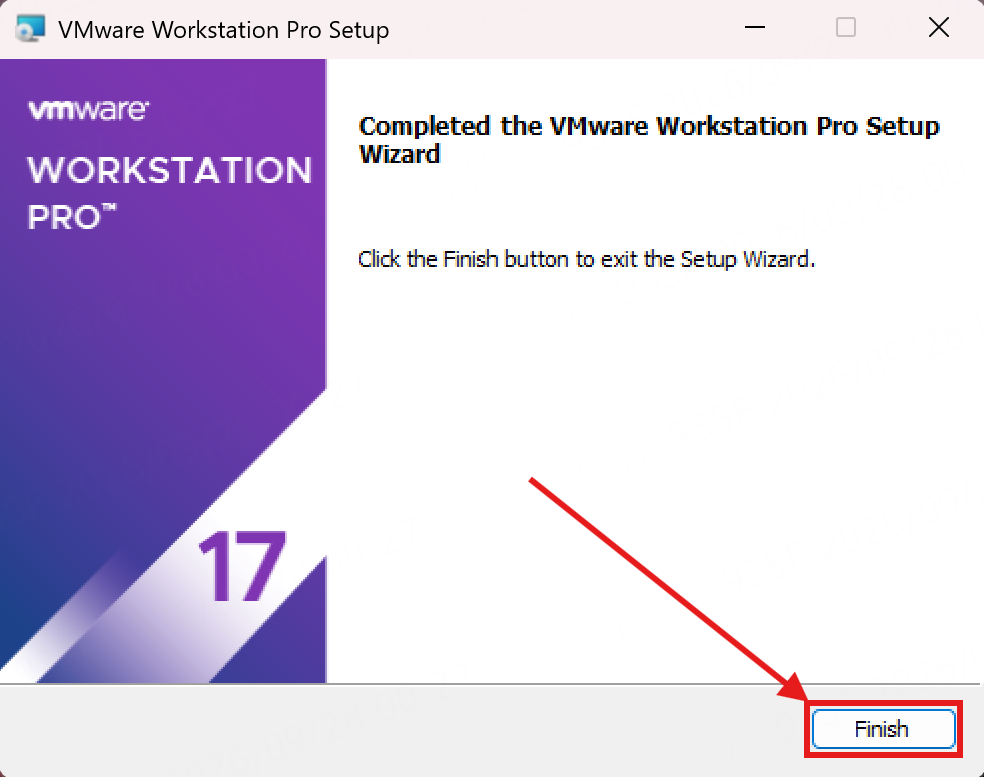
9. Click Finish
After installation, continue with Import and Use the Virtual Machine.