10.12 Serial port settings
Users can utilize serial ports for communication with external devices. The utilization of serial ports necessitates hardware equipment support. The XBC5 control cabinet of industrial robots features a dedicated RS-232 serial port on the cabinet body. Alternatively, users can leverage the reserved USB interface in the control cabinet and employ the USB to RS-232 interface module for serial port communication. However, this functionality is not supported by collaborative robots due to the absence of relevant hardware interfaces.
On the HMI main interface, users can access the serial port settings interface via the "Communication" -> "Serial port settings" menu, as shown in the following figure:
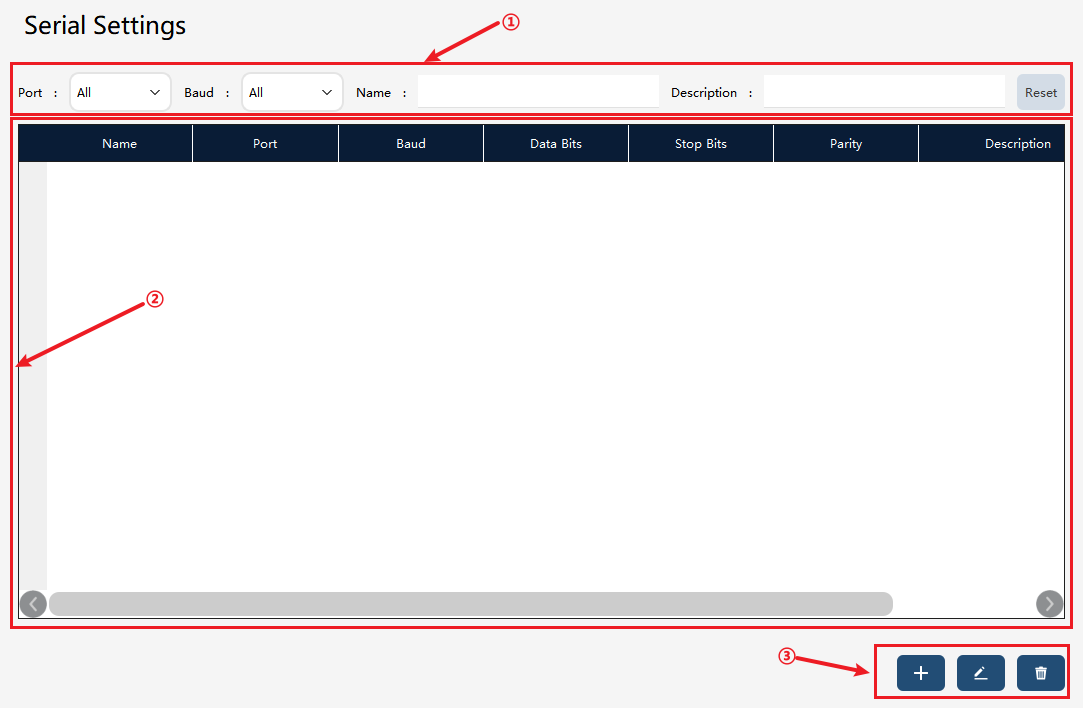
① |
Serial port display filtering. |
② |
List of serial port device. |
③ |
Serial port edit buttons, from left to right, are Create, Edit, and Delete. |
Click the "Create" button to enter the New Serial Port page, as shown in the following figure:
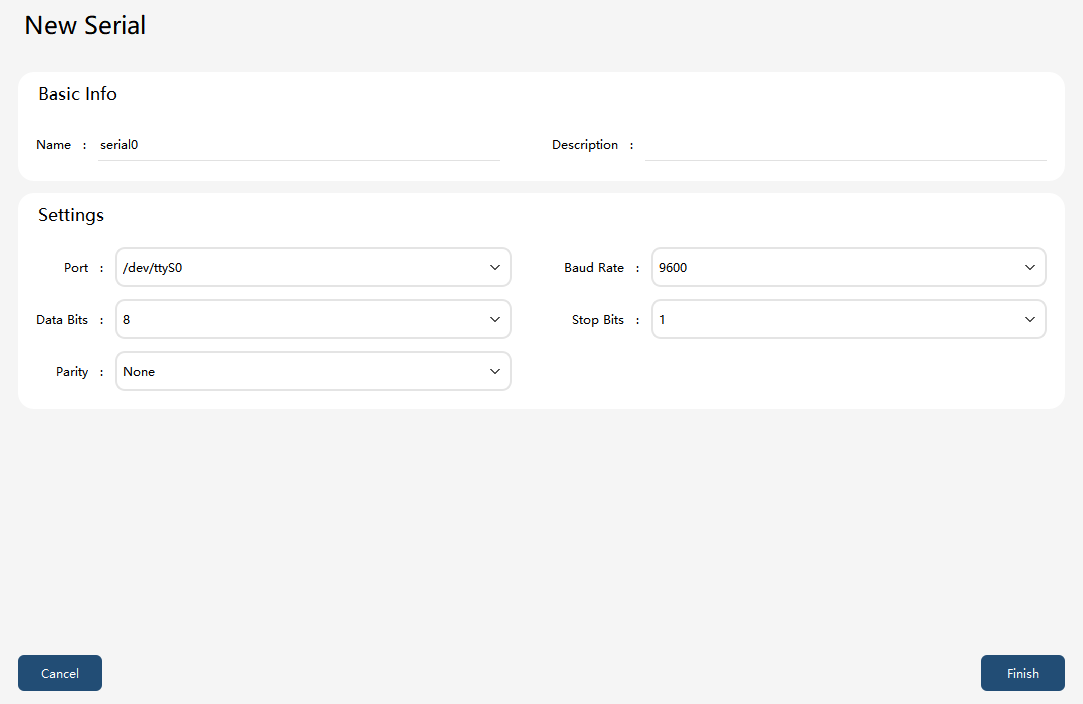
Before using the serial port, the parameters that need to be configured are as follows:
| Parameter | Explanation |
|---|---|
Name |
The custom name to be used as the unique identifier in RL to use the serial port resources. |
Port |
System port. On the XBC5 series control cab and MCM series control cab, the control system will list out the scanned serial port resources (including virtual serial ports converted from USB) for users to select and use. On the XBC6 series control cab, the serial port ttyS4 corresponds to the RS485 serial port, and the serial port ttyS0 corresponds to the RS232 serial port. On the MCCM series integrated drive-control cabinets, the serial port ttyS6 corresponds to the RS485 serial port, and the serial port ttyS4 corresponds to the RS232 serial port. |
Baud rate |
1200/2400/4800/9600/19200/38400/57600/115200 are optional. |
Data bit |
5/6/7/8 bits are optional. |
Stop bit |
1/1.5/2 bits are optional. |
Parity bit |
Odd parity/Even parity/Mark parity/Space parity/None parity are optional. |
After configuring the parameters, click the "Next" button to complete the serial port configuration. At this time, use the serial port in the RL program. The serial port function includes a series of commands, please refer to the detailed description of serial port command in the RL command.
Note: Please try to ensure that the parameter settings on both ends of the serial port communication are consistent, otherwise, it may cause abnormal data transmission and reception.