8.10.1 Overview
In addition to the default Universal IO signals created by the "IO device" in the enabled state, if you want to use the IO device alone to create a user IO signal, you need to create it on the "IO Signal List" page. Starting from V4.0, Global IO and Local IO are supported: Global IO corresponds to system variables, and Local IO corresponds to project variables.
The signalxx type variables are used to store and access IO signals in the RL program. For details, refer to relevant sections about RL commands.
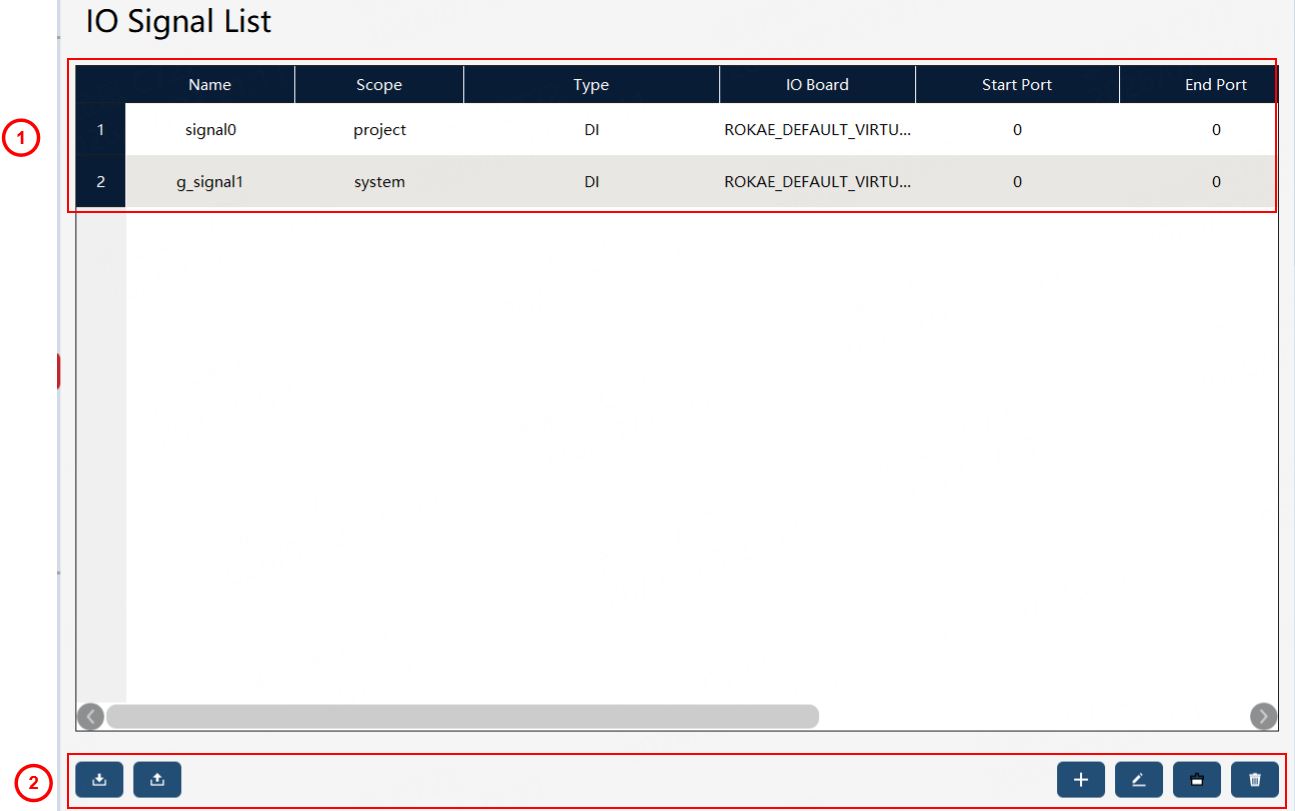
① IO signal list: You can view IO signal attributes, including: - Signal name - Scope: including Global IO and Local IO - Type: including DI/DO/GI/GO - IO board: It can be a standard IO module provided by ROKAE, or a Profinet bus or Ethernet/IP bus device - Start port and end port: the corresponding physical address numbers that an IO signal is mapped to ② Function buttons: You can import, export, create, edit, multi-select, and delete IO signals
|
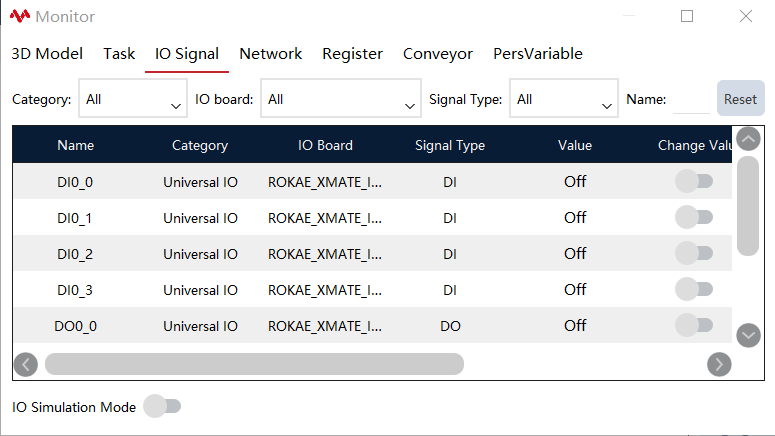
The configured IO can be viewed on the status monitoring interface, on which the forced output or simulation input of the IO is supported.
8.10.2 Operation examples
| Operation | Graphical Representation | Explanation |
|---|---|---|
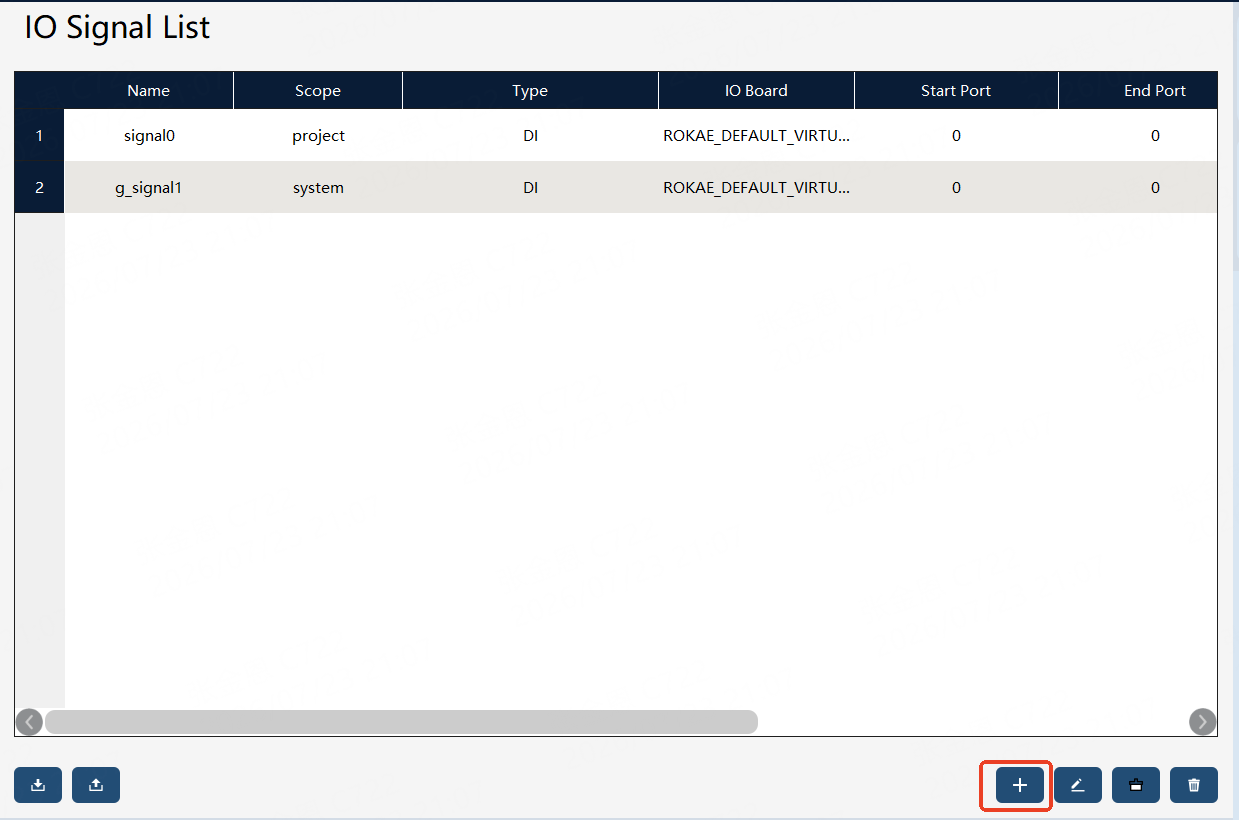
1. Click the "+" button in the lower right corner to create a new IO. |
|
Users with the permission level of "Programmer" or above can perform creation and edit operations. |
2. Attribute settings. |
|
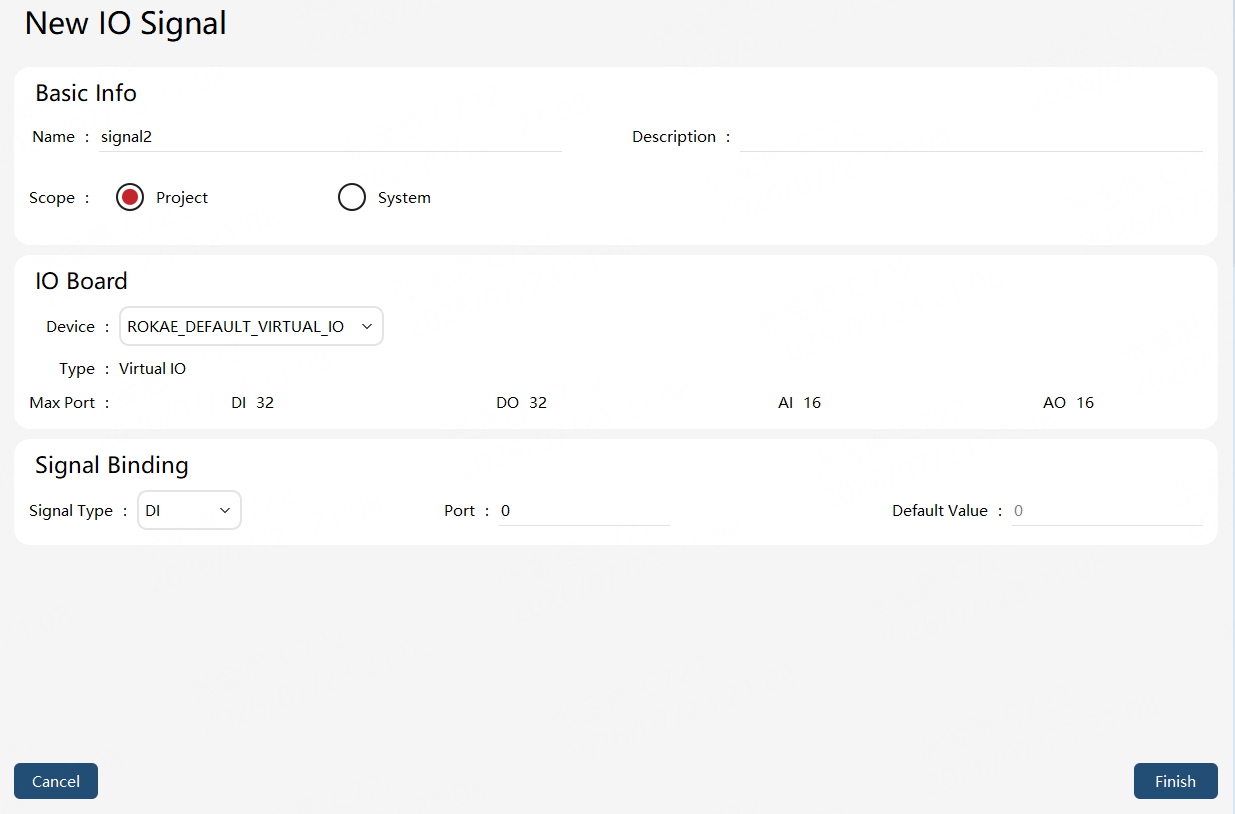
Set the IO signal name, description, scope, IO board, signal type, and port. |
3. Using IO Signal in the RL program. |
|
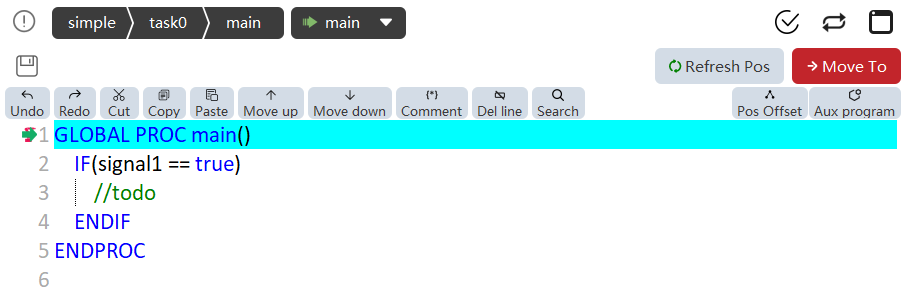
For the input signal (DI/GI), the state of the input node can be read directly in the RL program using the variable name of the input signal. Example: Use the state of the digital input as a criterion for judgment: IF (di1 == true) do something … ENDIF. For the output signal (DO/GO), specialized commands SetDO and SetGO can be used in the RL program. See the explanation of each command for details. |
8.10.3 IO signal export/import
8.10.3.1 IO signal export
On the IO signal list page, click the  button at the bottom left to enter the IO signal export interface.
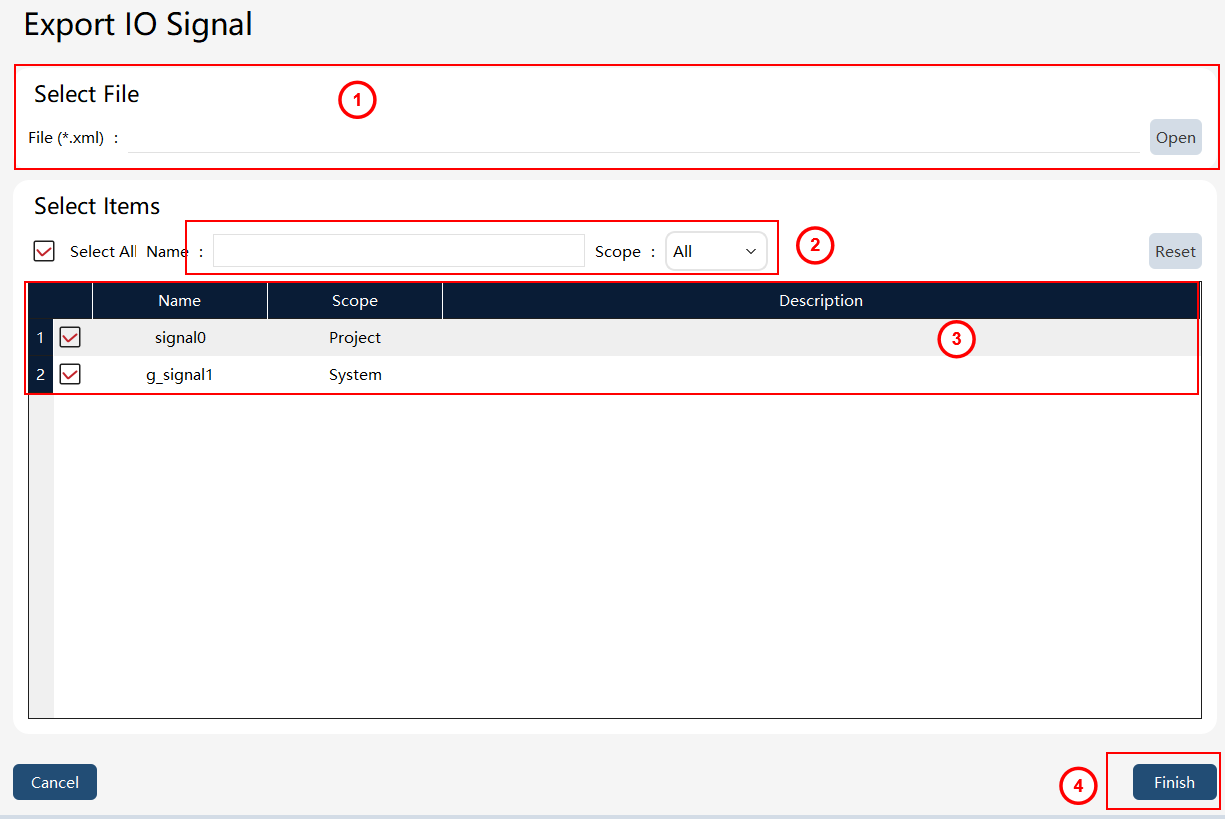
① |
IO signal export target file (including path) |
② |
Filter box, supporting filtering by name, and filtering Global IO and Local IO |
③ |
IO signal list |
④ |
IO signal export operation buttons |
Export steps: First, input or select the path for the IO signal export target file in ①. The filter box in ② can filter by name, and can filter Global IO and Local IO. Then, check the IO signals to be exported in ③. Finally, click the button in ④ to execute the export, and the exported IO signal file will be generated in the path specified in ①.
8.10.3.2 IO signal import
On the IO signal list page, click the  button at the bottom left to enter the IO signal import interface.
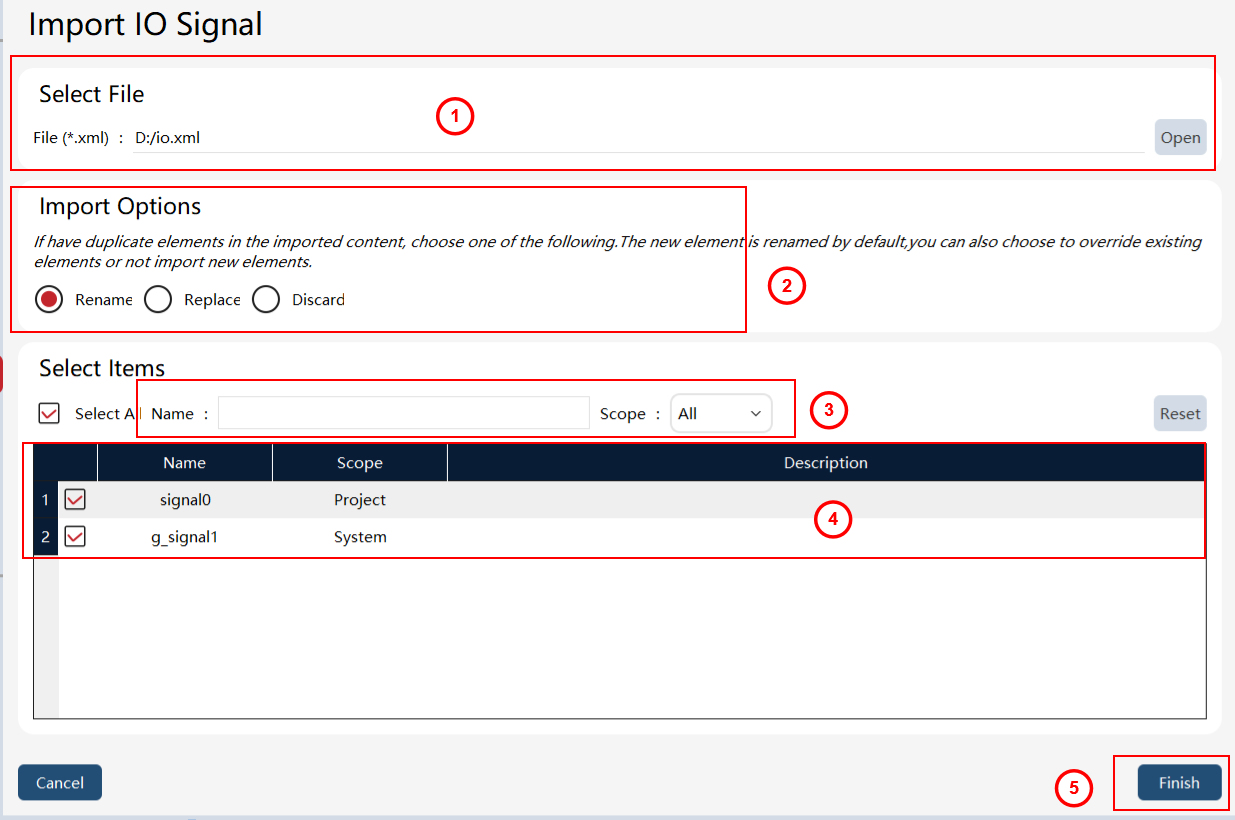
① |
IO signal import file |
② |
IO signal import option, which is the strategy for handling entry conflict |
③ |
Filter box, supporting filtering by name, and filtering Global IO and Local IO |
④ |
IO signal import selection entries |
⑤ |
IO signal import operation buttons |
Import steps: First, select the IO signal file to be imported in ①. The filter box in ③ can filter by name, and can filter Global IO and Local IO. After selecting the conflict handling strategy in ②, select the IO signals to be imported in ④. Finally, click "Finish" in ⑤ to execute the import, and the selected IO signals will be imported locally.