Overview
The point list is used to manage the robot points involved in projects in a unified manner. The points used in the RL program need to be configured in the point list before they can be used in the program.
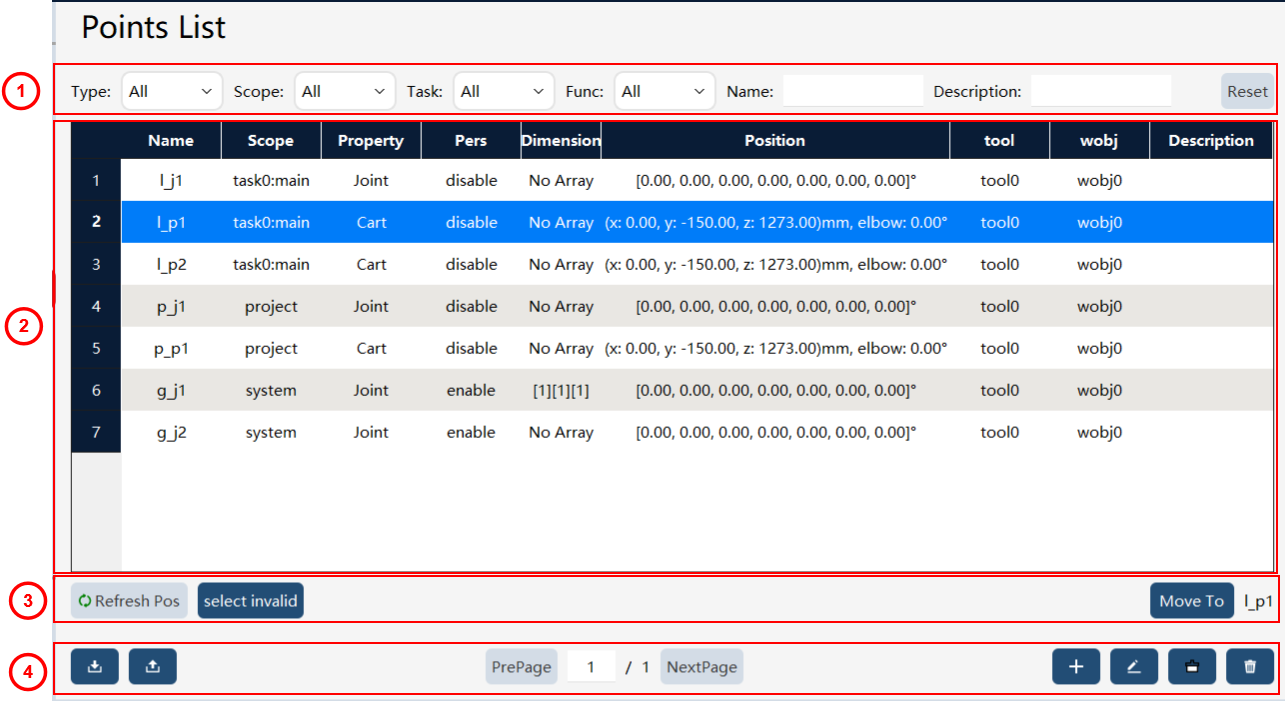
① |
Point filter: Allow you to filter which points are displayed in the list below. You can filter points by type, scope, task, name, description, and function. |
② |
Point display: Show the attributes of each point, including name, scope, attribute, persistence, position, tool frame, work object frame, etc. |
③ |
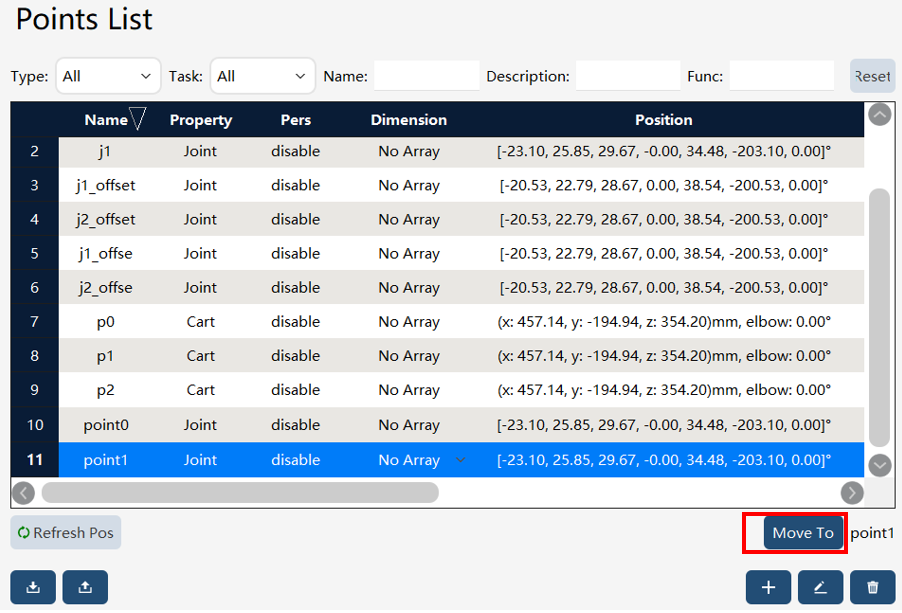
Point editing: Use the "Update Position" button to update the point coordinates to the current pose of the robot; use the "Select invalid points" button to select all unused points in the RL editor. The buttons on the right are used to move the robot to this point: Clicking the "Move to" button opens the motion window. For Cartesian-type points, you can click the MoveL or MoveJ button—the robot moves to this point in a straight line or through joint space motion; for joint-type points, you can use the MoveAbsJ button—the robot moves to this point through joint motion. |
④ |
Function button area: |


Point editing page - Cartesian space point:
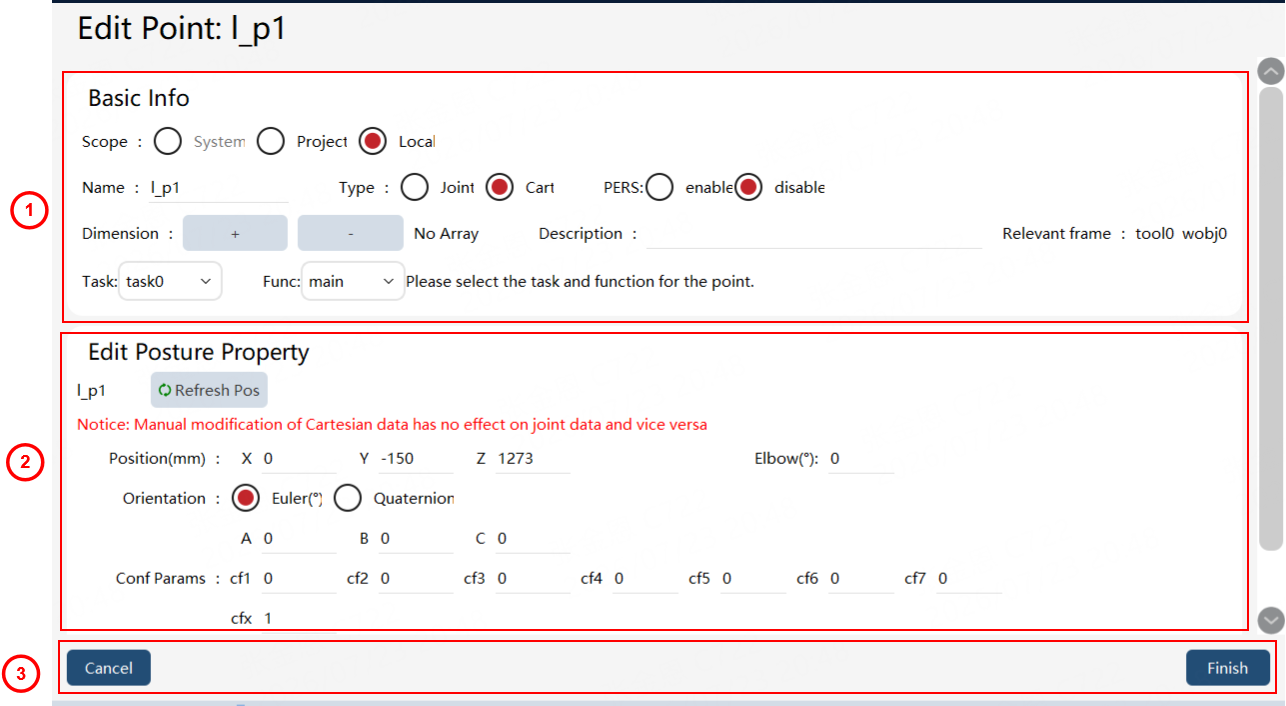
① |
Basic information: including point name, description, scope, persistence, dimensions, task, and function. Modifying the point scope is supported, but a system variable cannot be converted to a project variable or local variable; project variables and local variables can be converted to each other. |
② |
Pose information: Changing the point type is supported. Cartesian-space and joint-space points can be converted to each other. Clicking the "Update Position" button updates the point to the current pose, or you can change it manually. Conf parameters: These parameters can be modified for the corresponding point. |
③ |
Operation buttons: Clicking "Cancel" returns to the point list page without saving any changes; clicking the "Complete" button saves the current changes and returns to the list. |
Joint space point:
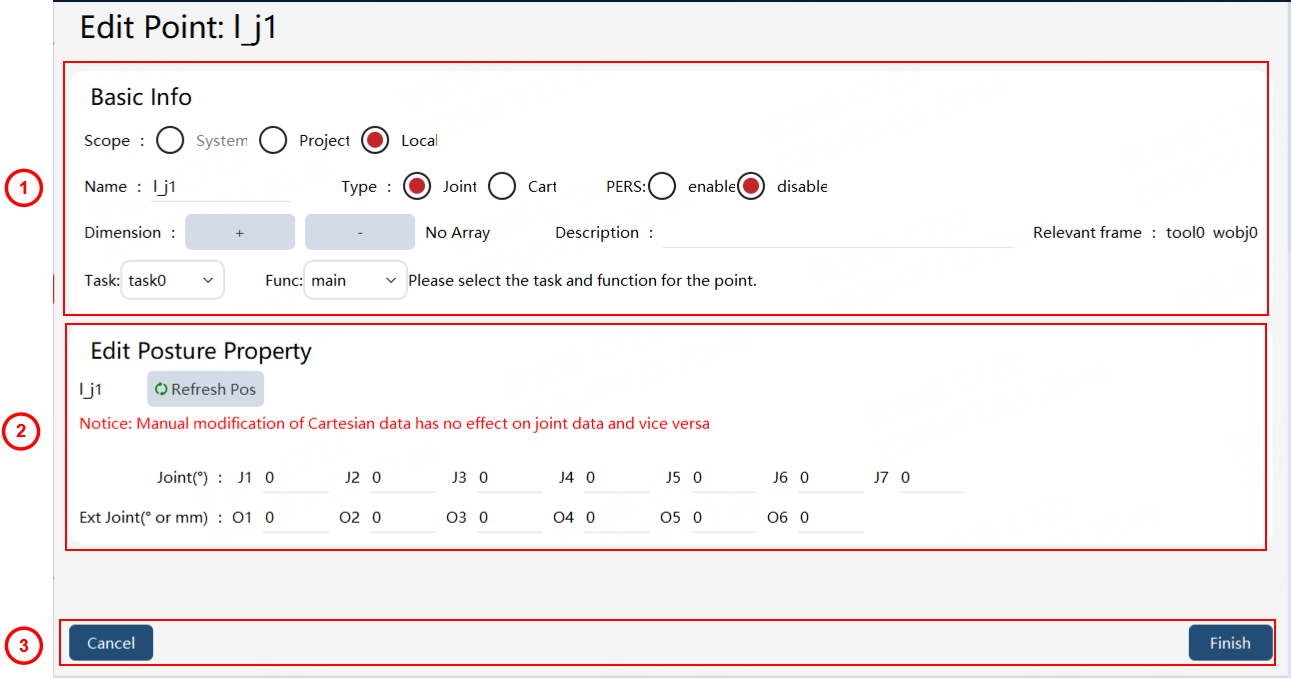
① |
Basic information: including point name, description, scope, persistence, dimensions, associated frames, task, function, etc.; clicking the dimension add or delete buttons can modify the point’s dimensions. Modifying the point scope is supported, but a system variable cannot be converted to a project variable or local variable; project variables and local variables can be converted to each other. |
② |
Pose information: When the array is multi-dimensional, different dimensions can be selected to modify their contents. Clicking the "Update Position" button updates the point to the pose of the currently selected dimension, or you can change it manually. |
③ |
Operation buttons: Clicking "Cancel" returns to the point list page without saving any changes; clicking the "Complete" button saves the current changes. |
Operation examples
Point creation/editing
| Operation | Graphical Representation | Explanation |
|---|---|---|
1. Creating/editing a point |
|
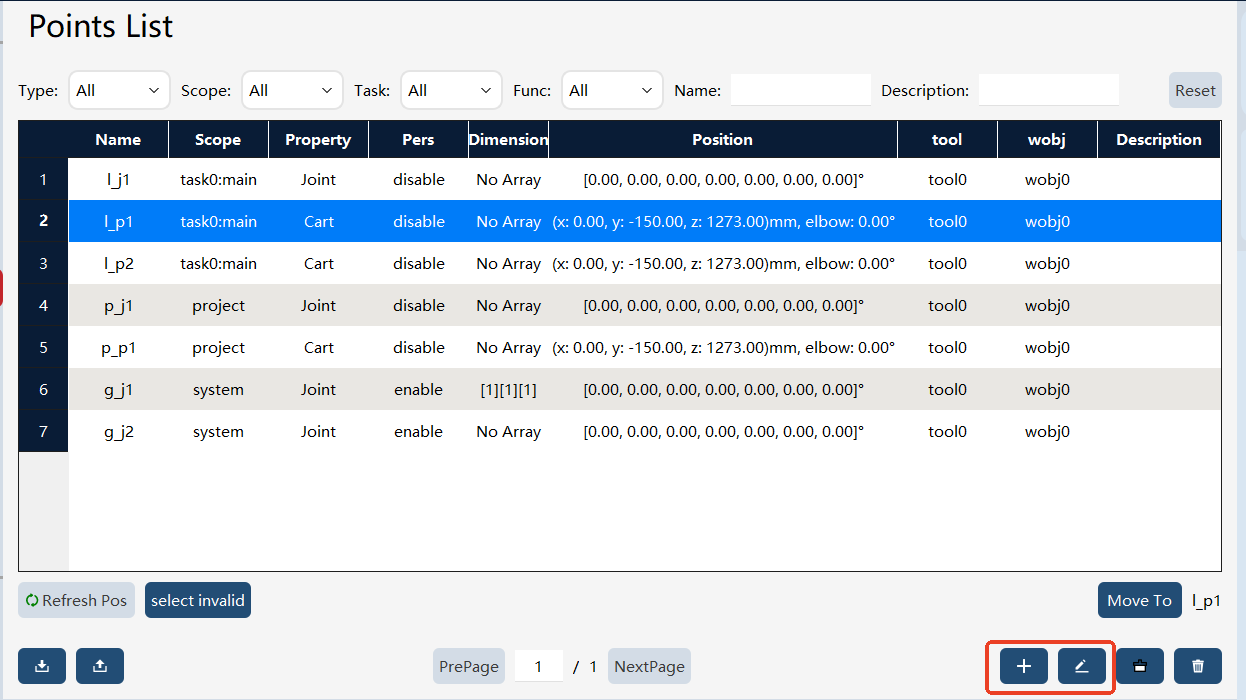
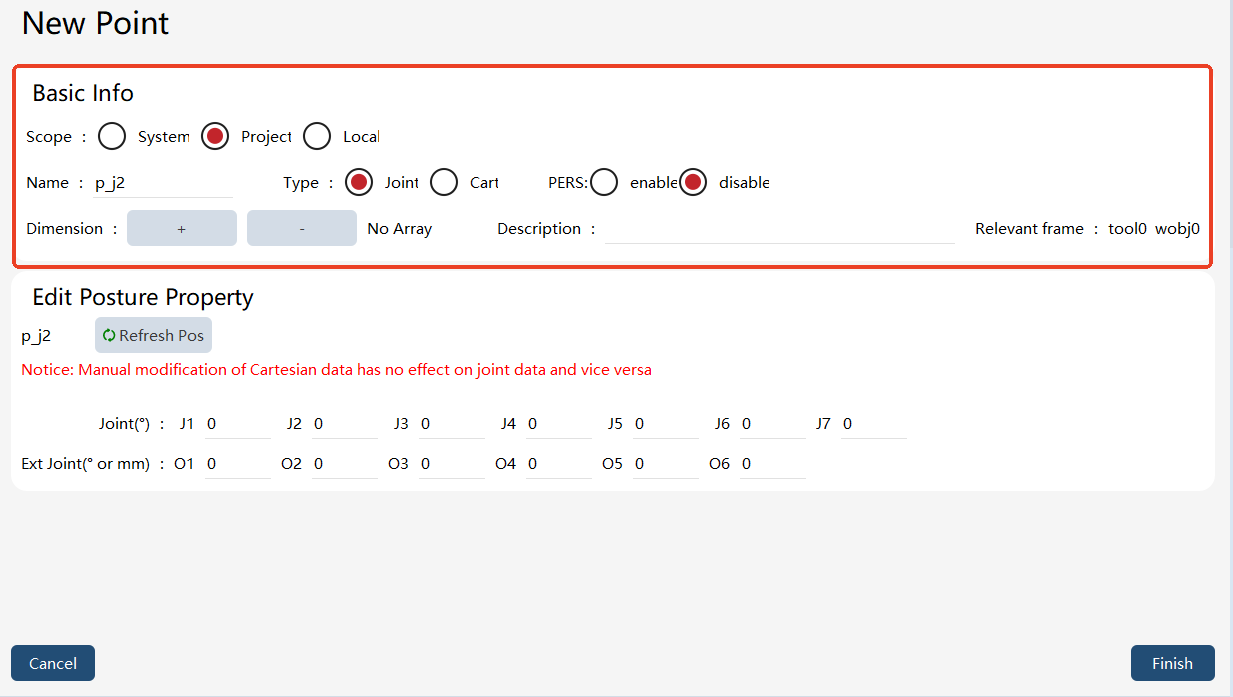
Click the "New" button, or select a point and click the "Edit" button, to enter the point editing interface. Set the point name, type (joint/Cartesian), coordinate values, and other information, then click "Complete" to save. |
2. Basic information editing |
|
When creating or editing a point, you can select the name, scope, type, point description (optional), persistence, dimensions (optional), task, function, etc. Users can set the point’s dimensions using the dimension add and delete buttons. Modifying the point scope is supported, but a system variable cannot be converted to a project variable or local variable; project variables and local variables can be converted to each other. When creating a point, the system variable is prefixed with |
3. Pose information editing |
|
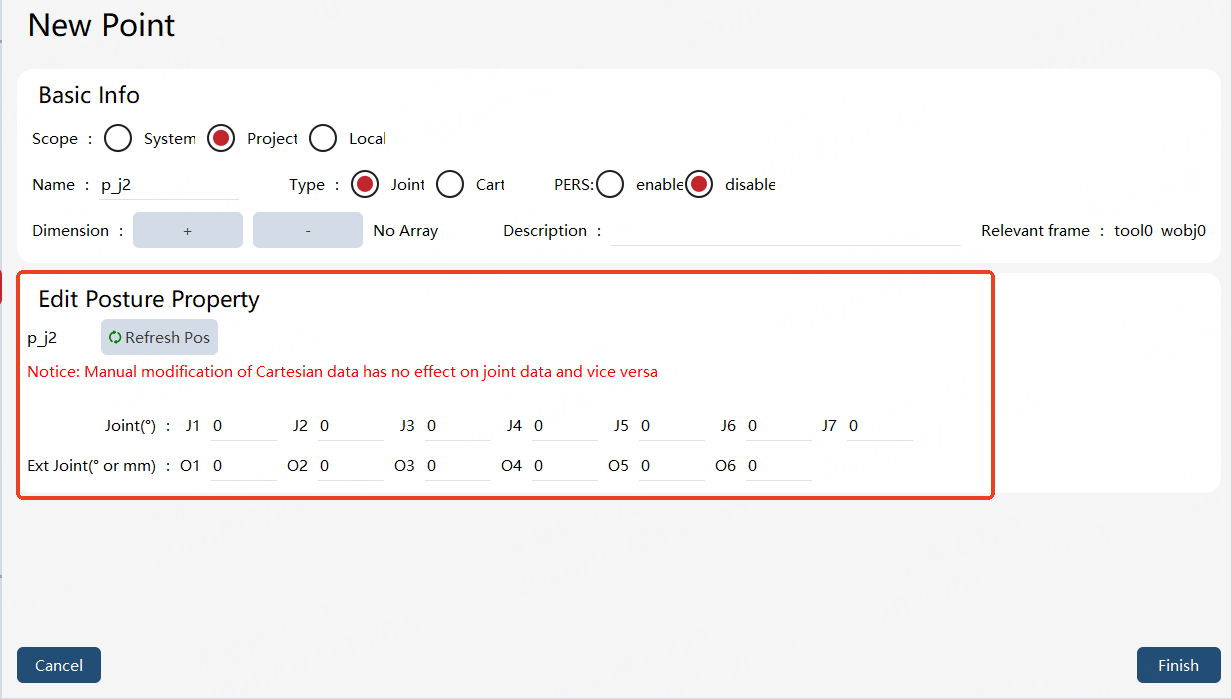
Select the point type and obtain the current pose of the robot through "Update Position". If the point is a new point, the current pose is obtained by default. |
4. Complete |
|
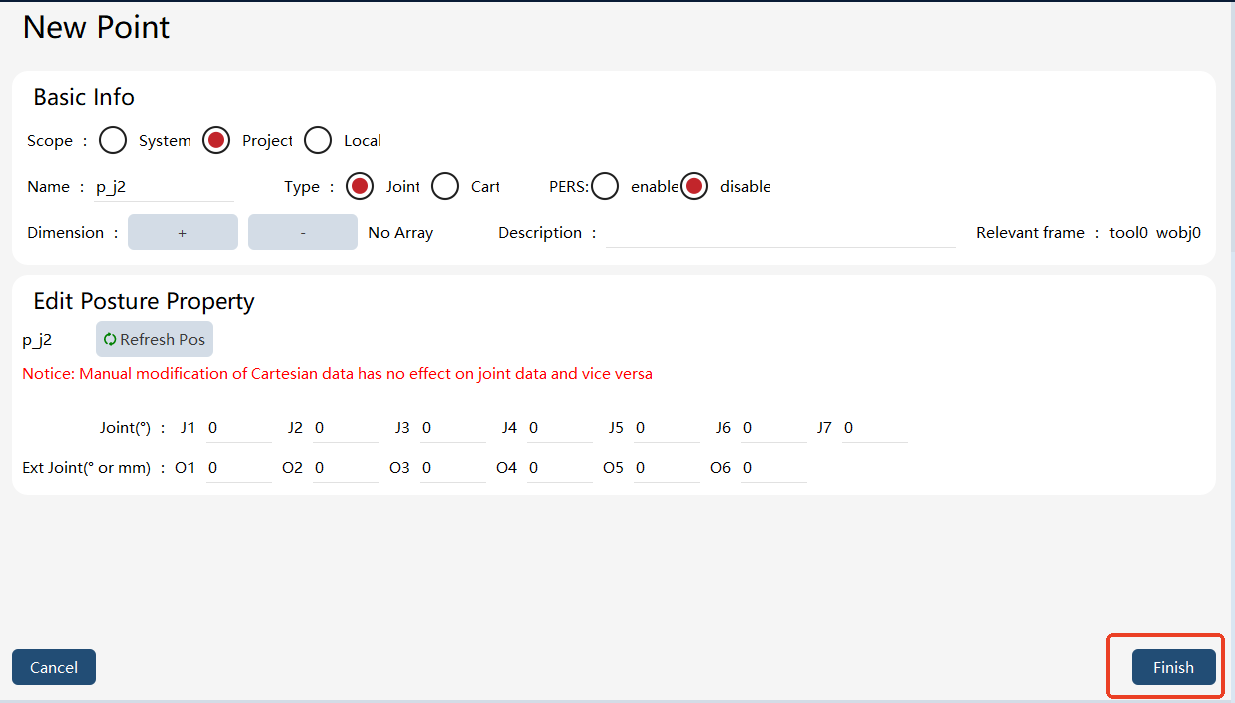
Click the "Complete" button to save the current information. |
Point "Move to"
| Step | Graphical Representation | Explanation |
|---|---|---|
1. Select the corresponding point and click the "Move to" button |
|
Select the corresponding point and click the "Move to" button. |
2. Select the tool and work object for point motion |
|
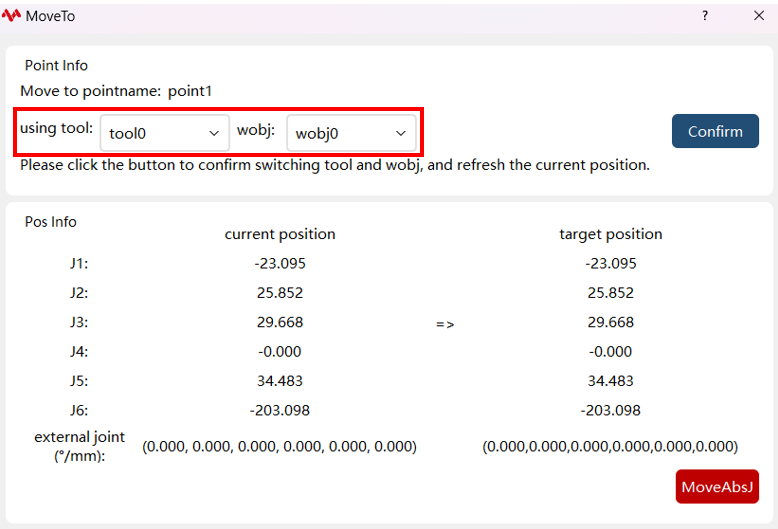
Select the tool and work object for point motion. The "Move to" button can only be clicked without clicking the "Confirm" button if the selected tool and work object match those in the point information. If they do not match, the motion button is grayed out and cannot be used directly; motion requires clicking the "Confirm" button first. |
3. Perform the "Move to" operation |
|
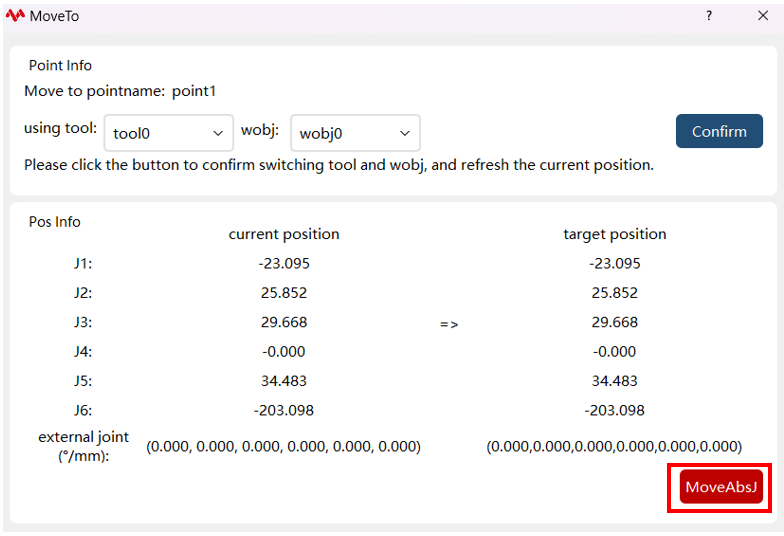
Perform the "Move to" operation. For joint-type points, only MoveAbsJ motion is allowed. For Cartesian-type points, only MoveJ and MoveL motions are allowed. |
Point sorting
| Step | Graphical Representation | Explanation |
|---|---|---|
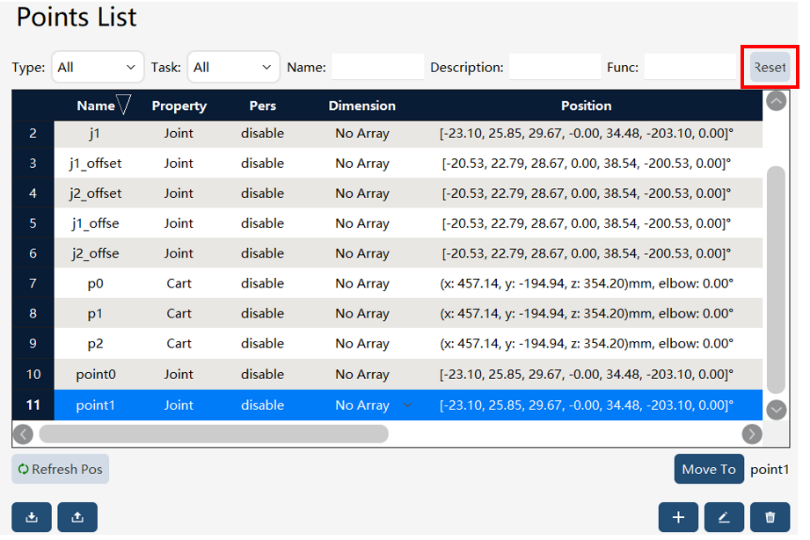
1. Upon the first entry to the point list interface, the sorting indicator is displayed by default on the right side of the name |
|
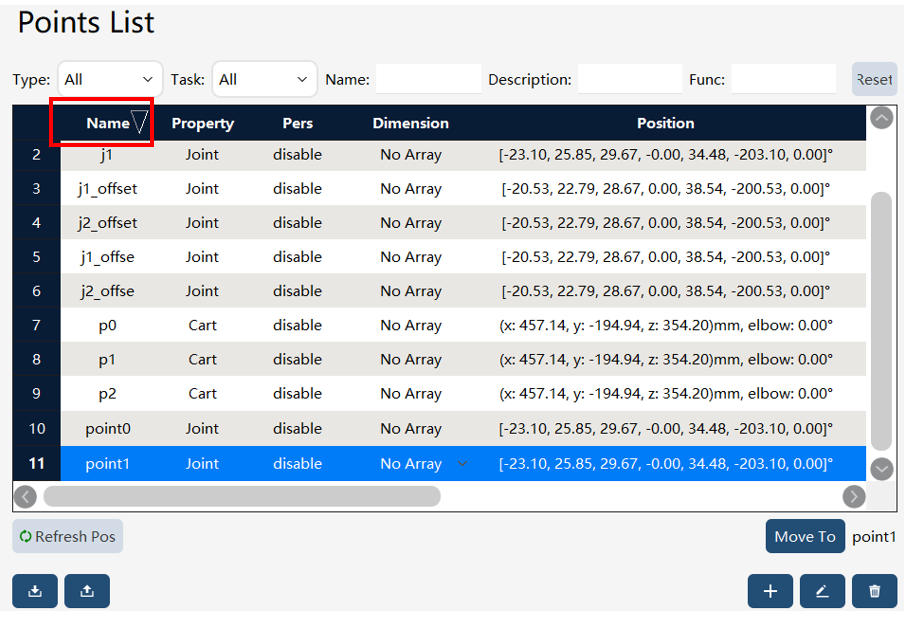
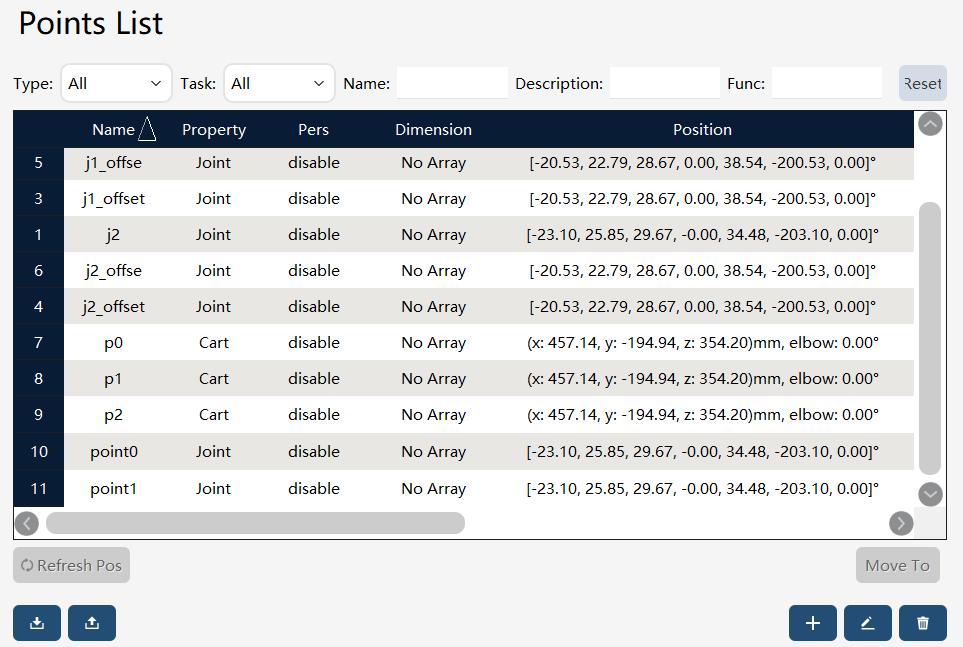
Upon the first entry to the point list interface, the sorting indicator is displayed by default on the right side of the name. A downward arrow indicates descending order, and an upward arrow indicates ascending order. |
2. Click to sort |
|
Click the sorting symbol to sort according to the current sorting symbol. Note: The initial descending symbol when first entering the interface does not indicate that the point list is sorted in descending order until the sorting function has been used. |
3. Reset the sorting |
|
Clicking "Reset" restores the point list to its state before any sorting was applied. |
Batch deletion of points
| Step | Graphical Representation | Explanation |
|---|---|---|
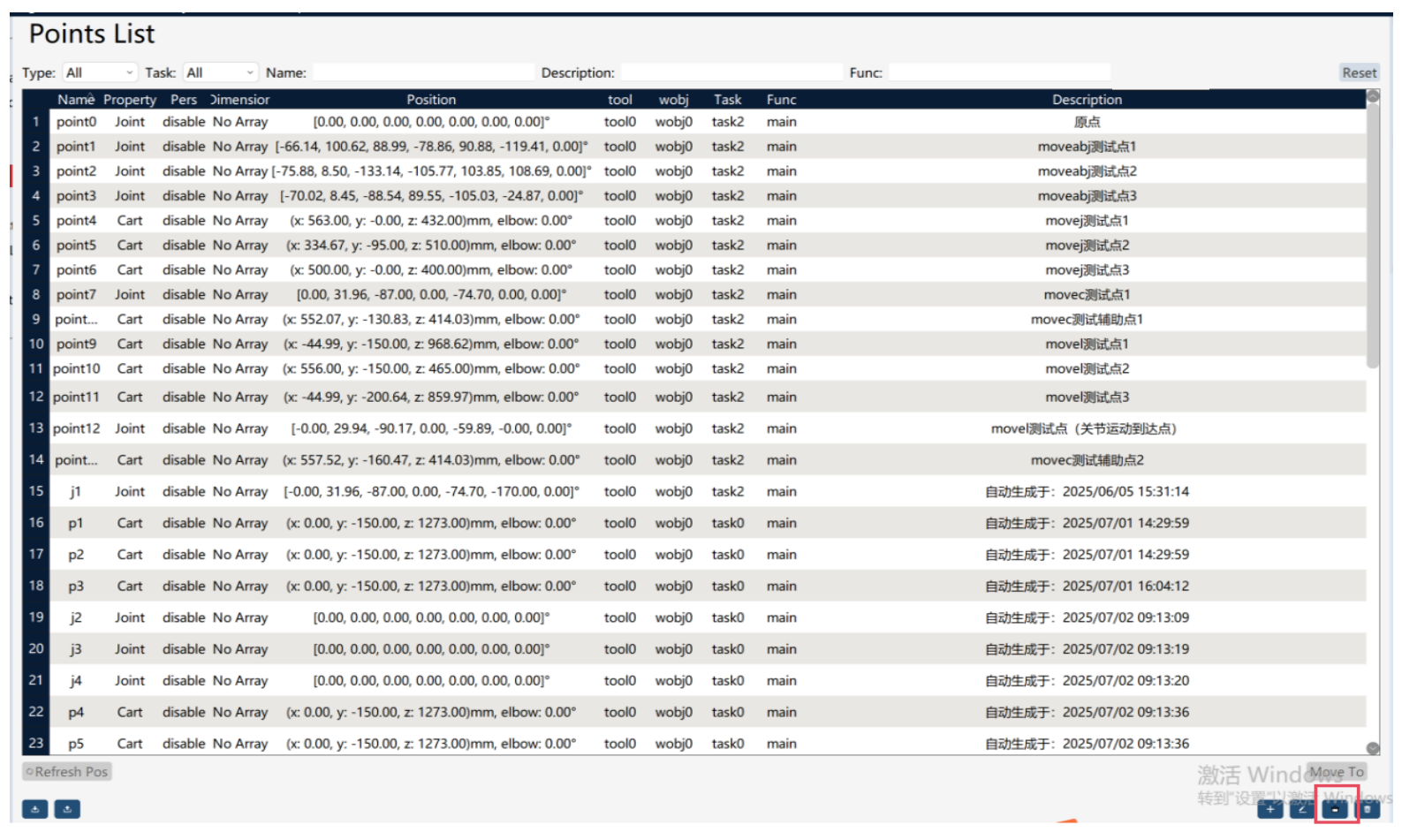
1. Click the Multi-select button |
|
Click the "Multi-select" button to enter multi-selection mode. |
2. Select points to be deleted |
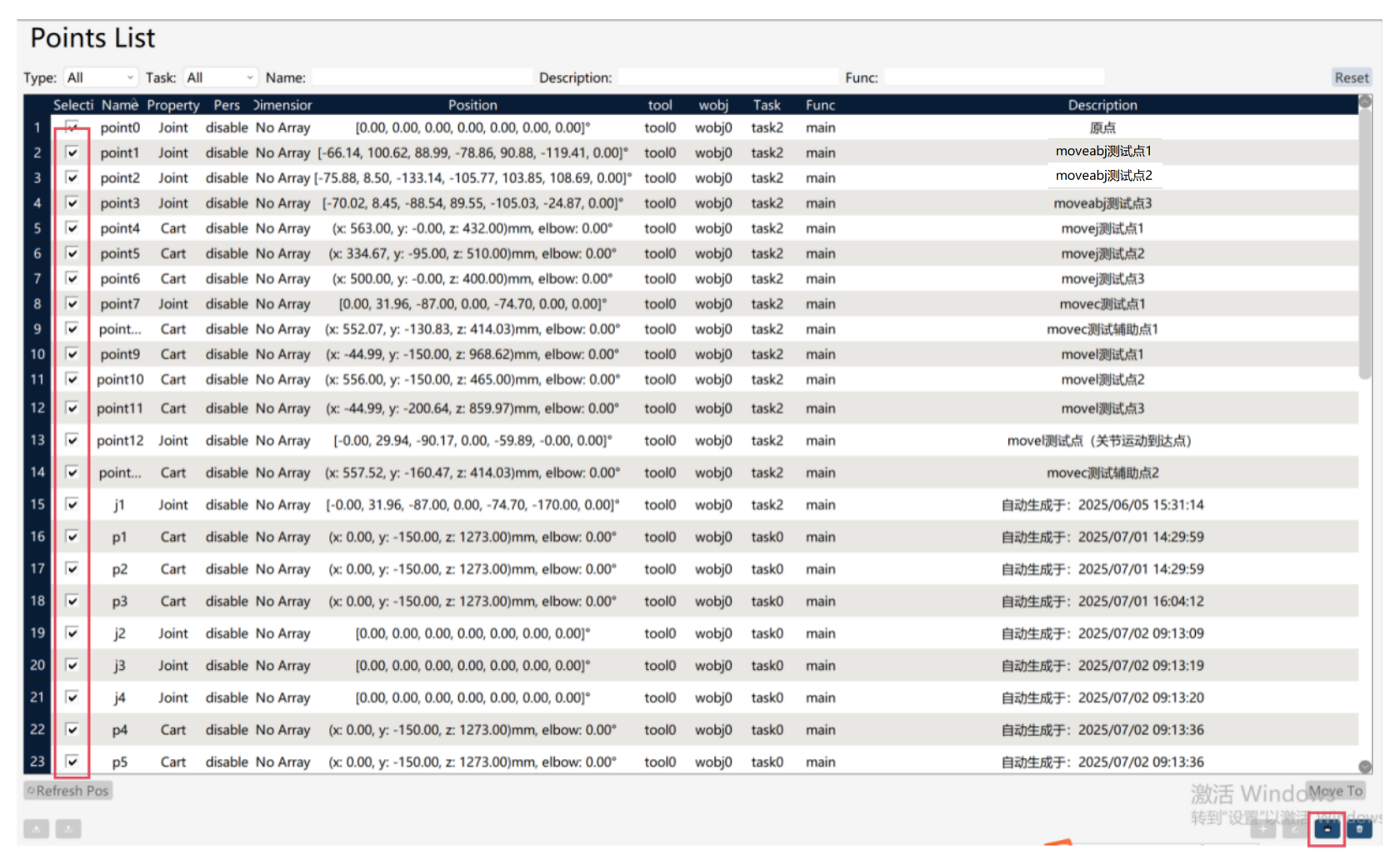
|
Select the points to be deleted by checking the box before each point, or use "Select All" to choose all points. |
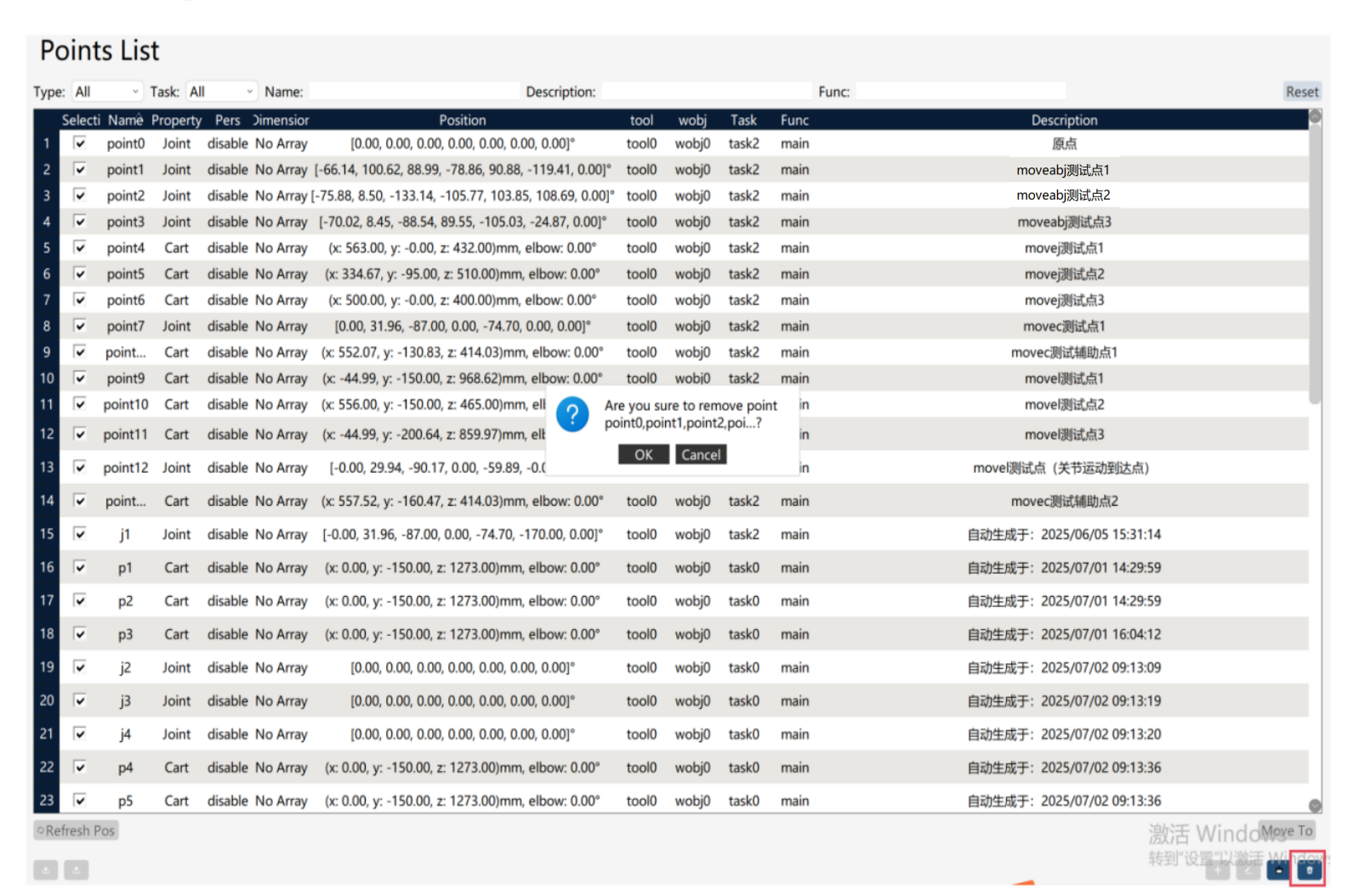
3. Delete the selected points |
|
Click the "Delete" button and confirm by clicking "OK" in the confirmation dialog box to delete the selected points. |
Point export/import
Point export
On the point list page, click the  button at the bottom left to enter the point export interface.
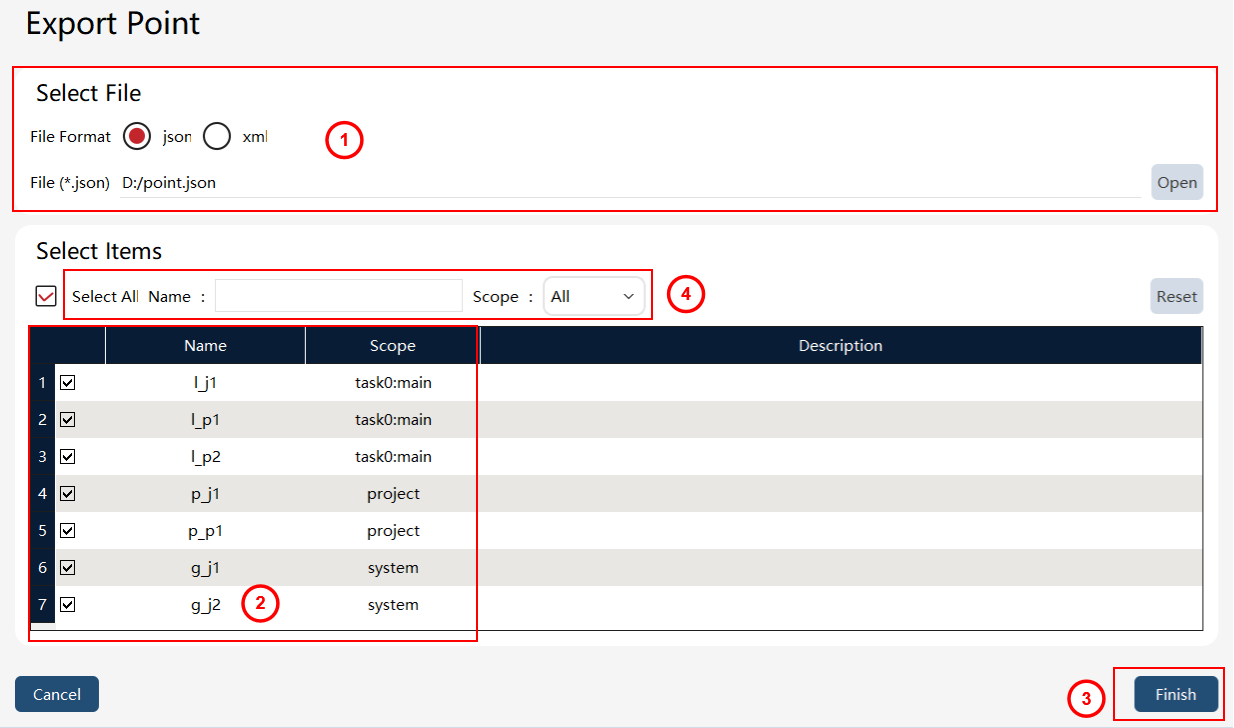
① |
Point export target file (including path) |
② |
Point export selection list |
③ |
Point export operation buttons |
④ |
Point filter box, supporting filtering by name, scope, and other conditions |
Export steps: First, input or select the path for the point export target file in ①. The filter box in ④ can filter points by name, scope, and other conditions. Then, check the points to be exported in ②. Finally, click the "Next" button in ③ to execute the export, and the exported point file will be generated in the path specified in ①.
Point import
On the point list page, click the  button at the bottom left to enter the point import interface.
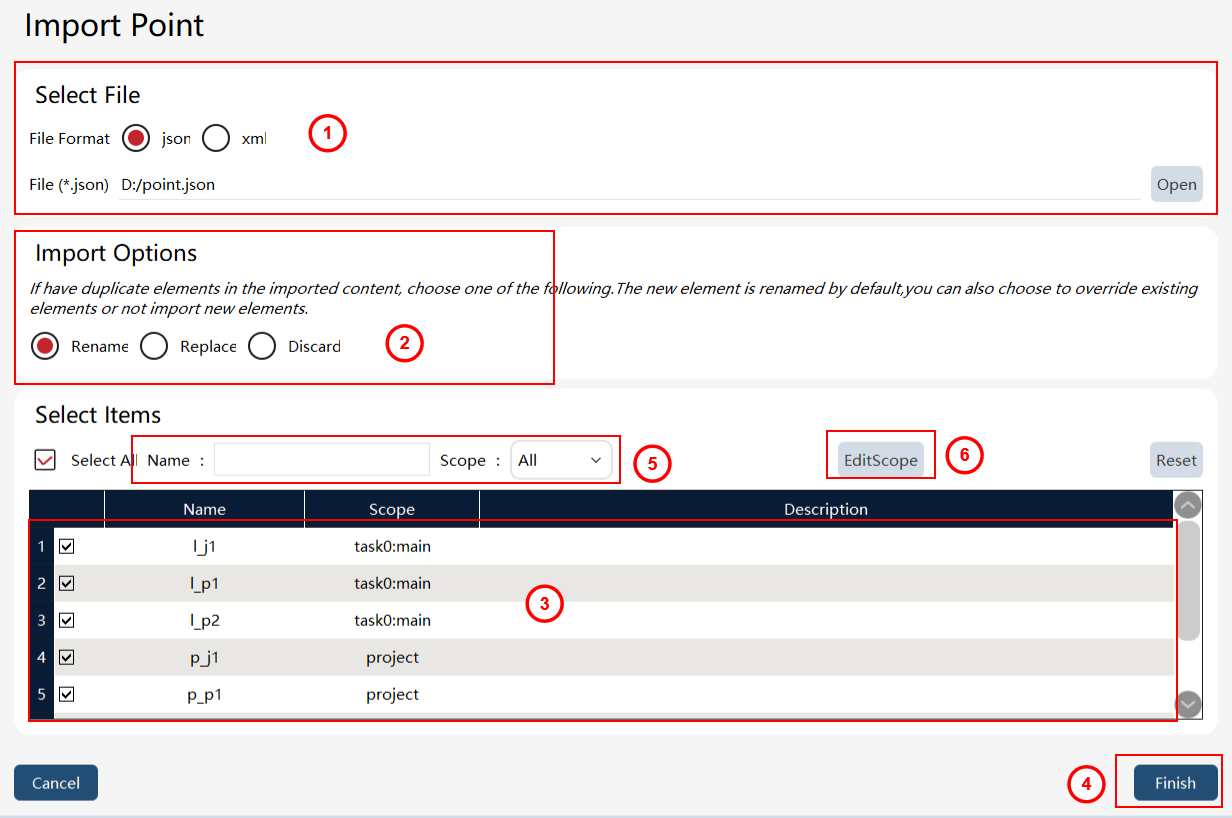
① |
Point import file |
② |
Point import option, which is the strategy for handling entry conflict |
③ |
Point import selection entries |
④ |
Point import operation buttons |
⑤ |
Point filter box, supporting filtering by name, scope, and other conditions |
⑥ |
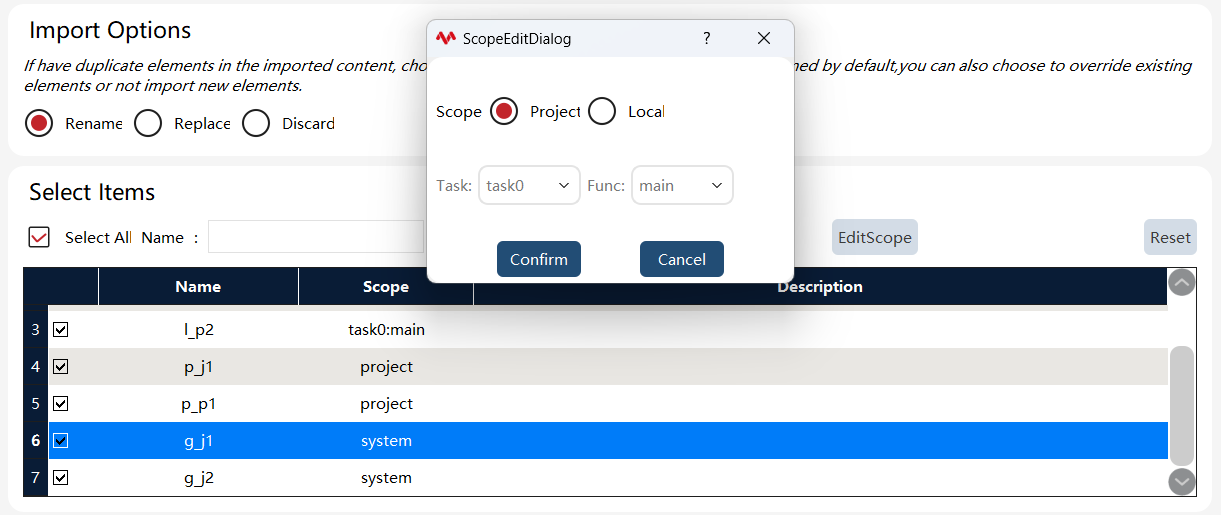
Modify scope: Click the "Modify scope" button to specify the target scope for importing points (system variable, project variable, or local variable). |
Import steps: First, select the point file to be imported in ①, select the conflict handling strategy for points in ②, and filter by name, scope, and other conditions in ⑤ if necessary. Then, select the points to be imported in ③, and if needed, specify the target import scope through ⑥. Finally, click the "Next" button in ④ to execute the import, and the selected points will be imported locally.
8.8.3.3 Duplicate name handling during point import
Duplicate name determination
Whether a name is considered a duplicate during import is determined by "scope + point name". The determination key is: task + function (func) + point name (name).
-
Same name, different scope → Not treated as a duplicate; can be imported with the original name.
-
Same name, same scope → Treated as a duplicate; handled according to the selected conflict strategy.
Duplicate name handling strategies
If an imported point has the same name as an existing point in the project, you can select one of the following strategies in ②:
| Option | Description |
|---|---|
Auto rename (default) |
Keep the existing points in the project; rename the imported points according to the rules, then write them in. |
Auto replace |
Overwrite the same-name point under the same scope with the imported content. |
Do not import |
Do not import the duplicate point; the existing point in the project remains unchanged. |
Auto rename rules
When "Auto rename" is selected, the system first splits the original name into a "prefix" and a "numeric suffix" from the end of the name, then applies different strategies depending on whether a numeric suffix exists. Numbering increments within the same scope and the same prefix, and also avoids names already used in the project as well as new names already taken in the current batch import.
Split rules:
-
If the name ends with consecutive digits → Split into "prefix + number" (for example,
p10→ prefixp, number10). -
If the name has no trailing digits → Use the entire name as the prefix (for example,
home→ prefixhome).
Original name with a numeric suffix (for example, p1, target10, pose002):
-
Split out the prefix and the original number.
-
Within the same scope, take the maximum existing number under that prefix as
historyMax. -
Starting candidate number =
max(original number, historyMax) + 1. -
If that name is still taken, keep incrementing the number by 1 until it is unique.
-
New name = prefix + candidate number.
| Existing in project | To import | Renamed result | Description |
|---|---|---|---|
|
|
|
Prefix |
|
|
|
Continue from the historical maximum 10, not simply original number 5 + 1 |
|
|
|
Skip occupied numbers in between and take the next available number |
Original name without a numeric suffix (for example, home, pick, P_start):
-
Use the entire name as the prefix.
-
Within the same scope, take the maximum existing number under that prefix as
historyMax(0 if none). -
Starting candidate number =
historyMax + 1. -
If that name is still taken, keep incrementing the number by 1 until it is unique.
-
New name = prefix + candidate number (typically
xxx1for the first one).
| Existing in project | To import | Renamed result | Description |
|---|---|---|---|
|
|
|
Start from 1 when there is no historical number |
|
|
|
Skip occupied numbers |
|
|
|
Names without a suffix and names with a suffix share the same prefix sequence |