16.1 Soft Float
16.1.1 Overview
The Soft Float function changes the robot from a rigid state to a compliant state. After Soft Float is enabled, if an external force is applied during motion, the end-effector yields to the force and the actual trajectory may deviate from the planned trajectory. After the external force is removed, and if the planned start point has not been reset, the robot attempts to return to the planned trajectory.
The deviation between the actual trajectory and the planned trajectory depends on the magnitude and direction of the external force, as well as Soft Float ratio and maximum deviation range settings. In general, a larger external force or a “softer” setting in the corresponding direction results in a more noticeable offset.
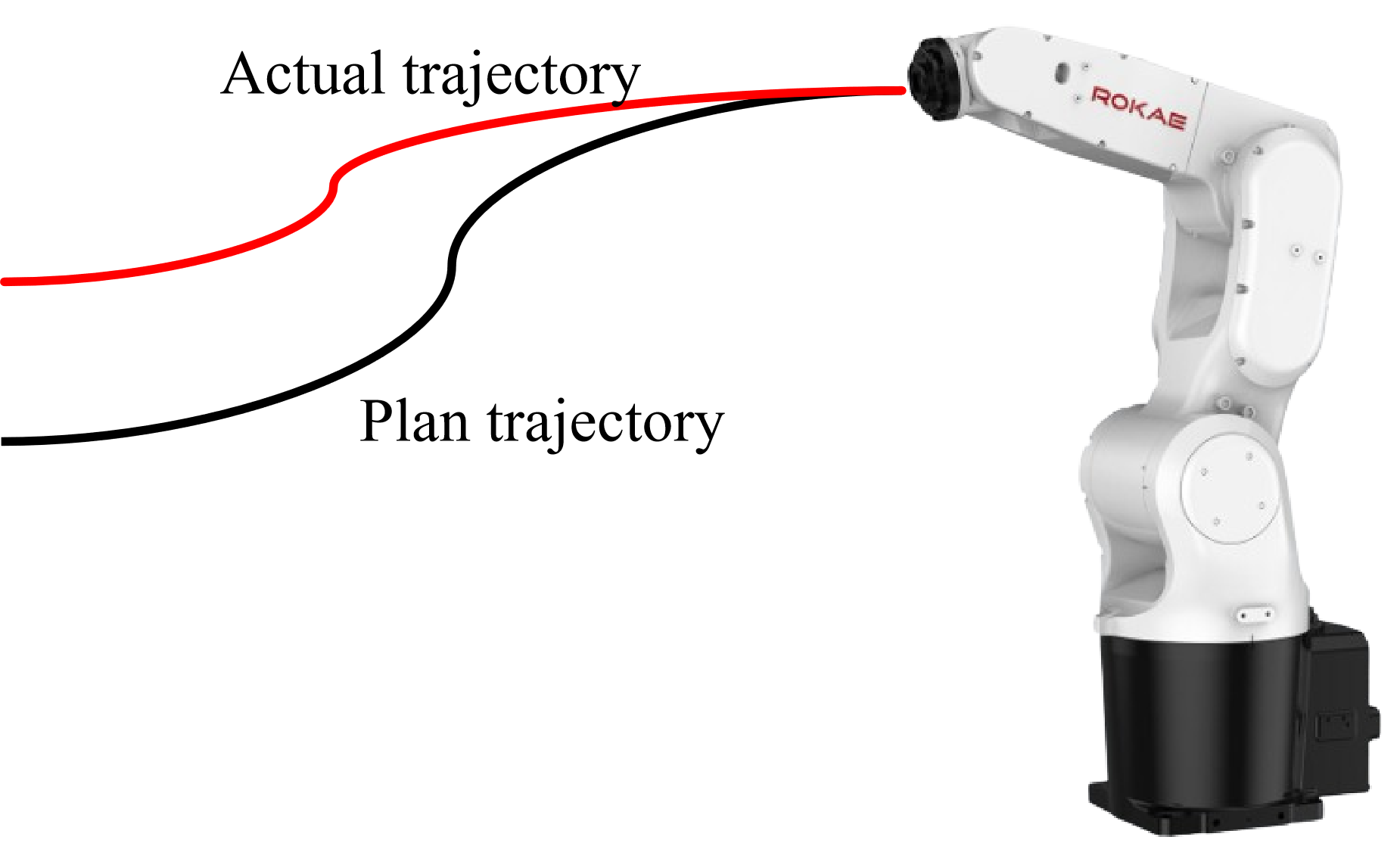
Soft Float is suitable for scenarios such as pick positions that differ from locating positions, assembly fitting, and die-casting unloading. It helps reduce the risk of damage to the robot or workpiece caused by rigid contact, without relying on an external force sensor.
Soft Float parameters are managed by process number. Each process includes three settings: coordinate system, Soft Float ratio, and maximum deviation range. Up to 16 processes (process numbers 1–16) can be saved. After configuration, enable Soft Float on the UI first, then use the RL commands SoftFloatStart / SoftFloatStop / SoftFollow to start, stop, and follow Soft Float.
|
16.1.2 Soft Float commands
Soft Float provides the following three RL commands:
-
SoftFloatStart: Enable Soft Float with the specified process number -
SoftFloatStop: Disable Soft Float -
SoftFollow: Reset the planned start point (Soft Float follow)
16.1.2.1 SoftFloatStart
Explanation |
Enable Soft Float. After the command is executed, the robot enters a compliant state according to the coordinate system, Soft Float ratio, and maximum deviation range of the specified process number. During motion, if an external force is applied, the actual trajectory may deviate from the planned trajectory. |
Definition |
|
Example |
Example 1 |
Attention |
|
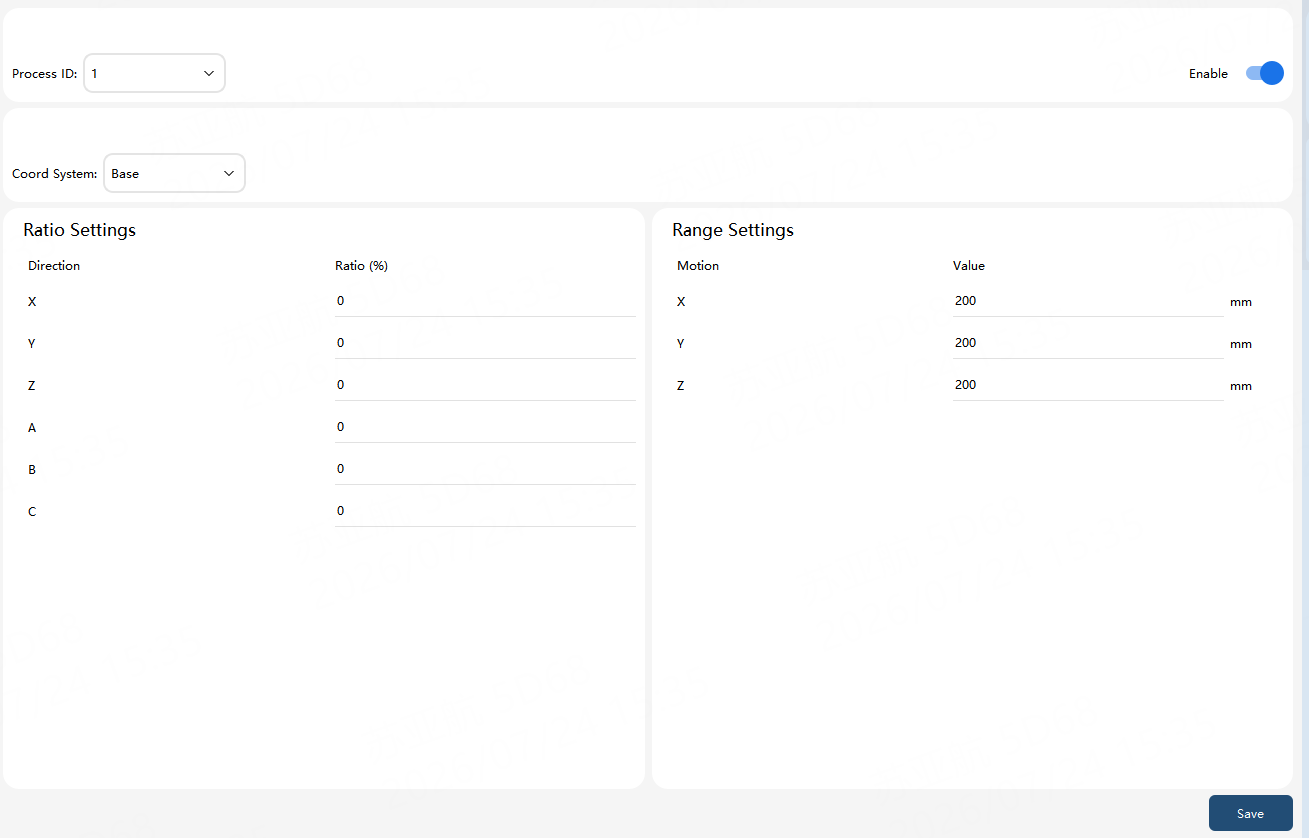
Process configuration
Each process number contains the following three settings. Up to 16 different configurations can be saved.
Coordinate system
The Soft Float reference coordinate system can be:
-
Base coordinate system (Base)
-
Work object coordinate system (Wobj)
-
Tool coordinate system (Tool)
Both Soft Float ratio and maximum deviation range are interpreted relative to the selected coordinate system.
Soft Float ratio
The Soft Float ratio ranges from 0 to 100 and can be set independently for the six Cartesian directions (X, Y, Z, A, B, C):
-
A larger value means the direction is “softer” and easier to push with an external force
-
A smaller value means the direction is “stiffer” and harder to push with an external force
-
A value of 0 means the direction is not affected by external force
Maximum deviation range
The maximum deviation range is the maximum allowed offset of the actual trajectory from the planned trajectory (set for the X, Y, and Z directions on the UI, in mm). During Soft Float, the deviation between the actual and planned trajectories should not exceed this range.
|
When the robot speed is relatively high, or when the working conditions (payload, friction, external-force variation, and so on) differ significantly from the commissioning conditions, the actual deviation may slightly exceed the configured maximum deviation range. Set the range according to the actual application and verify it thoroughly. |
Configuration and enablement steps
-
Select a process number (1–16).
-
Set the coordinate system, Soft Float ratios for each direction, and the X/Y/Z maximum deviation ranges.
-
Click Save in the lower-right corner to write the current process to the controller.
-
Repeat the steps above as needed to configure other process numbers.
-
After configuration, turn on the Enable switch in the upper-right corner.
-
Call
SoftFloatStart(process number)in the program to enable Soft Float with the corresponding process.
16.1.2.2 SoftFloatStop
Explanation |
Disable Soft Float. When the program reaches this command, Soft Float ends and the robot no longer responds to external forces in a compliant manner. |
Definition |
|
Example |
Example 1 |
Attention |
|
16.1.2.3 SoftFollow
Explanation |
Soft Float follow command. After execution, the current actual position is reset as the new planned start point, so subsequent trajectories are planned based on the current position. |
Definition |
|
Example |
Example 1 (reset the planned start point before stopping) |
Attention |
|
|
Typical usage comparison:
|