16.2 Workstation Reservation
16.2.1 Overview
The Workstation Reservation function is used to manage the operation sequence between one robot and multiple workstations. When the robot needs to execute tasks at different workstations in turn, the reservation queue can record the reservation status of each workstation and automatically schedule the corresponding project according to the reservation order.
After this function is enabled, operators can make a reservation after loading, clamping, inspection, or other preparation actions are completed at each workstation. The system selects qualified workstations in sequence according to the current workstation status, reservation order, and configured project information. After the robot completes the task at the current workstation, it can automatically switch to the next reserved workstation, reducing manual intervention and waiting time.
This function is suitable for general scenarios where one robot serves multiple workstations, such as multi-workstation loading and unloading, inspection, handling, assembly, welding, gluing, and grinding. Different workstations can be bound to different projects, or the same project can be reused.
16.2.2 Operation Steps
-
Configure the workstations that need to participate in reservation in Reservation Setting, and select the corresponding project for each workstation.
-
Configure input signals and output signals according to the site conditions, to receive workstation reservation, pause or cancel reservation, and feed back reservation results to external devices.
-
Enable the Workstation Reservation function, and click Start Reservation in automatic mode.
-
After the workstation is ready, make a reservation through the teach pendant interface or an external input signal.
-
The system adds the reserved workstation to the queue and executes the corresponding project according to the reservation order.
-
After the current workstation project is completed, the system clears the current execution status of the workstation and continues to process the next reserved workstation.
16.2.3 Start Reservation
The Workstation Reservation interface provides the function enable switch and reservation process control button to control the overall start and stop of the Workstation Reservation function.
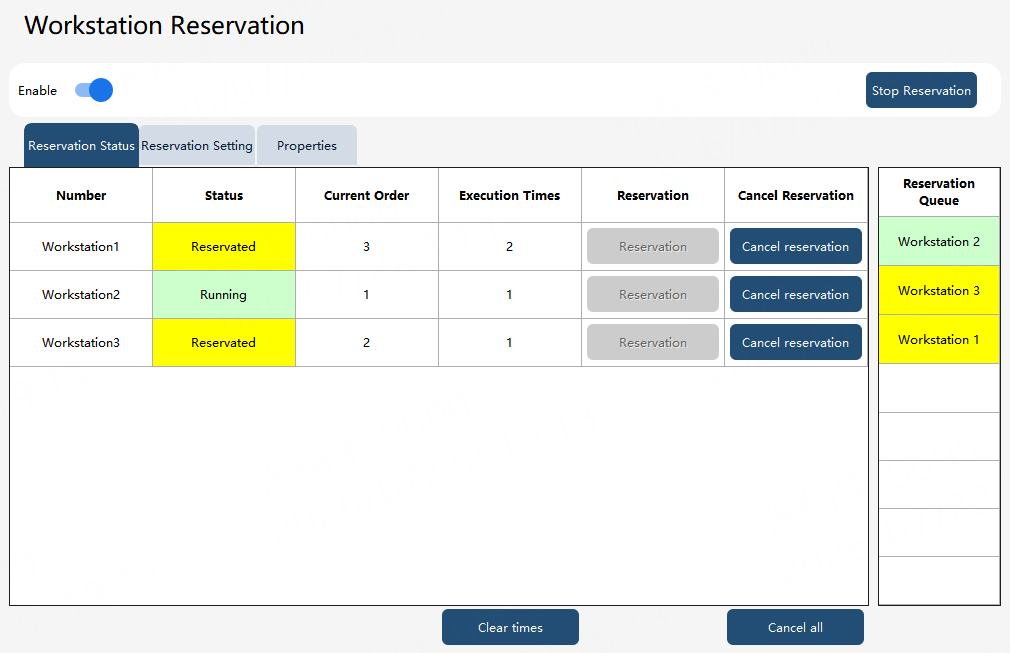
Enable |
Whether to enable the Workstation Reservation function. |
Start/Stop Reservation |
When reservation has not started, the button is “Start Reservation”. After it is clicked, reservation starts, and the button changes to “Stop Reservation”. After the “Stop Reservation” button is clicked, reservation stops. The robot will still finish executing the program that is currently running, and workstations reserved afterward will not be executed. Note: This is available only in automatic mode and in the powered-on state. |
16.2.4 Reservation Status
Reservation Status is used to view the real-time reservation and execution status of each workstation. Common statuses include Not reserved, Reserved, Running, and Externally paused.
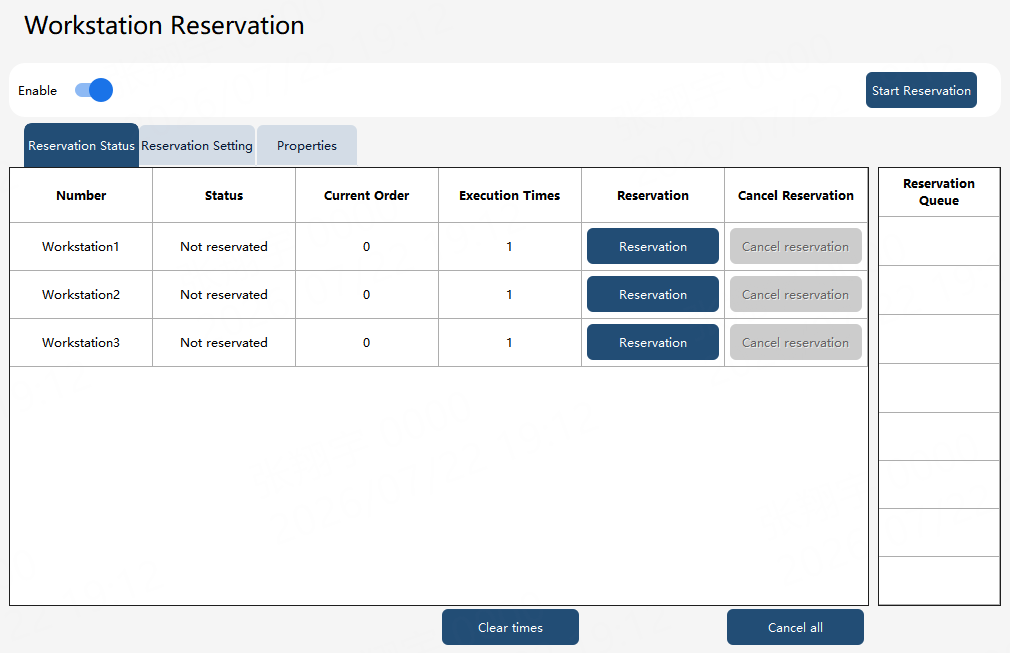
Number |
Workstation number. Up to 8 workstations are supported. Reservation Status only displays the selected workstations (enabled on the Reservation Setting page). |
Status |
Workstation status: None/Not reserved/Reserved/Running/Externally paused. |
Current Order |
Reservation order of the current workstation. 0 is invalid. The running workstation is ranked 1, and the others are incremented by 1 in sequence. |
Execution Times |
Total number of times that the project corresponding to a workstation has been executed. If the loop count of a project is set to 3, one reservation increases the total by 3. If the reserved project changes (changed to another project), the total is cleared. |
Reservation |
Click to reserve a workstation. |
Cancel |
Cancel the reservation of a workstation. If the program is running, the robot stops immediately and clears the current reservation status. If the program is not running, only the reservation of the workstation is canceled. |
Clear Times |
Clear the execution times of all workstations. |
Cancel All |
All workstations whose current status is “Reserved” are canceled. The running program stops running. |
|
When the project is running, click pause. The project stops running and the reservation queue is cleared. |
16.2.5 Reservation Setting
You can configure properties related to Workstation Reservation through “Reservation Setting”.
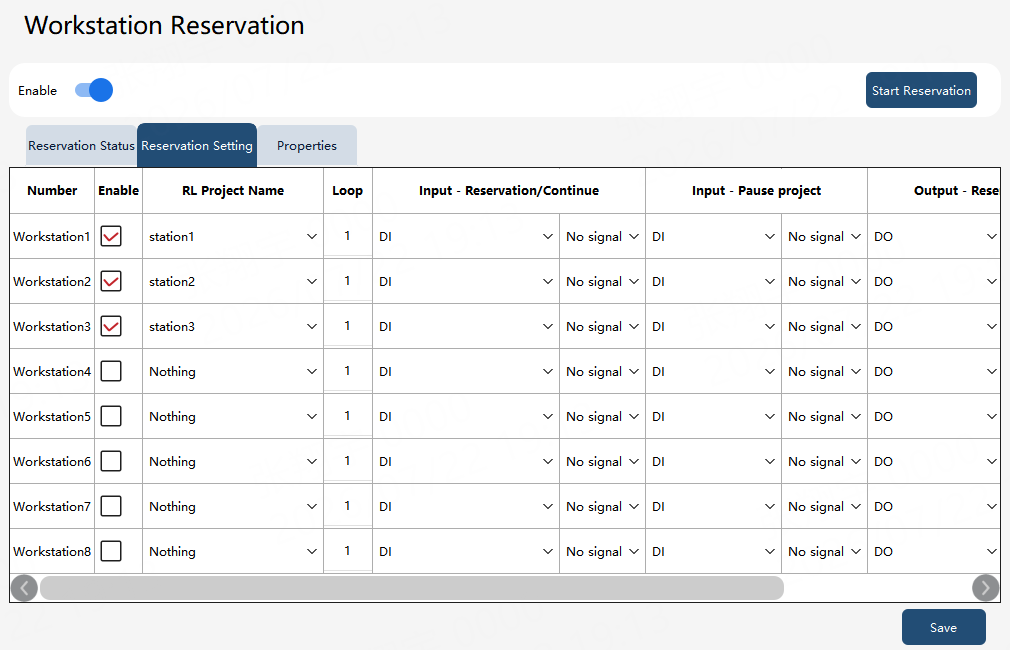
Enable |
Whether to enable this workstation. After it is enabled, the workstation will appear in the Reservation Status list and can be reserved and scheduled. |
RL Project Name |
The RL project to be executed after the current workstation is reserved. Different workstations can be bound to different projects, or the same project can be bound. |
Loop |
The number of times the project is executed after one reservation signal is received. |
Input - Reservation/Continue |
After a DI signal is detected (rising edge):
|
Input - Cancel Reservation/Pause Project |
After a DI signal is detected (rising edge):
|
Output - Reservation |
Used to feed back whether the current workstation is in the reserved status. High level usually indicates reserved, and low level indicates not reserved or no reservation. |
Save |
Save the current settings and make the configuration take effect. |
16.2.6 Properties
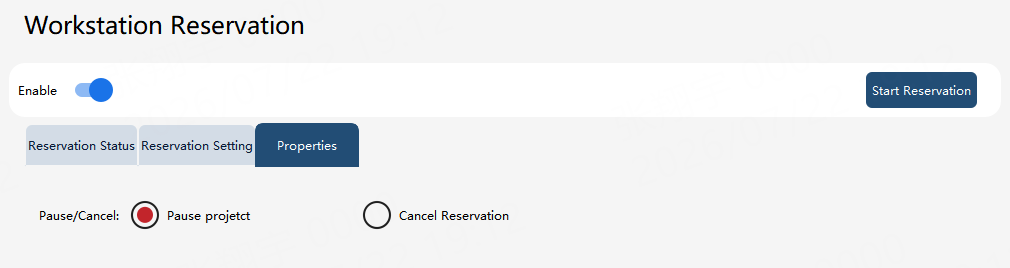
Properties is used to define the purpose of external input signals. According to the site process, the input signal can be configured as “Pause Project” or “Cancel Reservation”.
16.2.7 Notes
-
Before using Workstation Reservation, confirm that the robot is in automatic mode and that safety door, emergency stop, fixture in-position, material detection, and other interlock conditions meet the requirements.
-
The reservation signal, cancel signal, and output feedback of each workstation should not be occupied repeatedly, to prevent multiple workstations from responding to the same signal at the same time.
-
When canceling reservation or pausing the project while the current workstation is running, the robot may stop at an intermediate position. Confirm site safety before recovery.
-
After modifying Reservation Setting, it is recommended to verify the scheduling order, signal response, and exception handling logic of each workstation under low-speed or step-by-step conditions first.